for windows
also book.git-scm.com
- create new folder
- navigate to that folder in terminal
git init- test with:
git status
OR
Step 1. navigate in terminal to parent directory of where you'd like the cloned repo/working copy
Step 2. e.g., git clone git://github.com/h5bp/html5-boilerplate
- or, can clone into a new directory:
git clone git://github.com/h5bp/html5-boilerplate myhtml5b - or,
git clone git@git.tti.tamu.edu:wp-theme-texastaqpa.git taqpa
git remote show origin or git remote -v for less verbose display

- check changes with
git statusandgit diff - w/git there is a separate
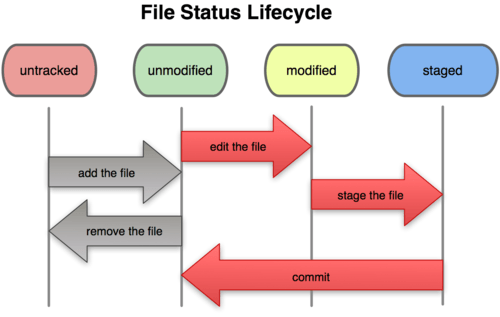
git addstep before the commit even if it's not a new file. This is to add it to the "staging area"- e.g.,
git add css/style.css
- e.g.,
- then, after
git status, you'll see the status prompt change from "Changes not staged for commit" (before the add) to "Changes to be committed" (after the add)
- make all the changes to files you want, but they won't be committed until they're added first
- can do
git add .to add/stage all the files you've just revised - for new files, do git add twice (first to track, then to add to staging area)
git add .adds all new files and changed files, but keeps files that you've deletedgit add -Aadds everything, including deletions Most people usegit add .butgit add -Acan be safer (from here)- to add AND commit in one command (i.e., to automatically stage everything):
git commit -am "adding and committing at the same command"- NOTE: for file modifications, not for new files and file deletes etc. They need an additional
git add <newfile(s)> - can commit individual files, just add name after:
$ git commitfilename-m "message"
- NOTE: for file modifications, not for new files and file deletes etc. They need an additional
- use to show differences b/t a previous commit
- e.g.,
$ git diff b82f660775690b6fb8cabd948e1ee9c6f7e5f7b8 - the long number is the SHA1 hash, a unique no. automatically assigned for every commit
- e.g.,
git diff --staged(just see the staged items)- to show (wrap) all of the lines,
-Swhile in the pager environment - for only showing diffs in one file:
git diff <filename> - for color highlighting,
git diff --color-words <filename>
- a solution to the "tangled working copy problem"
- to put files in staging area for the next commit, just:
$ git add <file or directory>
- use:
git reset HEAD <file>(git displays this reminder ongit status)
Github article: How to undo almost anything with git
git reset … moves the HEAD pointer; 3 options:
--softdoes not change staging index or working directory, just sets the HEAD to match the designated commit--mixeddefault; changes staging index to match repo; working directory not changed--harddestructive; makes staging index and working dir match the repository. It resets everything back to a commit you designate.
examples:
- use:
git reset --hard HEAD~1from here - e.g., the last three commits would be
HEAD,HEAD^(orHEAD~1), andHEAD~2(orHEAD^^) (note tildes between HEAD and numerals). Can also use the SHA numbers of the commits.
shows everywhere the repo has been. Shows the history regardless of which branch you're on and what merges you've done. Then you can use git reset ...
- used to record some new commits to reverse the effect of some earlier commits
- requires clean working tree
git revert HEAD~3 reverts the changes specified by the fourth last commit in HEAD and creates a new commit with the reverted changes
can only amend the most recent commit (the one HEAD points to)
git addthe change to be amended to the previous commitgit commit --amend -m "(same message)"
or
git commit --amend -m "new message"to change the previous commit's message
git checkout -- filename.txt (include -- to make sure we're not checking out a branch by that name)
git merge --abort
- adds parts (called "hunks") of files
$ git add -p(then it gives you options on which to add)- excellent explanation on CSS Tricks

( image from Brent Shepard's pres from WordCamp Chicago 2014: Develop Very Mild Super Powers with Git )
git diff(see above)git statusgit loggit log --stat( list of files changed and a summary; use ":q" to exit ); orgit log --stat -3show last three commits onlygit log -p -1see the diffs of the last commit- to search the log:
git log -g --grep="search terms"or with ack:git log --oneline | ack "search terms" git log <filename>shows commits involving that file; add-pto see the diffs:git log -p <filename>git log --graph
- a branch is copy of the state of a repository at any commit
- see this article
- and @dousineau's slides
git branch
git checkout master
git checkout -b mark-css which is shorthand for:
git branch mark-cssgit checkout mark-css
git branch -d nav-css
git push origin --delete branchname
git merge branchname
git merge --abort
from better-explained; like: m-coppock@tti-mbp:stfe(utilitynav)$
in your ~/.bash_profile ( must be before the line beginning with export PS1=... ):
parse_git_branch() {
	git branch 2> /dev/null | sed -e '/^[^*]/d' -e 's/* \(.*\)/(\1)/'
}
then, near the end of the line beginning with export PS1=..., add this before the $:
$(parse_git_branch)
e.g.,
export PS1="\[\033[36m\]\u\[\033[m\]@\[\033[32m\]\h:\[\033[33;1m\]\W\[\033[m\]\$(parse_git_branch)$ "
to establish "official" releases / version numbers. Can be used for auto-updating WordPress themes and plugins
See the Semantic Versioning document (though not of course with private repos or enterprise Github installs like github.tamu.edu)
to create a tag: git tag v0.1.0
with annotation: git tag -a v1.4 -m 'my version 1.4'
to show previous tags: git tag
to push to origin (separate from pushing branches): git push origin v0.1.0
pushing multiple tags at once: git push origin --tags
pulling tags: git pull origin --tags
IMPORTANT:
- keep the tag and the style.css / pluginname.php version number in sync
- push the changes with version number first, then the tag
git stash save "work in progress for foo feature"
git stash apply
e.g.,
.DS_Store
*.zip
*.gz
log/*.log
log/*.log.[0-9]
add the .gitignore file to git just like any other file
- first add
- then, commit (see above)
- then push
git push [alias] [branch]- to gitlab; e.g.:
git push origin footer
retrieves a branch from github/gitlab and merges it with your current branch (combines git fetch and git merge without letting you see what will happen beforehand)
git pull git@git.tti.tamu:wp-theme-osrs.git master- or,
git pull origin master
differences between git pull and git fetch
see here; and comments
git clean -fd
- careful; it'll nuke .gitignore too
- from objectliteral
git rm filename
git rm -rf directoryname
git rm --cached filename
git rm --cached -r directoryname
git ls-tree --full-tree -r HEAD
like repos within repos
subtree
if you find you inadvertantly have a submodule in your repo:
git rm --cached lib/metaboxes ( lib/metaboxes contained the submodule [another repo] )
if you get an error like: fatal: pathspec 'lib/metaboxes/' did not match any files; remove the trailing slash
- fork the repo with the supplied link
- clone the forked repo to your local install
- to allow the forked clone to update with the original:
git remote add upstream <originalrepoaddress>(from here; check withgit remote -v) - to sync with the original repo (from here):
git fetch upstreamgit checkout mastergit merge upstream/master- if you like, push your changes to your forked repo
~/.gitconfig
[user]
name = Sam Spade
email = sam@spadeandarcher.com

[alias]
st = status
ci = commit
co = checkout
br = branch
ol = log --pretty=oneline
la = log --pretty=\"format:%ad %h (%an): %s\" --date=short
(last two from better-explained)
and…from bash-it
when multiple developers are working in the same repo (dev server e.g.):
chmod -R g+swX . (entire directory, recursive)
chmod -R g+swX .git (the .git directory)
from lynda.com
(Already included in GitBash for Windows)
in your home directory:
curl -OL https://github.com/git/git/raw/master/contrib/completion/git-completion.bash
mv git-completion.bash .git-completion.bash
in ~/.bash_profile:
if [ -f ~/.git-completion.bash ]; then
	source ~/.git-completion.bash
fi
from a list apart:
-
Git is really a change tracker rather than a version tracker