Sparkamek is an app for Windows, Linux and MacOS. Kamek is a tool that allows you to add custom code to New Super Mario Bros. Wii. Sparkamek allows you to create, edit and build Kamek projects with ease. Everything is done in a simple and easy to use GUI.
Note
If you're interested in a super lite version of Sparkamek without the additional tools, check Sparkamek Terminal.
- Windows 7 or later
- VC++ 2015 Redistributable
- All Linux distributions supported by PySide6
- MacOS 10.14 (Mojave) or later
- Python 3.11 or later
- Dependencies (use
pip install -r requirements.txtin the project root folder to install them)
- Dependencies (use

- Download the latest release from the releases page and extract it to a folder of your choice.
-
You can customize the language of the app by adding a new file into the
/data/lang/folder. The language must be a valid JSON code. If the language is not supported, the app will default to English. Then, you can change the language in the settings menu.See this file for an example.
-
You can customize the theme of the app by adding new files into the
/data/themes/folder. The theme must be contain valid JSON codes and valid QSS codes. If the theme is not supported, the app will default to the default theme. Then, you can change the theme in the settings menu.See this file and this folder for an example.
Doing a lot of NSMBW modding, I found myself using Kamek a lot as it is used to compile the code. However, I found it very annoying to use as it for debugging for multiple reasons:
- No colors, so it's hard to read
- When using the fasthack option, it doesn't show the correct line number of the errors / warnings (it shows the line number of the fasthack instead, which is about 50 000 lines so good luck scrolling to the correct line, even with the search function)
- It doesn't show the file name of the errors / warnings
- No spacing, everything is cramped together
- When you have an error, it generates so much garbage that it's hard to find the error itself, because it's at the very top of the log
Okay, so if this didn't convince you, let me tell you a short story.
So one day I just wanted to test how much garbage the compiler gives, so I just remove a single ; from a file called boss.h, and the rest of the code had no error. Now, if I compile this, we should in theory have a single error.
You know what, it threw me 1041 errors, in 24 different files.
Like wtf, just for a single missing ; ? And the worst part is that this represents 4 243 lines of garbage, and the correct error is at the very top of the log, under a lot of warnings, so good luck finding it on the command line with no color.
By the way, if you want to check the output for yourself, here it is, with all the warnings and the top of the log removed for your mental health: error.log.
And here is the output of Sparkamek for the same error:
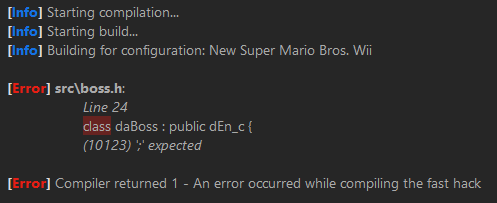
Much better, right?
Sparkamek is a GUI for Kamek, so it does the same thing as Kamek, but with a lot of improvements. It also allows you to compile a custom loader for your game with improved features, like with the Kamek one.
You can also create and edit the Reggie Next (the level editor app) spritedata file with ease, which is use to create patches for the game.
And finally, you can also create and edit the Riivolution file with ease, which is used to create patches for the game.
When you start the app for the first time, you'll see this screen:
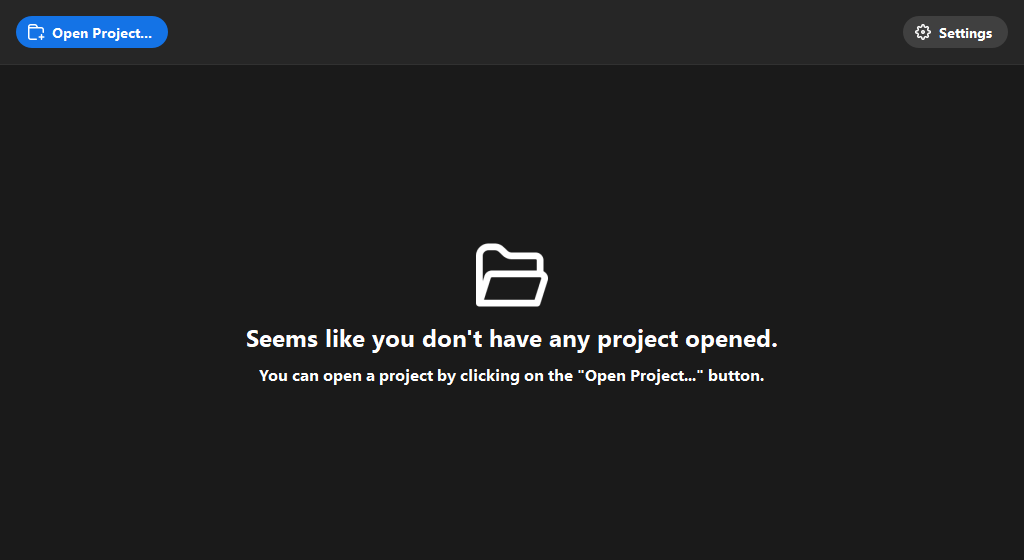
Click on the Open Project button and follow the instructions to create a new project.
Once you have created a project, you'll have 1 to 4 tabs.
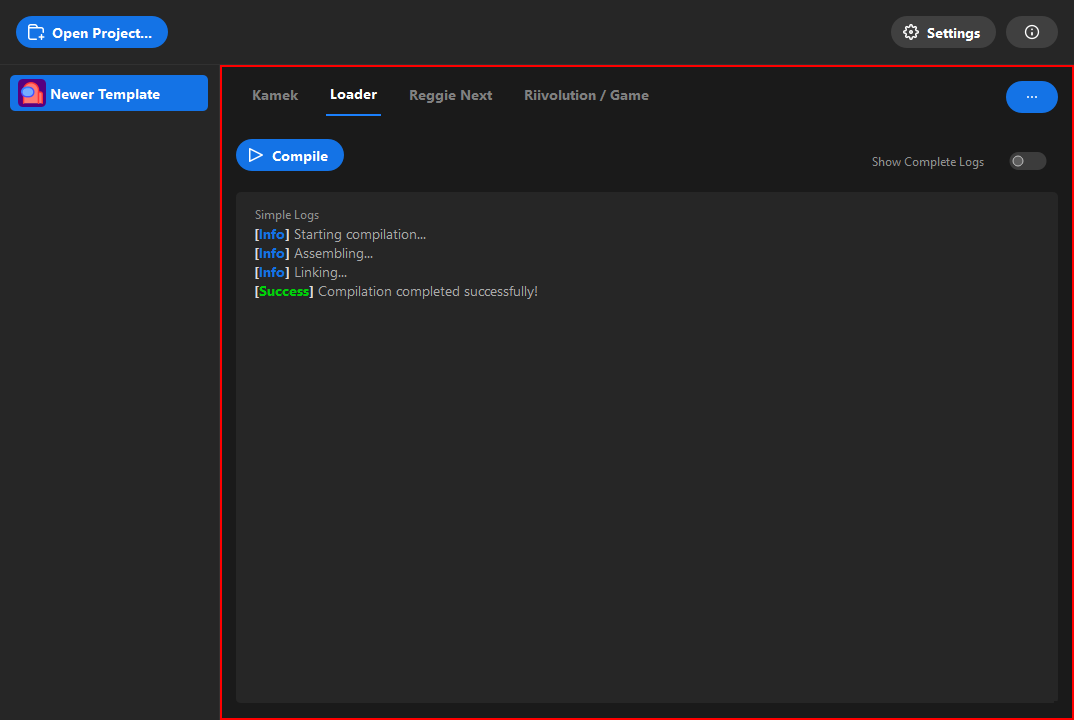
Here you can create and edit the loader for your game. The compiler has 2 modes: simple and complete.
The complete mode is the same as the base Loader one, meaning it has all the other stuff, but with colors, spacing and the correct line number for the errors / warnings whereas the simple mode is a lot more compact and only shows essential information.
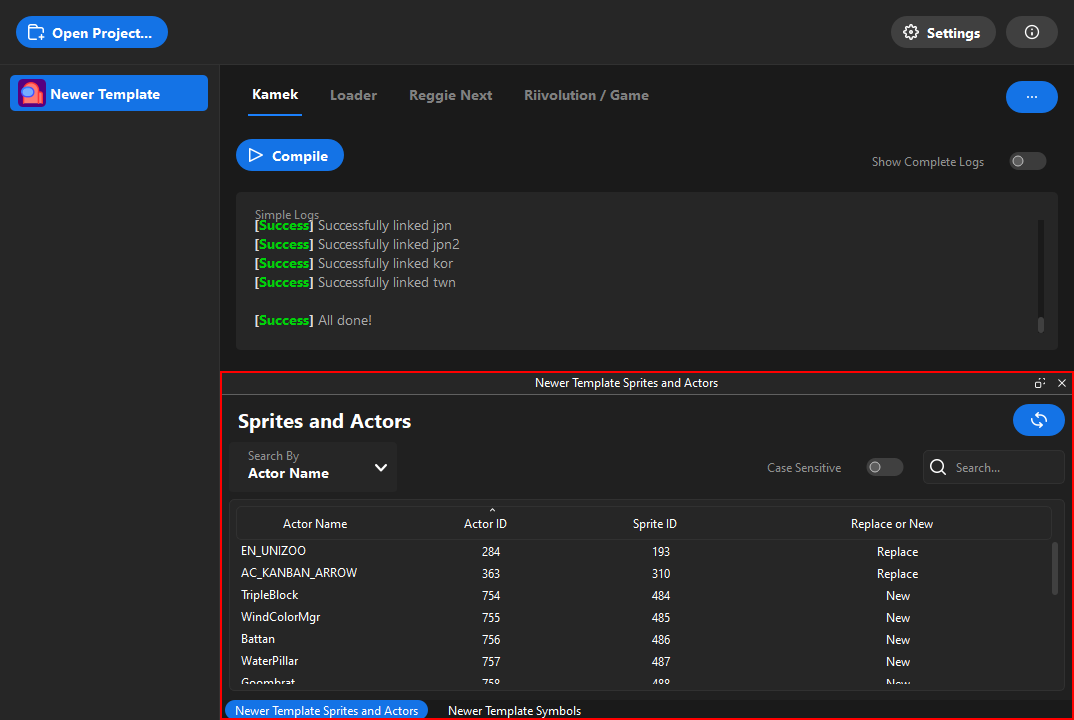
Here you can check the sprites and actors that are in the game.
Note that the sprites of this list are to take with a grain of salt, as they are not 100% accurate (because it requires putting the sprites replacement comment and using good profile names).
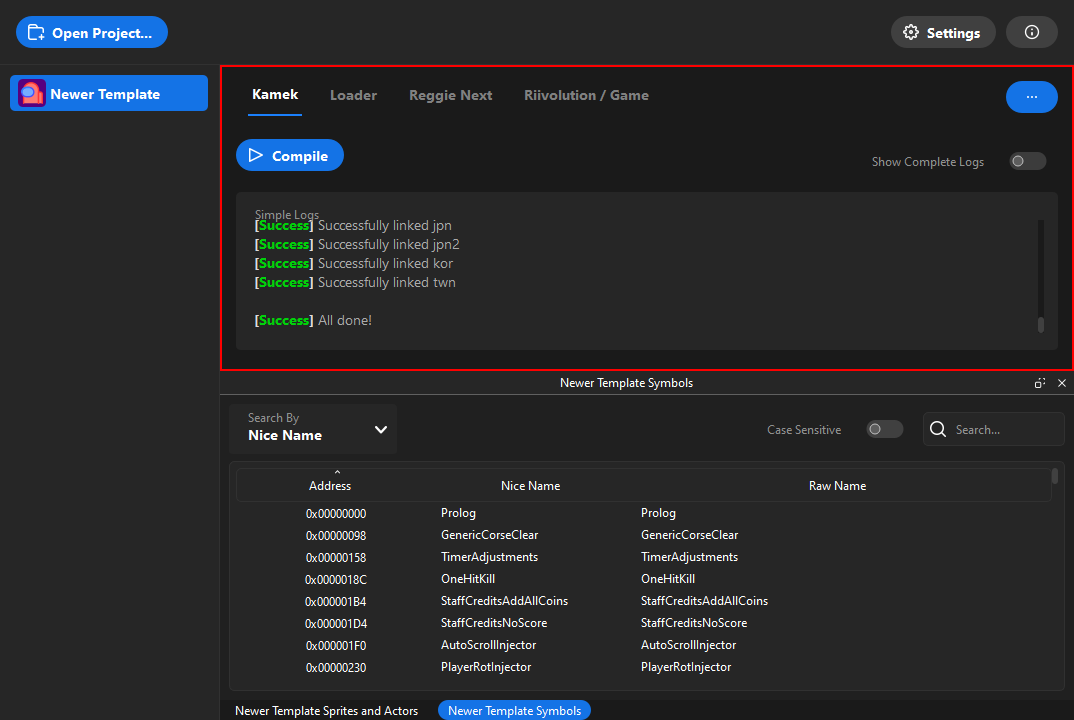
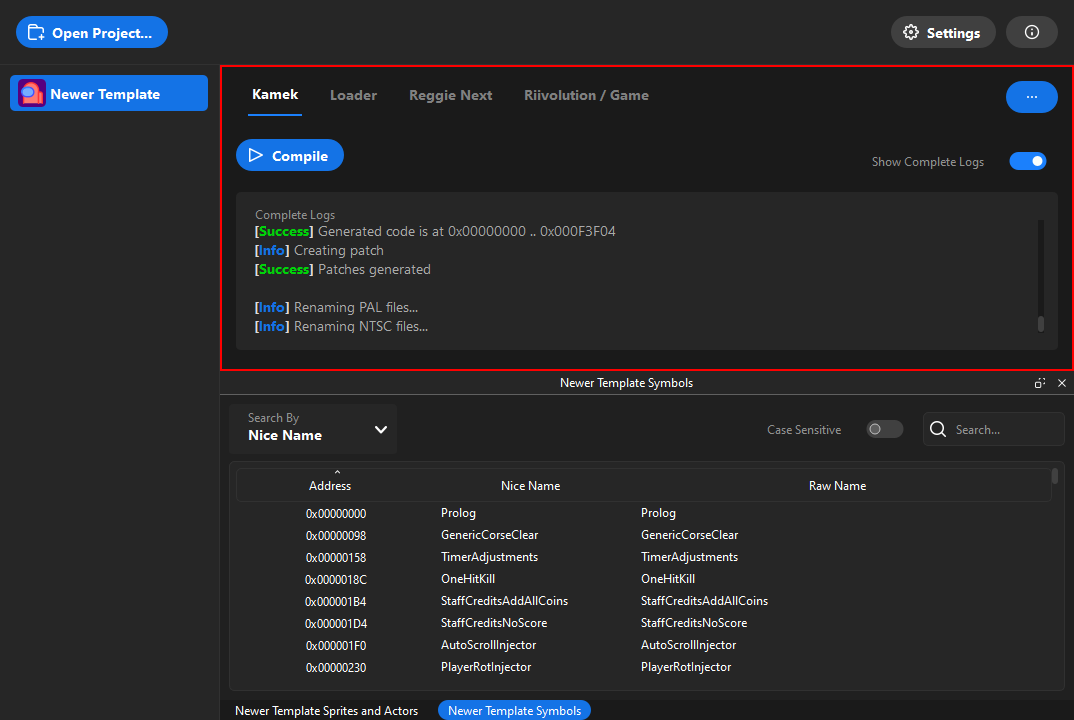
Here you can compile the code for the game. The compiler has 2 modes: simple and complete.
The complete mode is the same as the base Kamek one, meaning it has all the other stuff, but with colors, spacing and the correct line number for the errors / warnings whereas the simple mode is a lot more compact and only shows essential information (and the only one true error instead of 1041 unrelated ones).
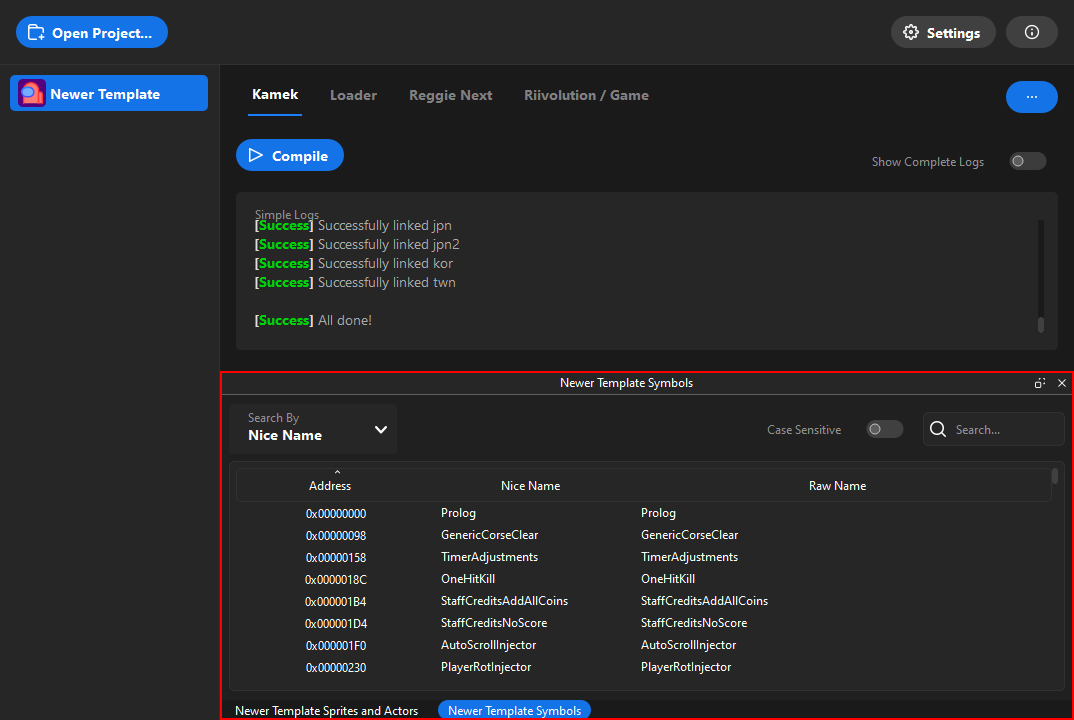
Here you can check the symbols that are compiled, for debugging purposes.
This tab is used to easily edit the spritedata.xml file, which is used to create sprite patches for the Reggie Next. You can also create a new spritedata.xml file from scratch.
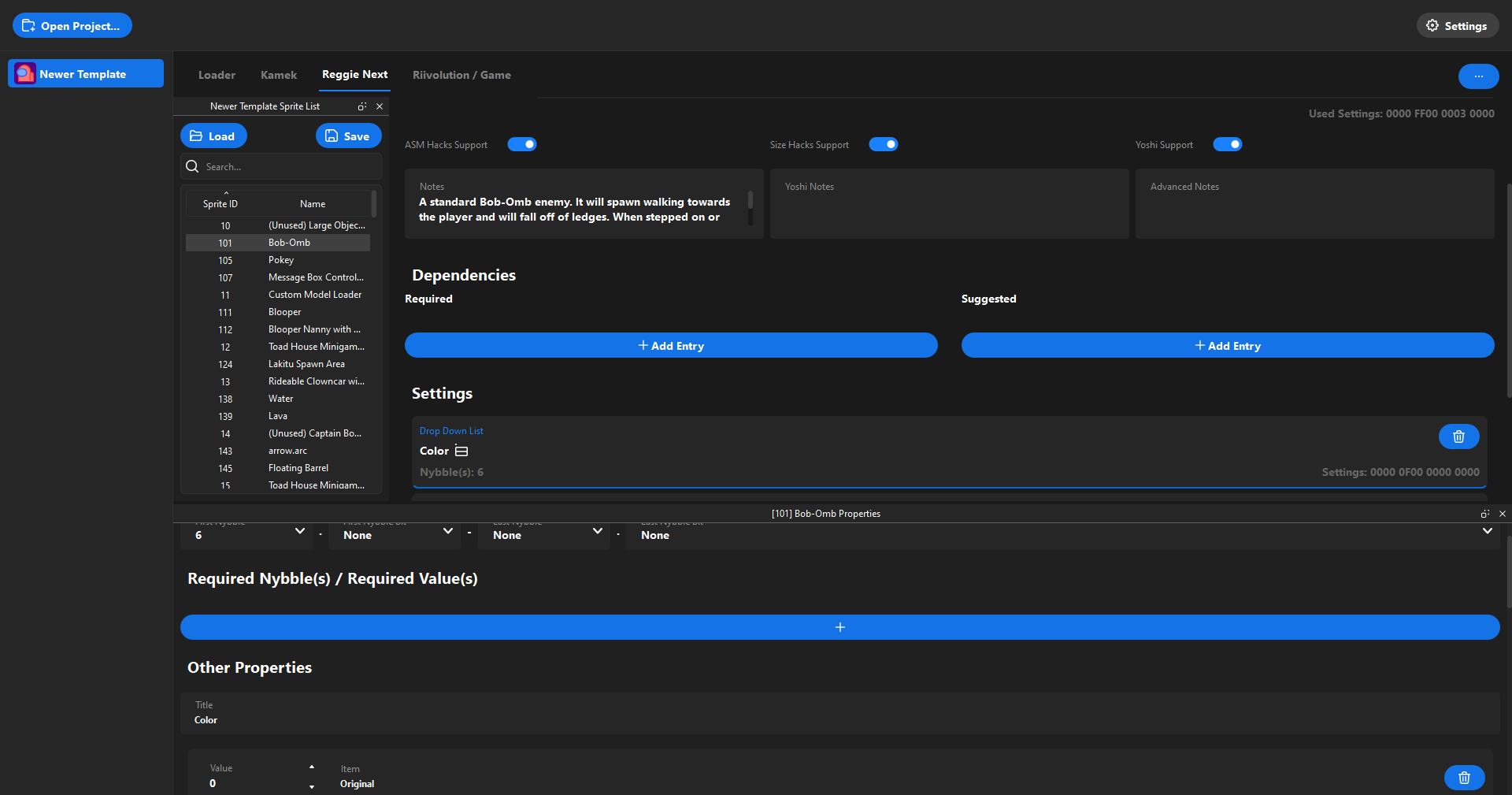
Here you can check and select the sprites that are in the patch. You can load the sprites by pressing the Load button and save them by pressing the Save button.
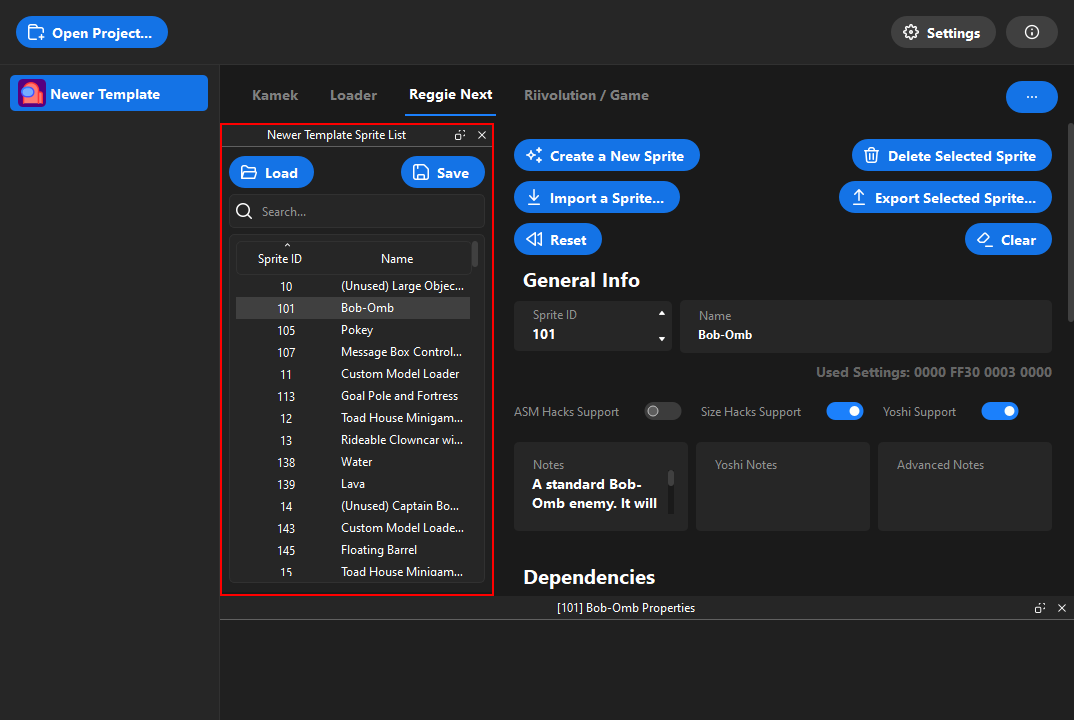
When selecting a sprite, you can see its information in the other panels.
Here you can see the information of the selected sprite, as well as some useful buttons.
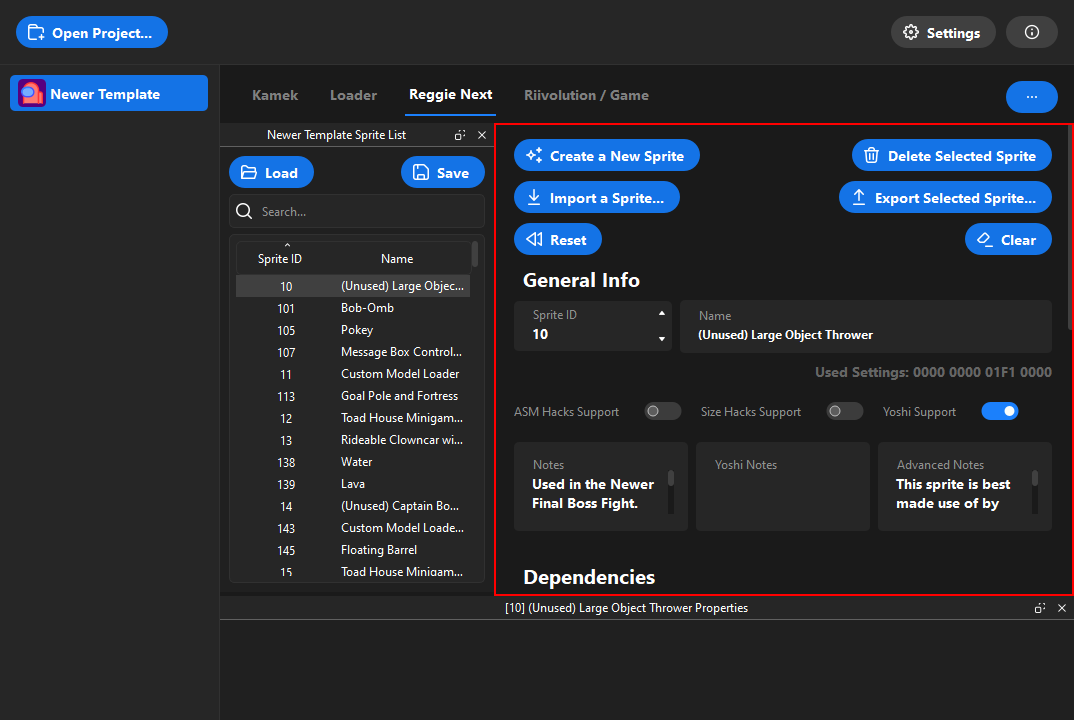
The buttons are:
Create a New Sprite: Creates a new sprite with the default settings.Delete Selected Sprite: Deletes the selected sprite.Import a Sprite: Imports one or multiple sprites from a file.Export Selected Sprite: Exports the selected sprite to a file.Reset: Resets the settings of the selected sprite to the ones it had before editing it (selecting an other sprite sets the new reset state of the edited one).Clear: Clears the settings of the selected sprite.
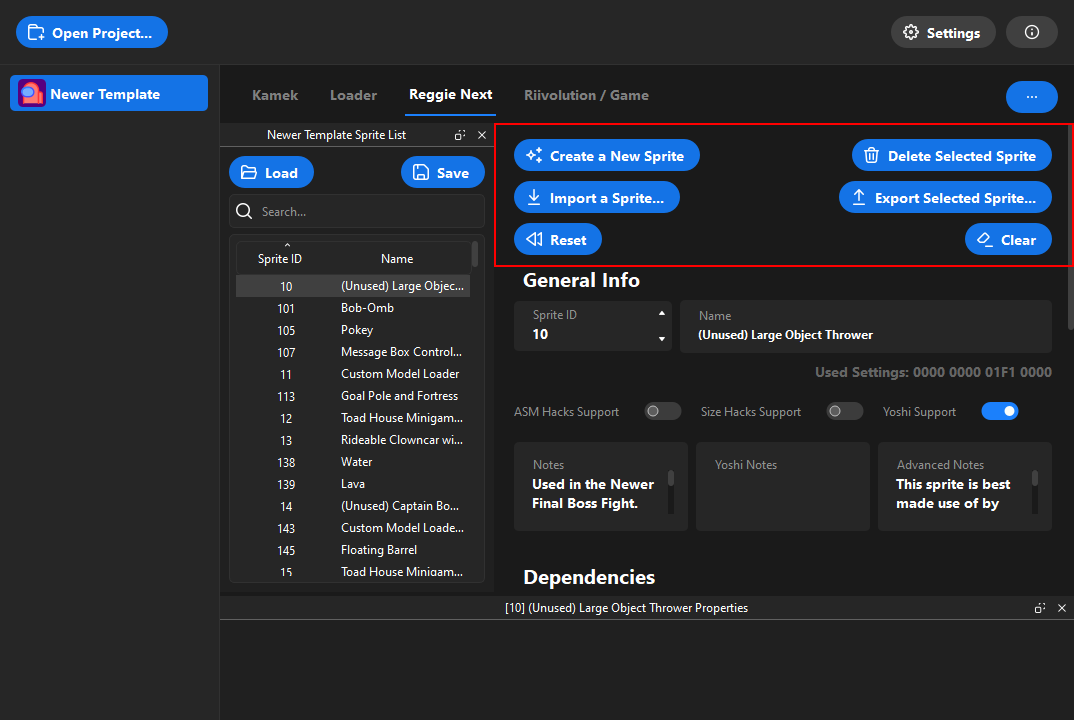
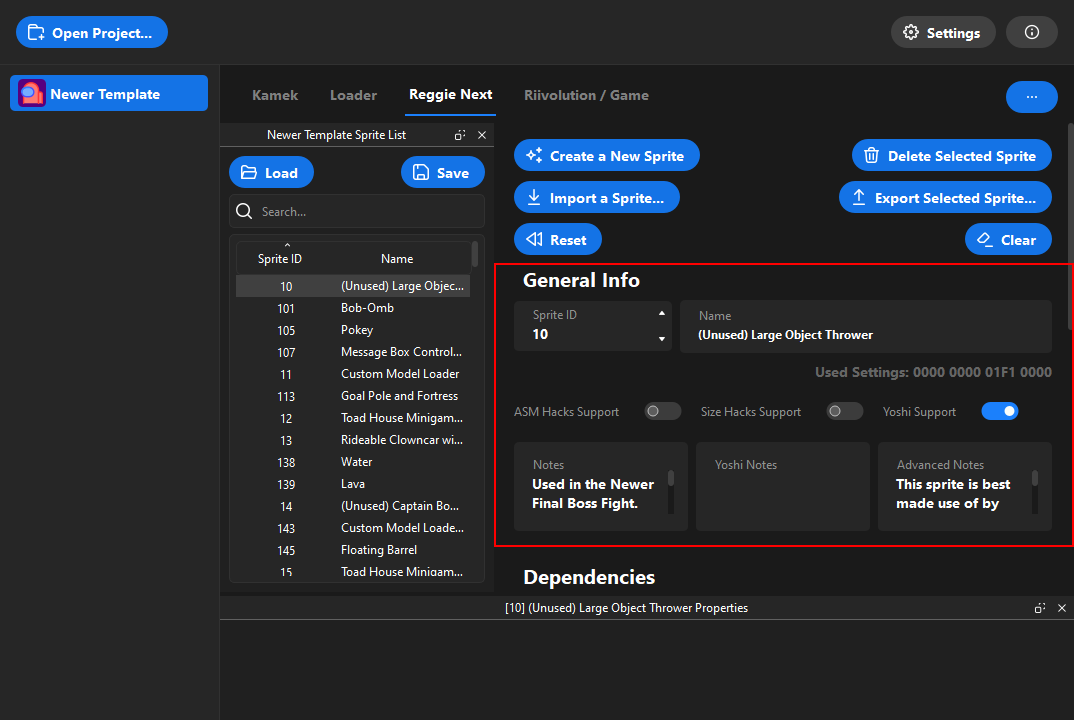
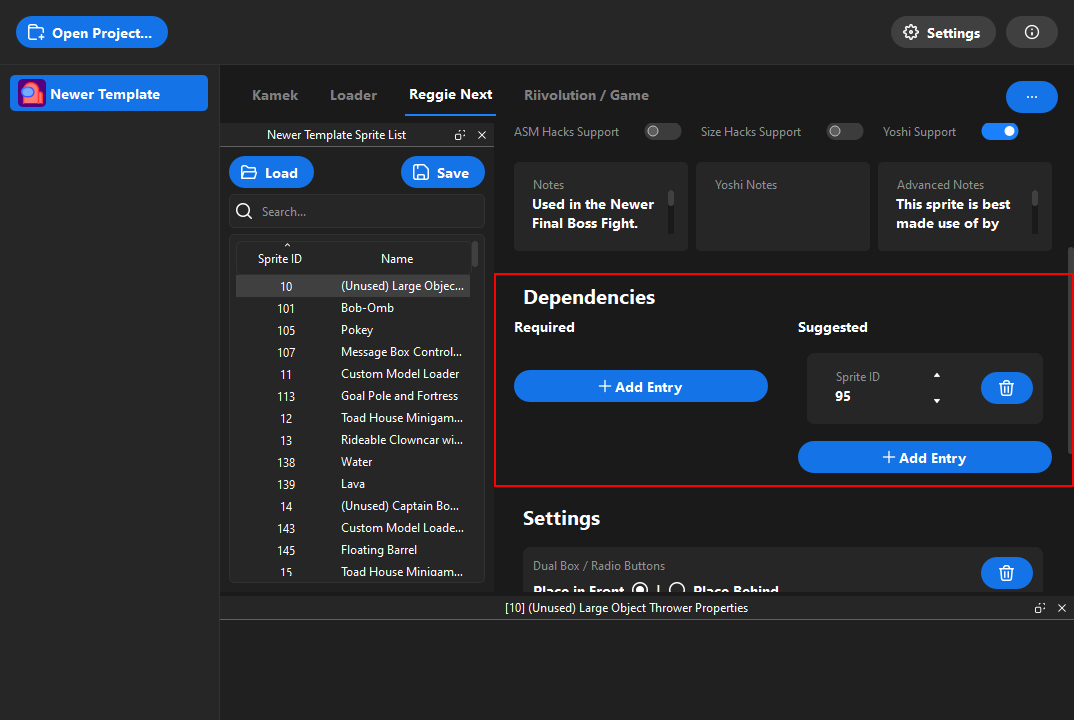
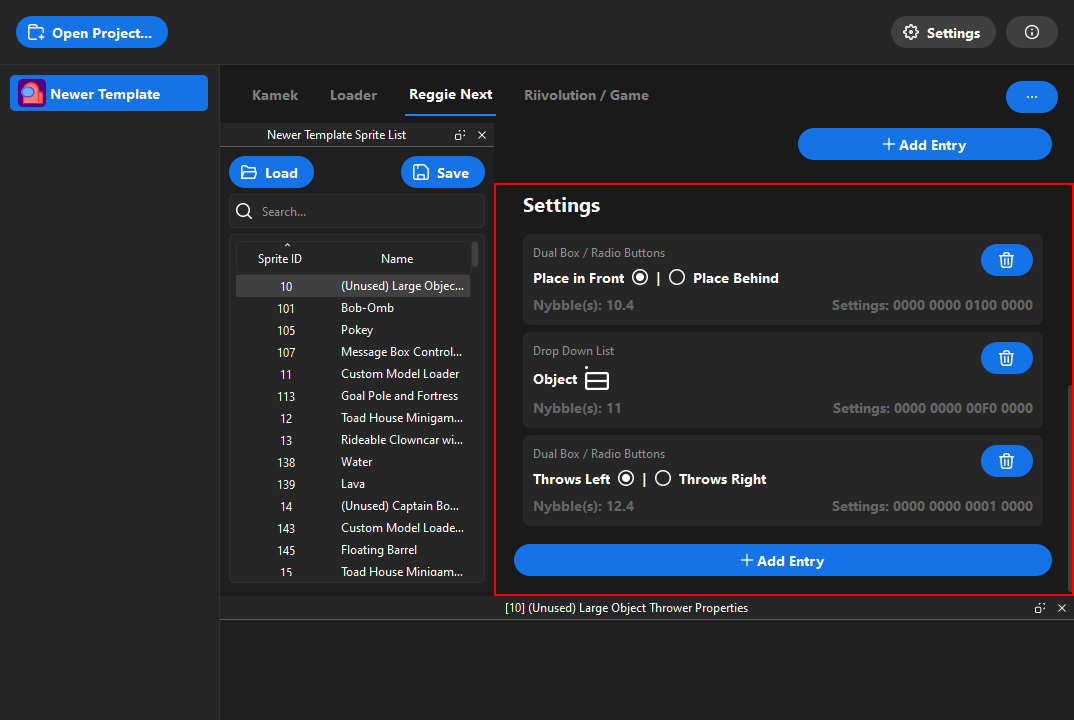
The information are separated in 3 categories: General Info, Dependencies and Settings.
In the General Info category, you can see the name of the sprite, its sprite ID, its notes, and its supports.
In the Dependencies category, you can see the dependencies of the sprite, which are the sprites that are required and / or suggested for the sprite to work.
In the Settings category, you can see the settings of the sprite, which are the settings that'll appear in Reggie Next when you select the sprite.
Here are the settings that you can have:
Dual Box / Radio Buttons: A group of two settings that are exclusive to each other. You can only select one of them.Entry Value: A setting that has a raw number value.Check Box: A setting that can be enabled or disabled.Drop Down List: A group of settings that are exclusive to each other. You can only select one of them.Value Selector from a File: A group of a lot of settings that are exclusive to each other. You can only select one of them. A special window will open when you select this setting, allowing you to select the value. The values are loaded from a file. (Note that Sparkamek doesn't support the editing of this files yet.)
By clicking on one of the settings, you can edit it in the properties panel.
These settings are separated in 3 categories: Nybbles, Required Nybble(s) / Required Value(s) and Other.
The nybble settings are used to tell Reggie Next which nybble(s) should be affected by the setting. The First Nybble option is the first nybble that'll be affected by the setting, and the Last Nybble option is the last nybble that'll be affected by the setting. If you want to affect only one nybble, you can set the First Nybble and leave the Last Nybble to None. Because a nybble is 4 bits, you sometimes want to be more precise, like with a Check Box that only require one bit to work. In this case, you can set the First Nybble Bit and / or the Last Nybble Bit value(s). Note that you can easily check which nybble(s) and bit(s) are affected by the setting by looking at the sprite's current setting, in the bottom right corner of the widget.
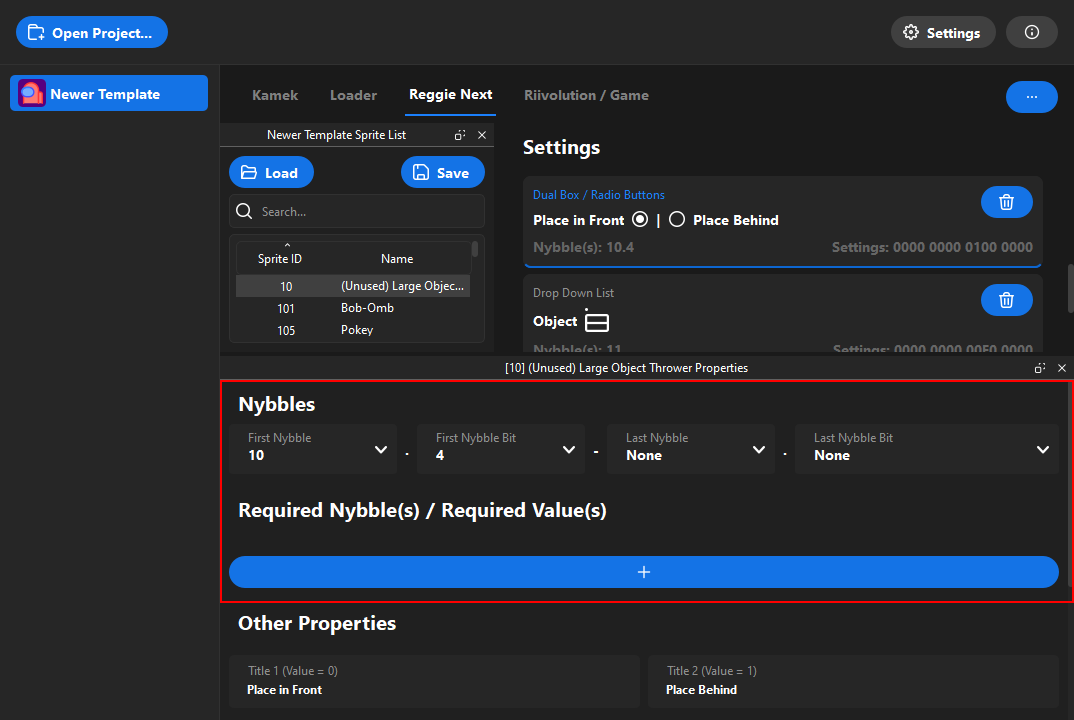
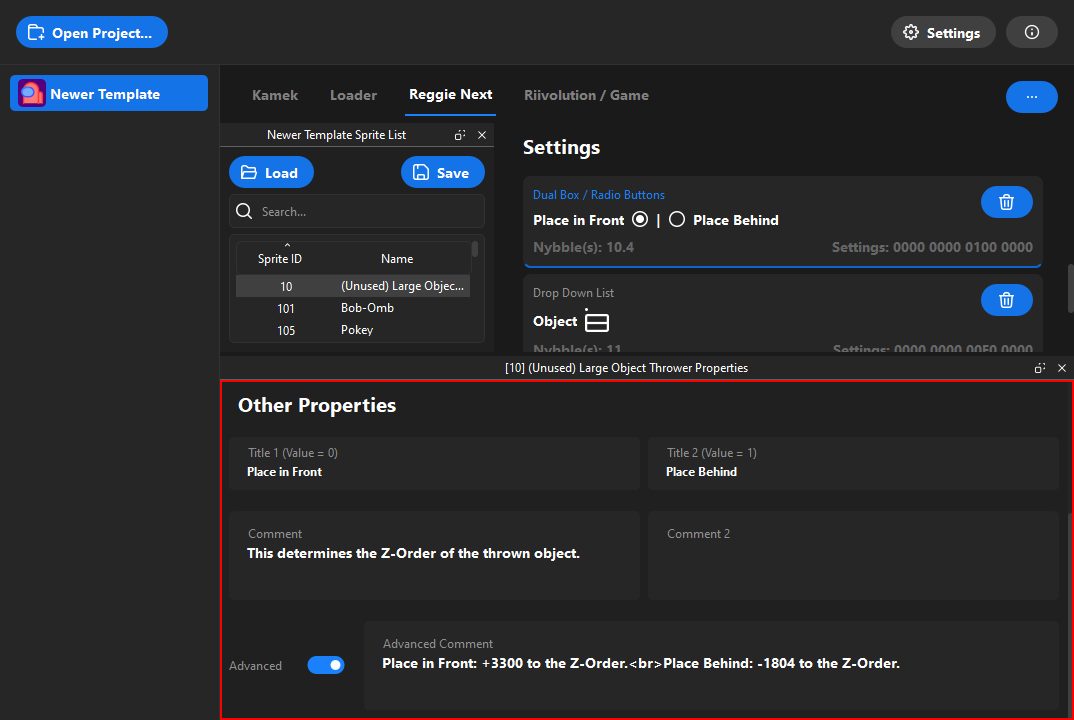
The Other category contains the other settings that are related to the type of widget you chose (e.g. Dual Box / Radio Buttons in the image below).
This Riiivolution tab is used to easily edit the riivolution.xml file, which is used to create patches for the game. You can also create a new riivolution.xml file from scratch.
Note that this section is a resume, more info can be found in the app itself.
To load the riivolution file, you have to press the Load button. Then, you can edit the file and save it by pressing the Save button.
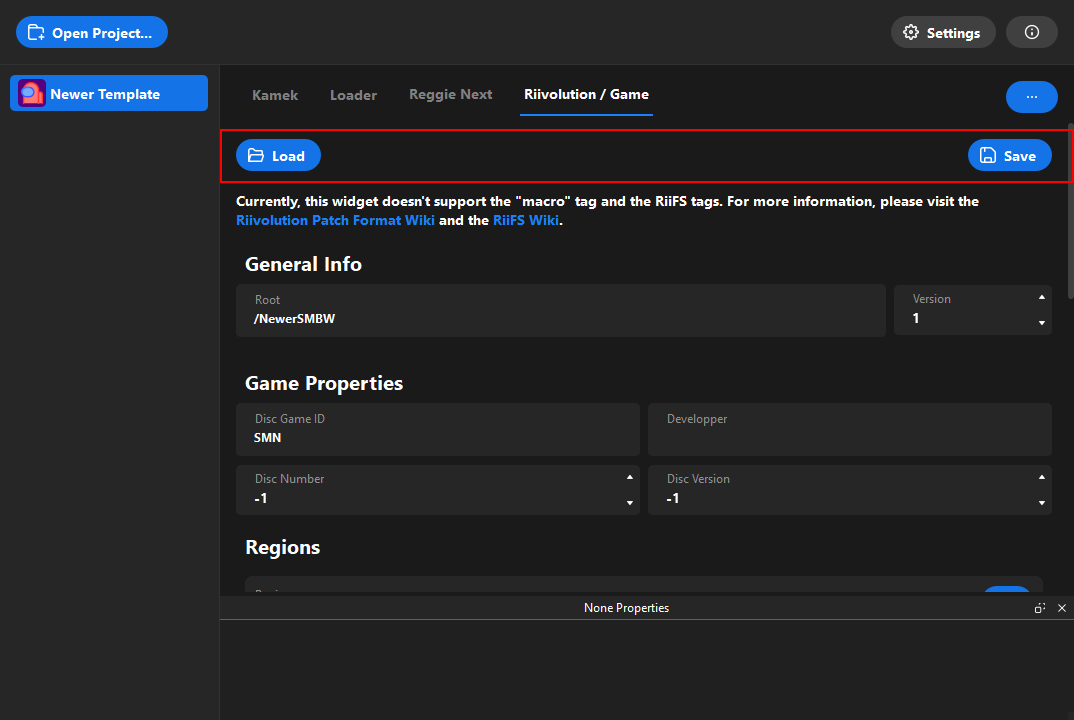
Once you have loaded the file, you'll see planty of settings that you can edit.
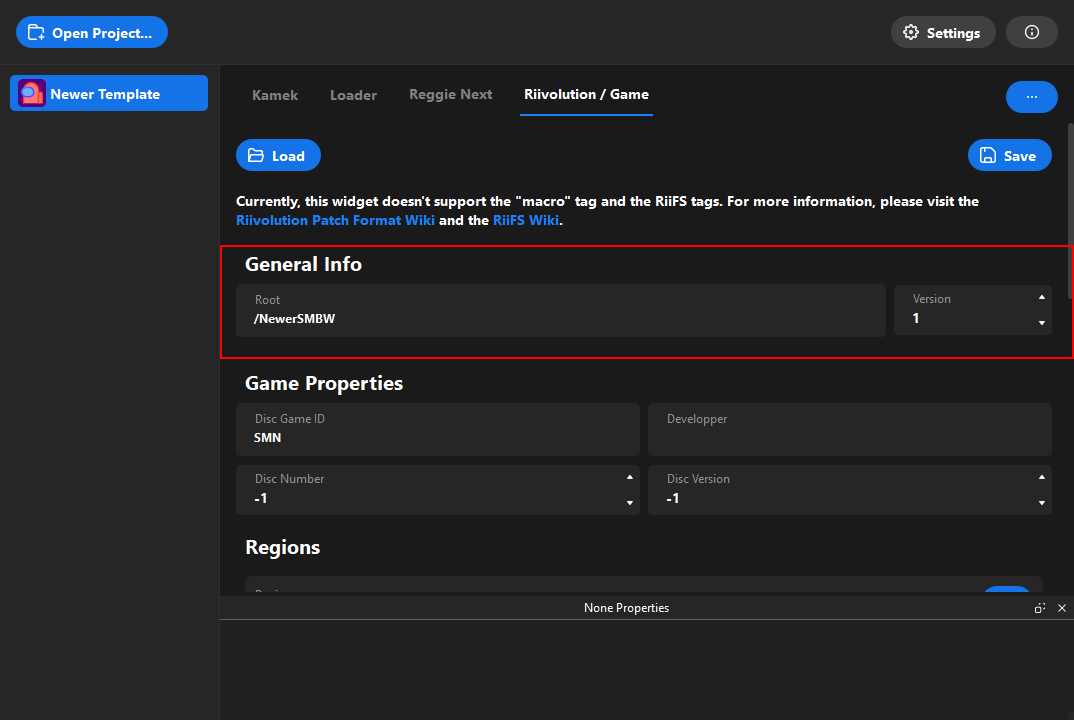
Here you can edit the general information of the patch, like the root folder and the version of riivolution the patch should use.
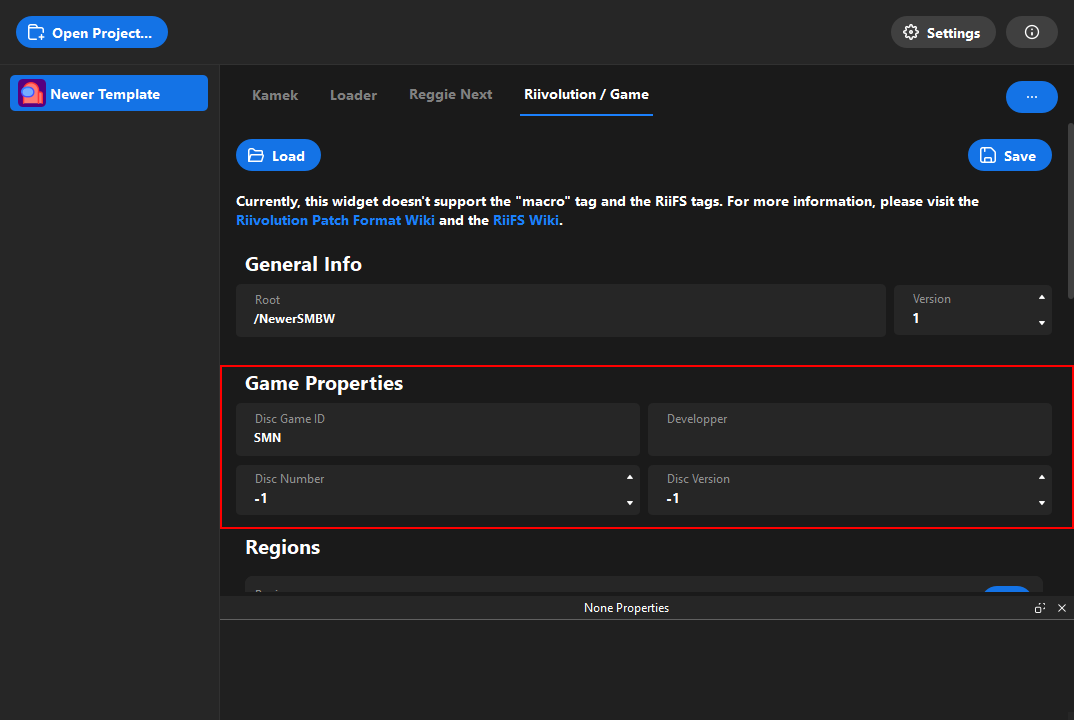
Here you can edit the game properties of the patch, like the game ID, the developper, the disc number and the disc version.
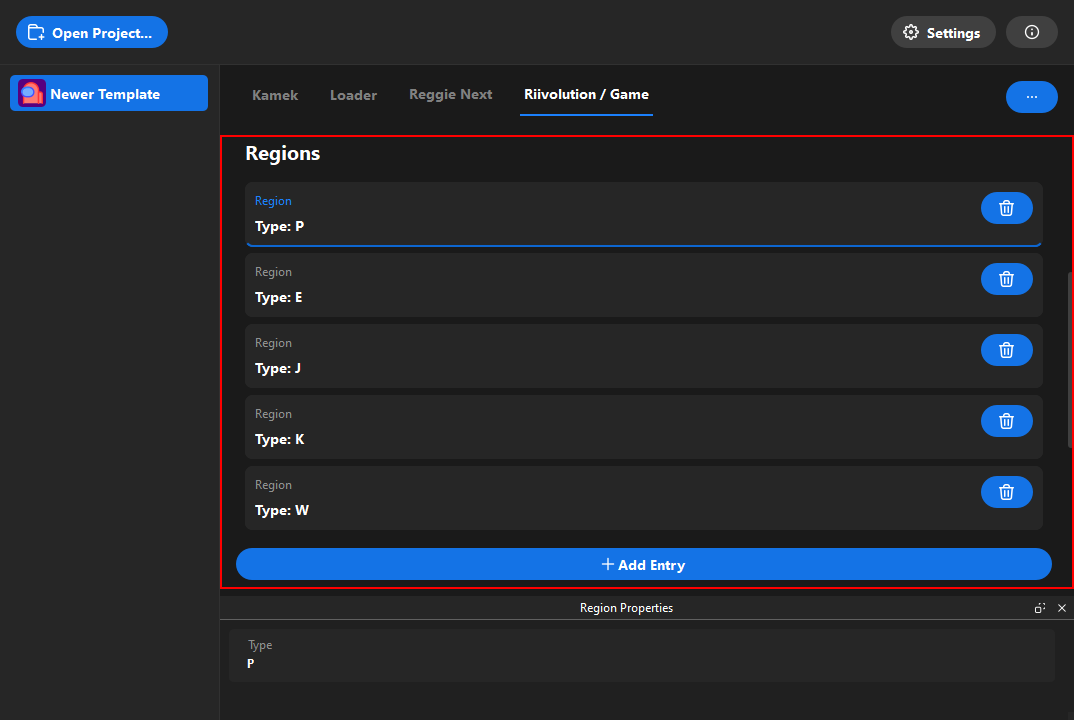
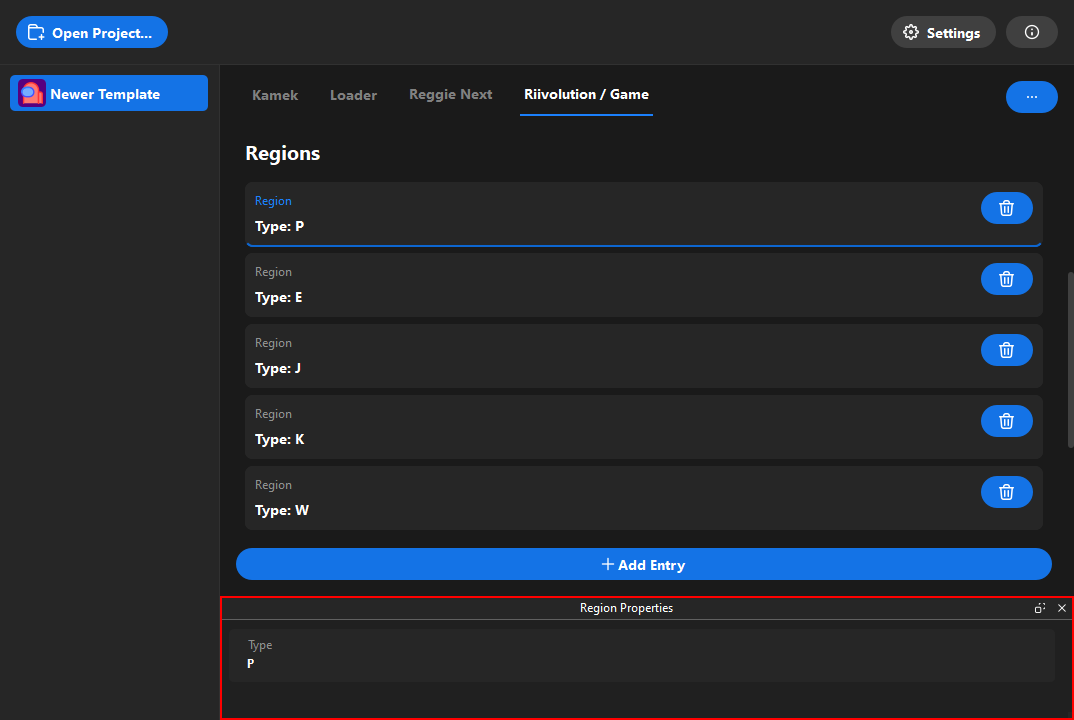
Here you can edit the regions of the patch. You can add, edit and delete regions.
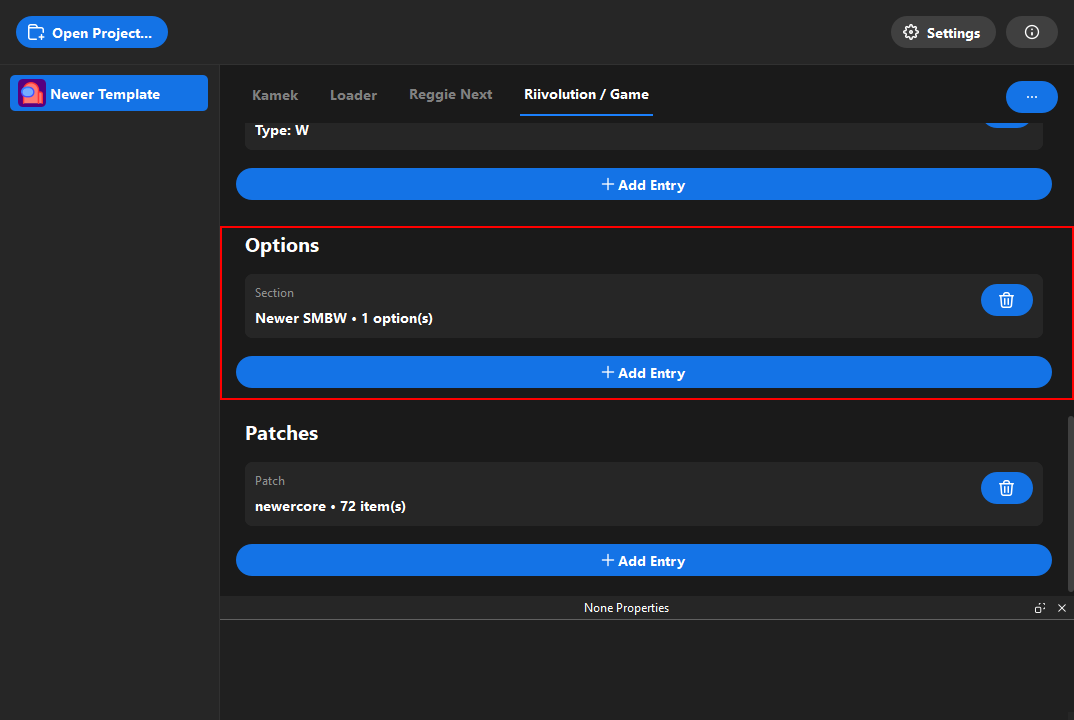
Here you can edit the options of the patch. You can add, edit and delete options. Options are used to set which option should enable which patch. Note that options can enable multiple patches.
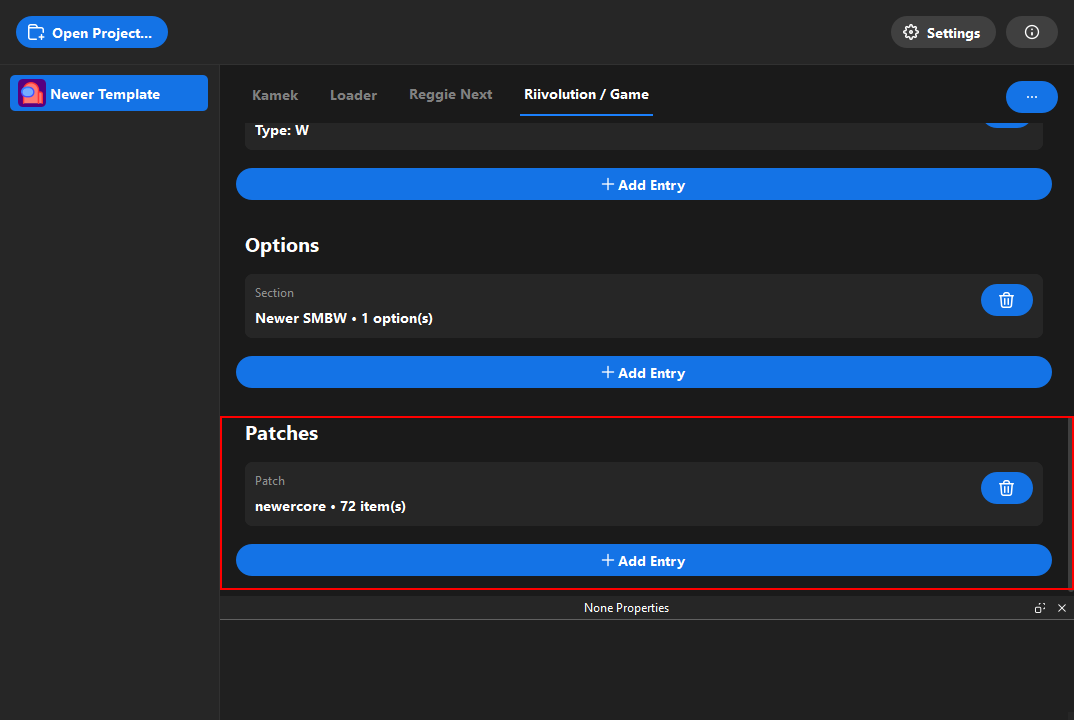
Here you can edit the different patches. You can add, edit and delete patches.