


Fully customisable syntax-highlighted textareas.
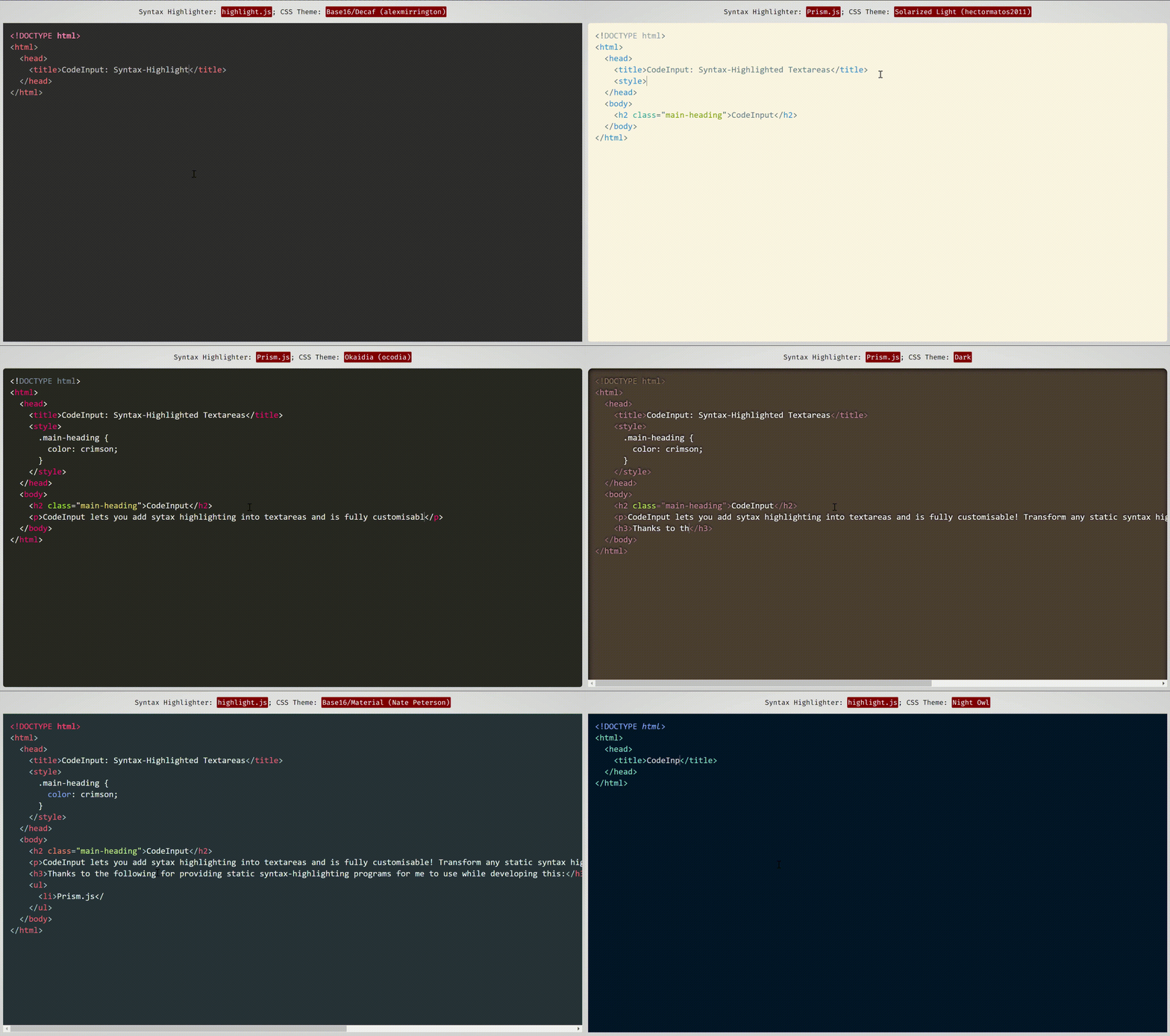 This demonstration uses themes from Prism.js and highlight.js, two syntax-highlighting programs which work well and have compatibility built-in with code-input.
code-input lets you turn any ordinary JavaScript syntax-highlighting theme and program into customisable syntax-highlighted textareas using an HTML custom element. It uses vanilla CSS to superimpose a textarea on a pre code block, then handles indentations, scrolling and fixes any resulting bugs with JavaScript. To see how it works in more detail, please see this CSS-Tricks article I wrote.
Unlike other front-end code-editor projects, the simplicity of how code-input works means it is highly customisable. As it is not a full-featured editor, you can choose what features you want it to include, and use your favourite syntax-highlighting algorithms and themes.
The <code-input> element works like a <textarea> and therefore works in HTML5 forms and supports using the value and placeholder attributes, as well as the onchange event.
code-input is designed to be both easy to use and customisable. Here's how to use it to create syntax-highlighted textareas:
-
First, import your favourite syntax-highlighter's JS and CSS theme files to turn editable.
-
Then, import the CSS and JS files of
code-inputfrom a downloaded release or a CDN. The non-minified files are useful for using during development.<!--In the <head>--> <script src="path/to/code-input.min.js"></script> <link rel="stylesheet" href="path/to/code-input.min.css">
-
The next step is to set up a
templateto linkcode-inputto your syntax-highlighter. If you're using Prism.js or highlight.js, you can use the built-in template, or you can create your own otherwise. In these examples, I am registering the template as"syntax-highlighted", but you can use any template name as long as you are consistent.
NB: You need to do this above where you declare any
code-inputelements in the HTML.
-
Highlight.js:
codeInput.registerTemplate("syntax-highlighted", codeInput.templates.hljs(hljs));
-
Prism.js:
codeInput.registerTemplate("syntax-highlighted", codeInput.templates.prism(Prism));
-
Custom:
codeInput.registerTemplate("syntax-highlighted", codeInput.templates.custom(
  function(result_element) { /* Highlight function - with `pre code` code element */
    /* Highlight code in result_element - code is already escaped so it doesn't become HTML */
  },
  true, /* Optional - Is the `pre` element styled as well as the `code` element? Changing this to false uses the code element as the scrollable one rather than the pre element */
  true, /* Optional - This is used for editing code - setting this to true overrides the Tab key and uses it for indentation */
  false /* Optional - Setting this to true passes the `<code-input>` element as a second argument to the highlight function to be used for getting data- attribute values and using the DOM for the code-input */
));
-
Now that you have registered a template, you can use the custom
<code-input>element in HTML. If you have more than one template registered, you need to add the template name as thetemplateattribute. With the element, using thelangattribute will add alanguage-{value}class to thepre codeblock. You can now use HTML attributes and events to make your element as simple or interactive as you like!<code-input lang="HTML"></code-input>
or
<code-input lang="HTML" placeholder="Type code here" value="<a href='https://github.com/WebCoder49/code-input'>code-input</a>" template="syntax-highlighted" onchange="console.log('Your code is', this.value)"></code-input>