Connector Configuration
myMIS Connector runs as Windows service. The system requirements are:
- Operating System: Microsoft Windows 8+
- .NET Framework: 4.6 or higher
-
Obtain the connector's installer from our site, or from where the platform's technological partners distribute it.
-
In a tenant of the platform, create a connector by accessing Administration > Connectors > Create. There, give a name to it, and save it.
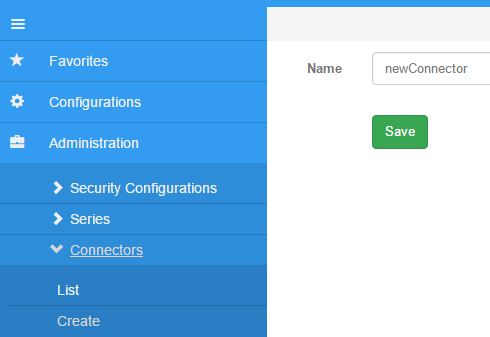
- Access the connectors' list and download the license file (License.lic, see red highlight in image), and copy the code.

-
Begin installing from the .msi file you downloaded. If SmartScreen warns you, allow the installation by clicking More info, and then Allow anyway.
-
In the installer, locate the path to the downloaded license.lic file, as well as the code you copied, and input the URL of the subscription's api (e.g. https://wsmymisabc123.azurewebsites.net/api/)
-
The connector is instaled in C:\Program Files (x86)\MyMIS and the service is stopped and with Manual startup type by default
After installing, you may need to edit the configuration file of the connector.
This is useful if you want to use your own DLLs, for example, to encapsulate the logic to communicate to another system or do some complex calculations.
In order to do that, you need to add the Path where the DLLs are placed to Configurations.xml file, like the example bellow.
<Configuration xmlns:xsi="http://www.w3.org/2001/XMLSchema-instance" xmlns:xsd="http://www.w3.org/2001/XMLSchema">
    <Server Endpoint="https://wsmymisabc123.azurewebsites.net/api" />
    <Connector Code="SKDHFN34HFKWJHFJK34FH3J4" />
    <References>
        <Reference Path="C:\PathToMyDlls\" />
        <Reference Path="C:\Dev\AnotherPath\" />
    </References>
</Configuration>
There are two ways of executing the connector:
-
via Command Line by running the MyMis.Connector.Service.exe
-
via the Windows service automatically installed.
The first case is ideal for development, but for production applications the service is a better option.
Logs in the Command Line mode are seen directly in the console, and in the service they go to the Event Viewer.