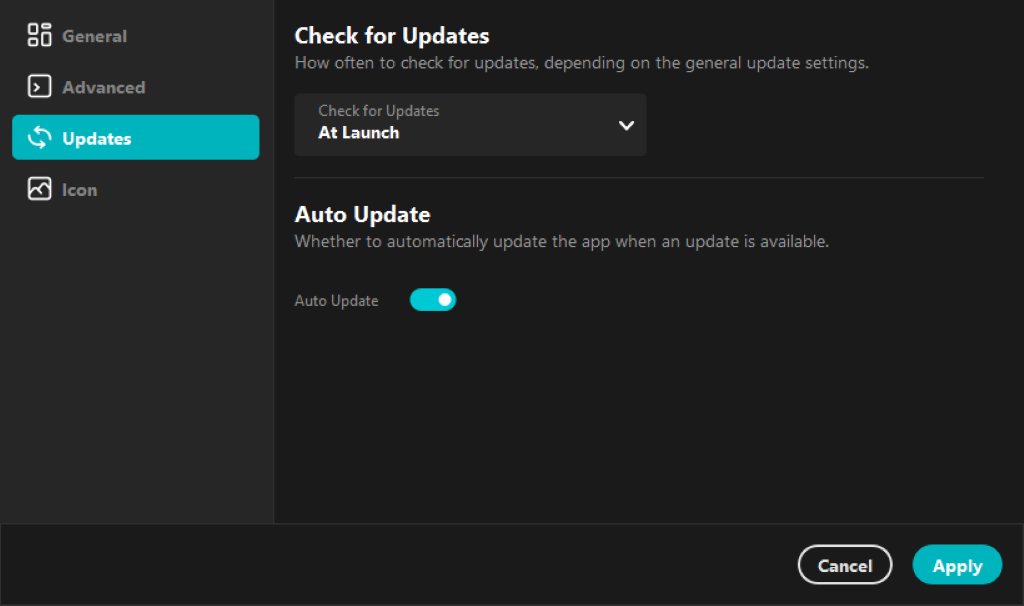
App Manager is a simple app manager for Windows, Linux and MacOS. It allows you to install, uninstall, and update apps without using the command line or having to download and install the app from your browser. Everything is done in a simple and easy to use GUI.
- Windows 7 or later
- VC++ 2015 Redistributable
- All Linux distributions supported by PySide6
- MacOS 10.14 (Mojave) or later
- Python 3.11 or later
- Dependencies (use
pip install -r requirements.txtin the project root folder to install them)
- Dependencies (use

- Download the latest release from the releases page and extract it to a folder of your choice.
-
You can customize the language of the app by adding a new file into the
/data/lang/folder. The language must be a valid JSON code. If the language is not supported, the app will default to English. Then, you can change the language in the settings menu.See this file for an example.
-
You can customize the theme of the app by adding new files into the
/data/themes/folder. The theme must be contain valid JSON codes and valid QSS codes. If the theme is not supported, the app will default to the default theme. Then, you can change the theme in the settings menu.See this file and this folder for an example.
You can start App Manager by double clicking the AppManager file in the folder you extracted the release to.
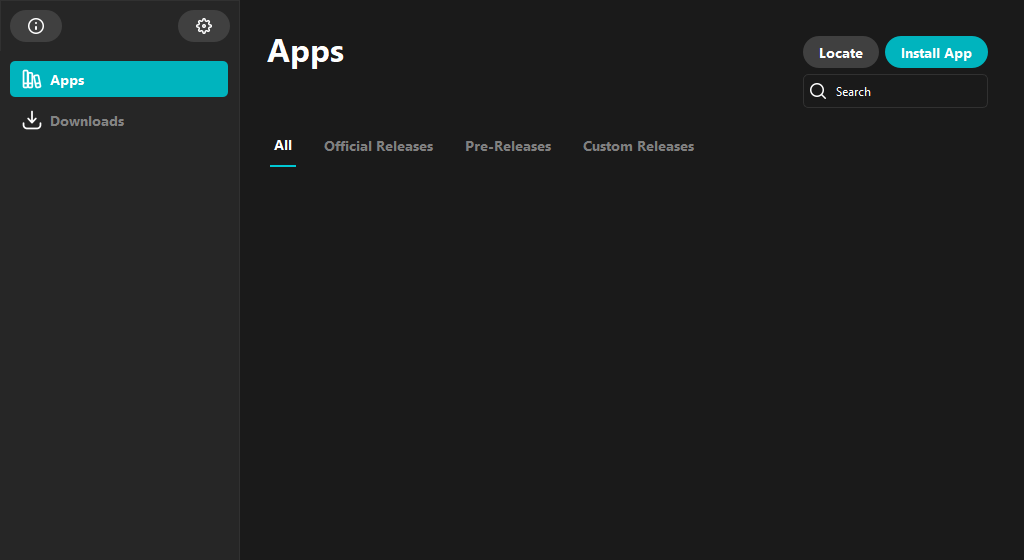
Once you have started App Manager, you can click on the settings button to configure the app and add the apps you want to follow in the Followed Apps tab.
To add an app, you need to get its URL (e.g. https://github.com/Synell/PERT-Maker). You can then click on the + button and paste the URL into the text field.
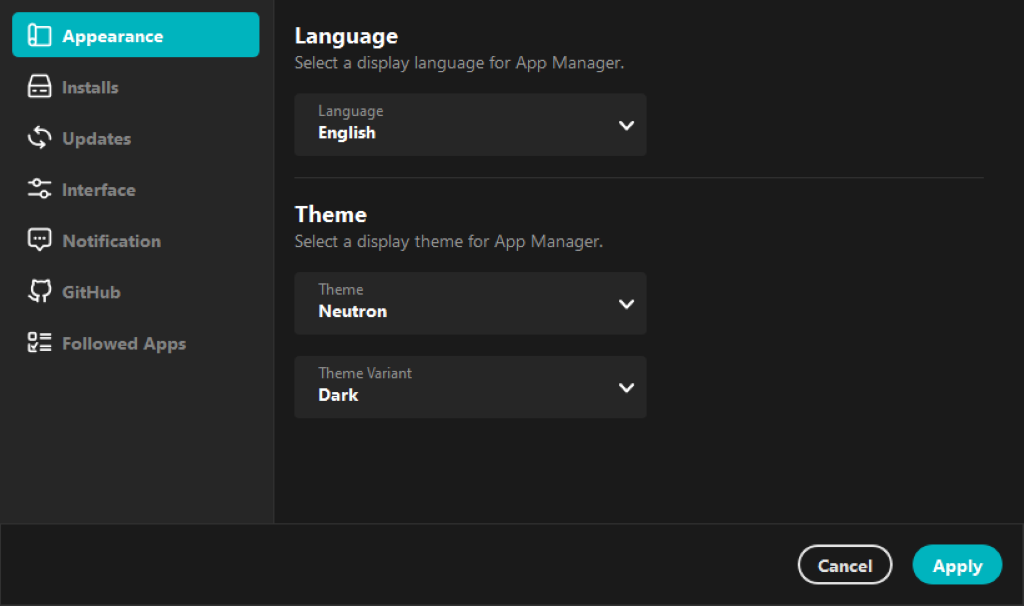
Once you have added the apps you want to follow, you can leave the settings and click on the Install App button to install an app. This will open a new menu where you can select the app you want to install.
Note that you can only install apps that you have added to the Followed Apps tab.
You also need to be connected to the internet to install apps.
Once you have found the app you want to install, you can click on the Install button to install it. This will open a new menu where you can select the version you want to install.
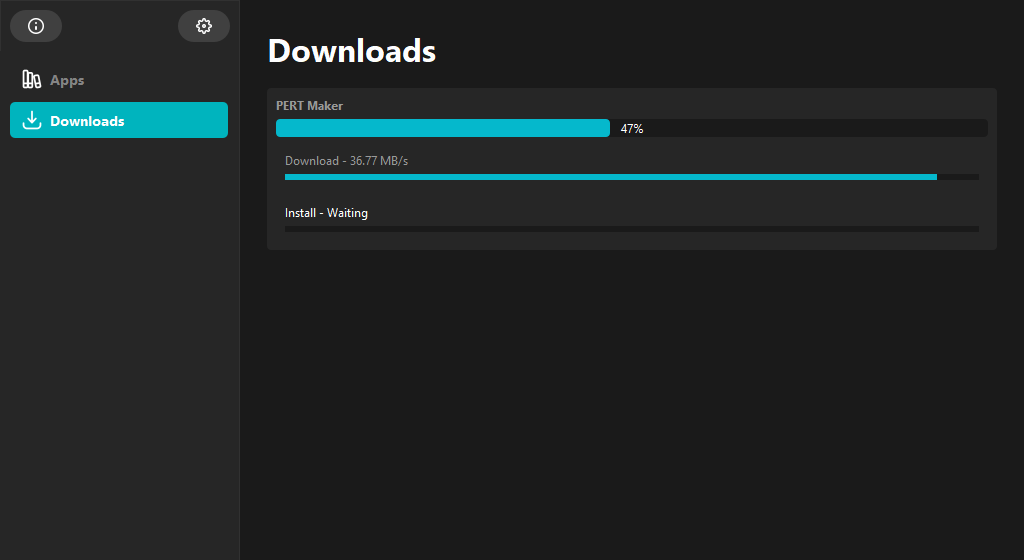
If you go into the Downloads tab, you can see all the apps you are currently downloading with their progress.
If you go into the Apps tab, you can see all the apps you have installed with their version.
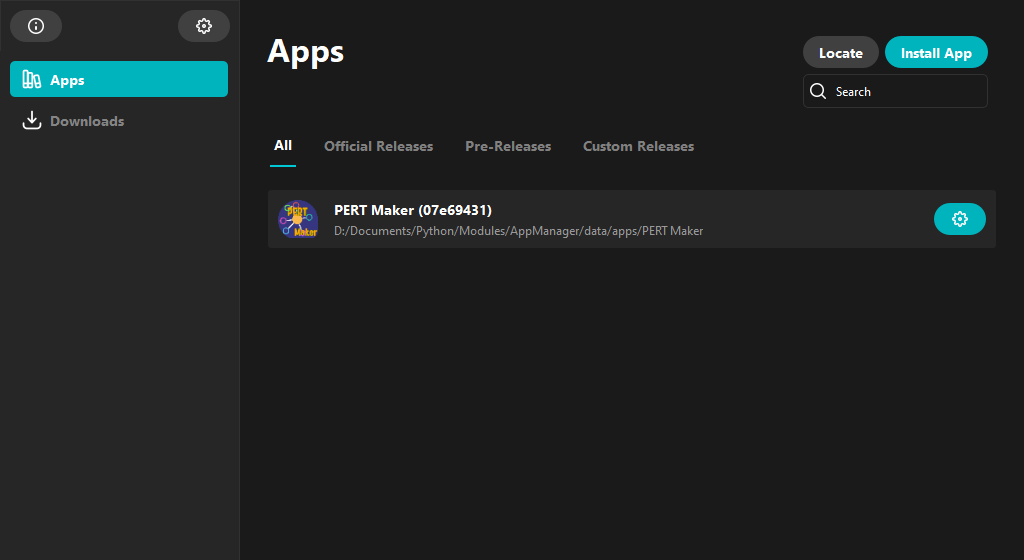
Just click on the app to open it.
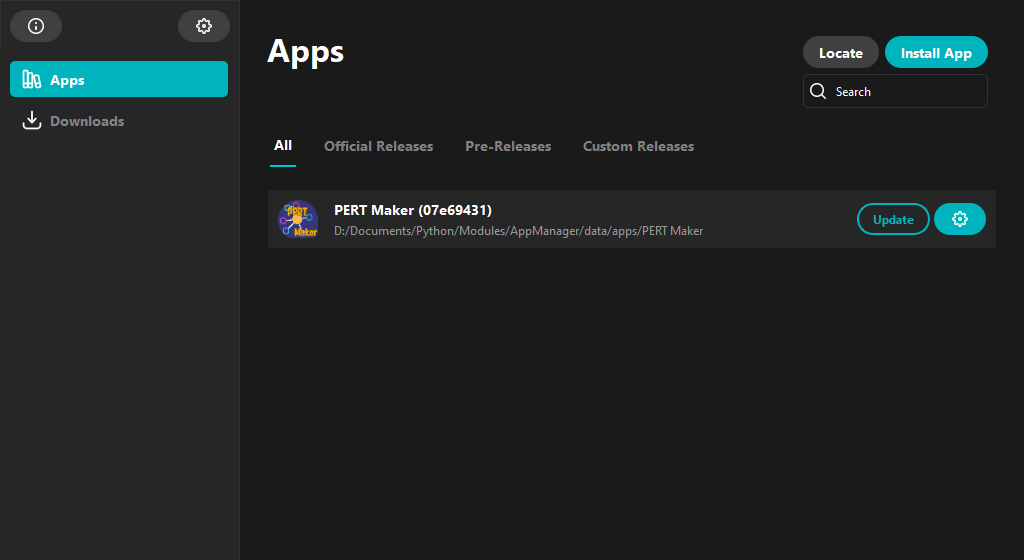
To update an app, you can click on the Update button in the Apps tab.
This button will only be visible if there is an update available for the app.
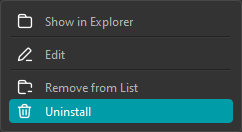
To uninstall an app, you can click on the setting button of the app in the Apps tab. Then, click on the Uninstall button.
In the Apps tab, you can click on the setting button of the app and then on the Edit button to edit the app's properties.
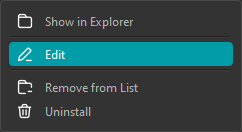
You can edit the app's icon, update interval, and the advanced settings like the current working directory and the command line to execute in order to start the app.