




OGE Next is a grade viewer for Windows, Linux and MacOS. It allows you to view your grades from the OGE website.
- Windows 7 or later
- VC++ 2015 Redistributable
- All Linux distributions supported by PySide6
- MacOS 10.14 (Mojave) or later
- Python 3.11 or later
- Dependencies (use
pip install -r requirements.txtin the project root folder to install them)
- Dependencies (use

- Download the latest release from the releases page and extract it to a folder of your choice.
-
You can customize the language of the app by adding a new file into the
/data/lang/folder. The language must be a valid JSON code. If the language is not supported, the app will default to English. Then, you can change the language in the settings menu.See this file for an example.
-
You can customize the theme of the app by adding new files into the
/data/themes/folder. The theme must be contain valid JSON codes and valid QSS codes. If the theme is not supported, the app will default to the default theme. Then, you can change the theme in the settings menu.See this file and this folder for an example.
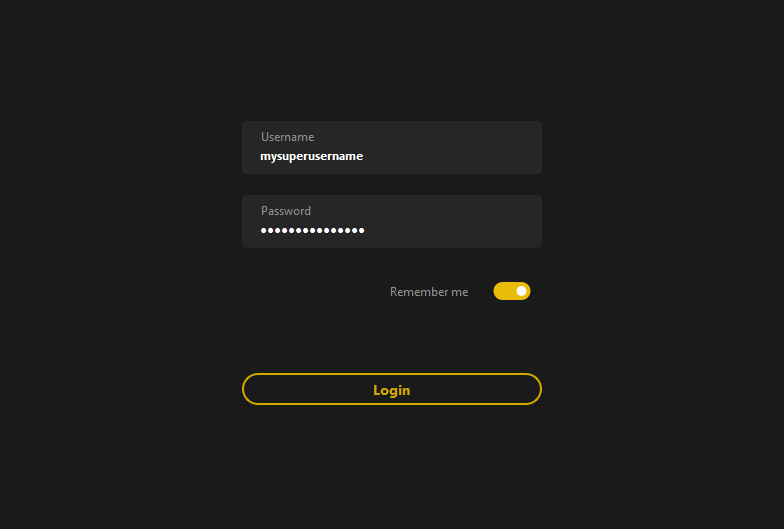
Enter your username and password in the login screen and click on the "Login" button. If the connection is successful, you will be redirected to the main screen.
Note that OGE is super slow sometimes, so it may take a while to load the grades.
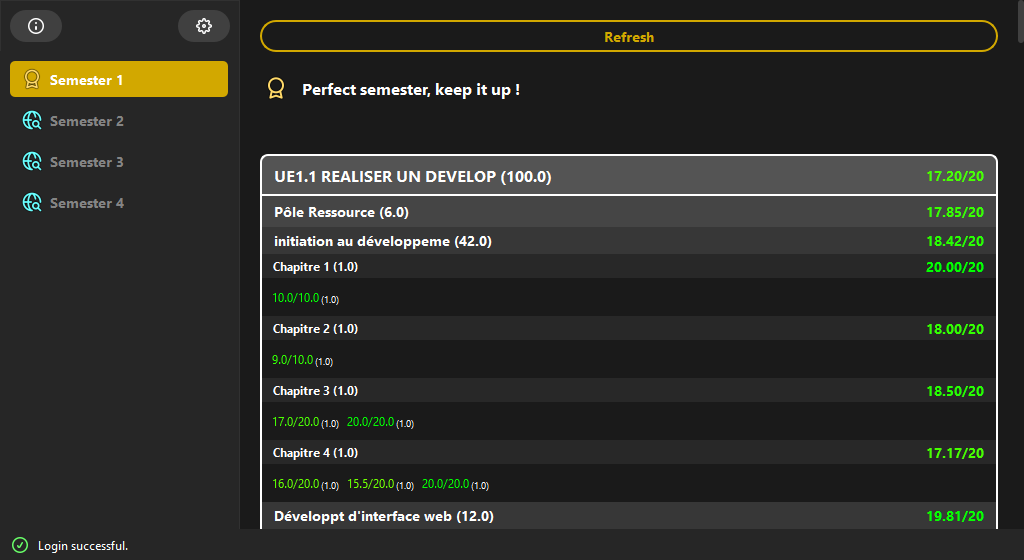
On the left side of the screen, you can see the sidebar. It contains the semester list and the settings button.
Once the semester loaded, you can see an icon next to the semester ID. This icon indicates the status of the semester:
-
 Perfect semester: you have no failed UE.
 -
 Good semester: you have one or two UE between 8/20 and 10/20 with the other UEs between 10/20 and 20/20.
 -
 Alert semester: you have at least one UE between 0/20 and 8/20.
 -
 Bad semester: you have all your UEs between 0/20 and 8/20.
 -
 Missing data: the semester is not loaded yet and will be loaded when you click on it.
Note that loading a semester may take a while as it makes a new request to the OGE website.
On the right side of the screen, you can see the UE list with their average grade.
On top of the UE list, you can see a refresh button and an encouragement message with the UEs to focus on if you want to improve your average grades (when you don't have the perfect grade).