Iris Software Guide
Iris runs on Ubuntu 18.04 with ROS Melodic. It uses Flask with Python for the web interface.
To run Iris's interface, download the ROS package in this repo into a ROS workspace.
Make sure the robot's laptop and control tablet are on the same WiFi network (see hardware guide).
Turn on the robot, and on the robot's laptop, run the following commands:
roscore
roslaunch turtlebot_bringup minimal.launch
roslaunch autobot_main main.launch
rosrun teleop app.py
This will start the teleoperation and interface programs.
If you would like the robot to automatically start up whenever someone logs into the laptop, you can make a launch file with the above commands in the teleop package in the Iris workspace. A launch file is an easy way to run multiple ROS nodes.
At the end of the .bashrc file in the home directory, add the following code to source the ROS workspace where the Iris package is and launch the launch file:
source <path_to_ROS_workspace>/Iris_workspace/devel/setup.bash
roslaunch teleop <launch_file_name>
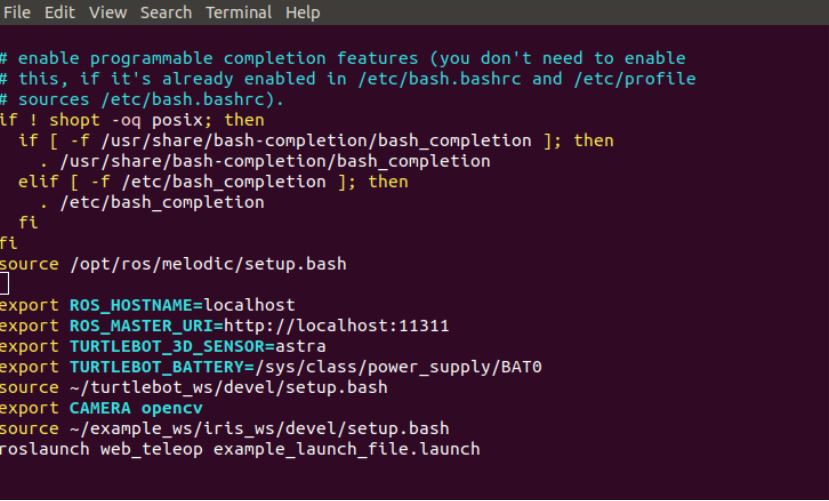
You also need the terminal to come up automatically. To do this, on the robot laptop:
- Search the applications for "Startup Applications," and click on the Startup Applications option.

- Click "Add."
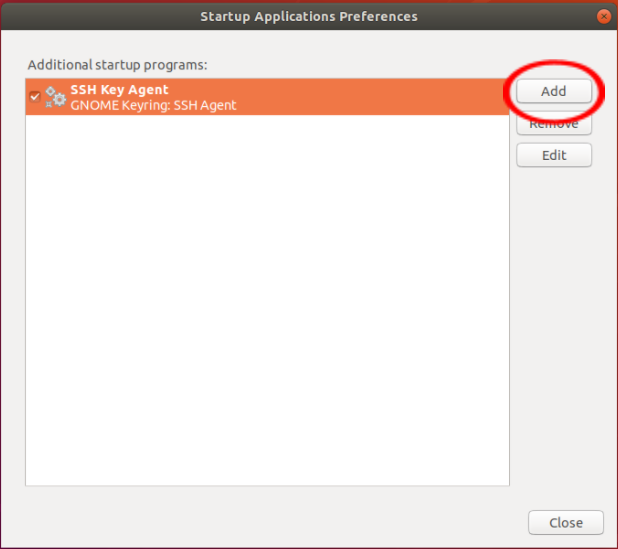
- Type "Terminal" in the name field, and type "gnome-terminal" in the command field.

- Click "Add." You should see the terminal listed in the "Additional startup programs" list, as shown below.

To access the interface, open Firefox on the control tablet.
Go to https://0.0.0.0:5002/
You may see a warning that the connection is not private. If you click past the warning, you should see the interface in the window and be able to control the robot.
If you would like to change the code so you do not see the warning, you can switch from https to http by removing the ssl_context argument in the app.py file. You can also read more about SSl certificates with Flask here.
