Keyframe interpolation and expression evaluation that goes to eleven!
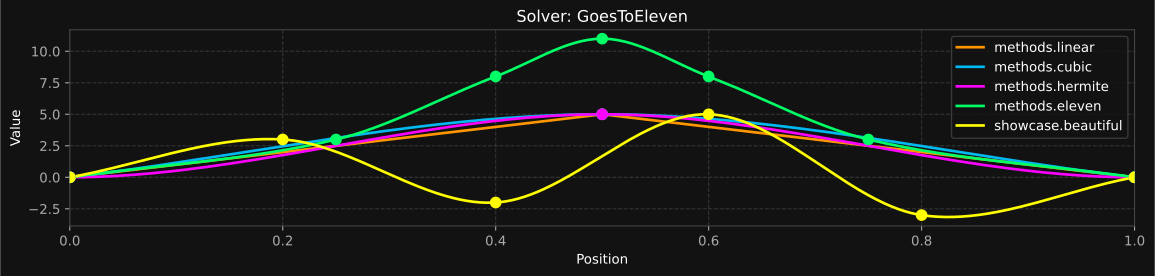
SplinalTap is a Python library for advanced interpolation and curve generation with a focus on scientific and mathematical applications. It provides a flexible architecture for defining, manipulating, and evaluating interpolated values using various mathematical methods.
Key capabilities include:
- Multi-channel interpolation with different methods per channel
- Safe mathematical expression evaluation within keyframes
- Multiple interpolation algorithms (cubic, linear, bezier, hermite, etc.)
- GPU acceleration for processing large datasets
- Comprehensive serialization and deserialization
- Command-line interface for quick data processing
- Visualization tools for analyzing interpolation results
Whether you're working with signal processing, function approximation, numerical analysis, or data visualization, SplinalTap provides the necessary tools to define complex interpolation behaviors with an intuitive API.
splinaltap is a Python library that provides powerful tools for working with knots, expressions, and spline interpolation. It allows you to define knots with mathematical expressions, evaluate them at any parametric position along a normalized range, and interpolate between them using various mathematical methods.
The name "splinaltap" is a playful nod to the mockumentary "This Is Spinal Tap" and its famous "these go to eleven" scene - because sometimes regular interpolation just isn't enough. But more importantly:
- splin: Refers to splines, the mathematical curves used for smooth interpolation
- al: Represents algorithms and algebraic expressions
- tap: Describes how you can "tap into" the curve at any point to extract values
- 🔢 Safe Expression Evaluation: Define knots using string expressions that are safely evaluated using Python's AST
- 🔄 Multiple Interpolation Methods: Choose from 9 different interpolation algorithms:
- Nearest Neighbor
- Linear
- Polynomial (Lagrange)
- Quadratic Spline
- Cubic Spline
- Hermite Interpolation
- Bezier Interpolation
- PCHIP (Piecewise Cubic Hermite Interpolating Polynomial)
- Gaussian Process Interpolation (requires NumPy)
- 🎲 Random Value Functions: Generate random values in expressions:
rand(): Returns a random float between 0 and 1randint([min, max]): Returns a random integer between min and max (inclusive)randint(max): Returns a random integer between 0 and max (inclusive)
- 🧮 Variable Support: Define and use variables in your expressions for complex mathematical transformations
- 🖥️ Command Line Interface: Access all features from the command line
from splinaltap import SplineSolver

# Create a spline solver
solver = SplineSolver(name="Interpolation")

# Create a spline group and spline
spline_group = solver.create_spline_group("main")
spline = spline_group.add_spline("value", interpolation="cubic")

# Set knots with expressions
spline.add_knot(at=0.0, value=0)             # Start at 0
spline.add_knot(at=0.5, value="sin(t * pi) * 10")  # Use expression with t variable
spline.add_knot(at=1.0, value=0)             # End at 0

# Evaluate at any point
value = spline.get_value(0.25)                  # ≈ 6.25 (using cubic interpolation)

# Evaluate across spline groups
result = solver.solve(0.5)                       # Get all spline values at position 0.5
results = solver.solve([0.25, 0.5, 0.75])        # Get values at multiple positions at once

# Visualization features (requires matplotlib)
solver.plot()                                    # Display plot with all splines
solver.plot(theme="dark")                        # Use dark theme
solver.save_plot("output.png")                   # Save plot to file without displaying
solver_plot = solver.get_plot()                                # Get figure for customization
solver_plot.show()                                    # Show most recently created plot
SplinalTap provides comprehensive CRUD (Create, Read, Update, Delete) operations for all elements in the interpolation hierarchy.
from splinaltap import SplineSolver

# Create a solver with multiple spline groups and splines
solver = SplineSolver(name="CRUD Example")

# Add spline groups
position = solver.create_spline_group("position")
rotation = solver.create_spline_group("rotation")
scale = solver.create_spline_group("scale")

# Add splines to position group
x = position.add_spline("x")
y = position.add_spline("y")
z = position.add_spline("z")

# Add knots to x spline
x.add_knot(at=0.0, value=0.0)
x.add_knot(at=0.5, value=5.0)
x.add_knot(at=1.0, value=10.0)

# Add some useless knot (we'll remove it later)
x.add_knot(at=0.25, value=2.0)

# REMOVING ELEMENTS

# 1. Remove a knot from a spline
x.remove_knot(0.25)  # Remove knot at position 0.25
# OR use backward compatibility method
x.remove_keyframe(0.25)

# 2. Remove a spline from a spline group
position.remove_spline("z")  # Remove z spline from position group
# OR use backward compatibility method
position.remove_channel("z")

# 3. Remove a spline group from the solver
solver.remove_spline_group("scale")  # Remove scale group from solver
# OR use backward compatibility method
solver.remove_spline("scale")  # Note: this is for backward compatibility with old API

# Verify removal operations
print(f"Position splines: {list(position.splines.keys())}")  # ['x', 'y']
print(f"Spline groups: {solver.get_spline_group_names()}")  # ['position', 'rotation']
print(f"X knot positions: {[kf.at for kf in x.knots]}")     # [0.0, 0.5, 1.0]

# Using the solver after removals works as expected
result = solver.solve(0.5)
print(f"Result at t=0.5: {result}") # Only includes 'position' and 'rotation' groupsThe publish feature allows you to use values from one spline in expressions of another spline, even across different spline groups. Here's an example:
from splinaltap import SplineSolver

# Create a solver
solver = SplineSolver(name="CrossReference")

# Create two spline groups
position = solver.create_spline_group("position")
rotation = solver.create_spline_group("rotation")

# Add splines to position spline group
x = position.add_spline("x")
y = position.add_spline("y")

# Add spline to rotation spline group
angle = rotation.add_spline("angle")
derived = rotation.add_spline("derived")

# Add knots
x.add_knot(at=0.0, value=0.0)
x.add_knot(at=1.0, value=10.0)

y.add_knot(at=0.0, value=5.0)
y.add_knot(at=1.0, value=15.0)

angle.add_knot(at=0.0, value=0.0)
angle.add_knot(at=1.0, value=90.0)

# Set up publishing from position.x to rotation splines
solver.set_publish("position.x", ["rotation.derived"])

# Create a derived spline that uses the published value
# NOTE: Spline references require fully qualified names
derived.add_knot(at=0.0, value="position.x * 2")  # Uses position.x
derived.add_knot(at=1.0, value="position.x * 3")  # Uses position.x

# Unqualified references will raise an error:
# derived.add_knot(at=0.0, value="x * 2")  # ERROR: Unqualified spline reference not allowed

# Evaluate at t=0.5
result = solver.solve(0.5)
print(f"Position x at t=0.5: {result['position']['x']}")  # 5.0
print(f"Derived value at t=0.5: {result['rotation']['derived']}")  # 15.0

# Using spline-level publishing
scale = solver.create_spline_group("scale")
factor = scale.add_spline("factor", publish=["*"])  # Publish to all splines
factor.add_knot(at=0.0, value=2.0)
factor.add_knot(at=1.0, value=3.0)

# Create a spline that uses the globally published scale
rescaled = position.add_spline("rescaled")
rescaled.add_knot(at=0.0, value="position.x * scale.factor")  # Must use fully qualified spline name
rescaled.add_knot(at=1.0, value="position.x * scale.factor")  # Must use fully qualified spline name

# Evaluate again
result = solver.solve(0.5)
print(f"Position x: {result['position']['x']}")  # 5.0
print(f"Position rescaled: {result['position']['rescaled']}")  # 15.0
print(f"Scaled factor: {result['scale']['factor']}")  # 2.5
print(f"Position value: {result['position']}")  # {'x': 5.0, 'y': 10.0, 'rescaled': 15.0}
from splinaltap import SplineSolver

# Create a spline solver
solver = SplineSolver(name="3D Vector Field")

# Set variables for use in expressions
solver.set_variable("amplitude", 10)
solver.set_variable("frequency", 2)
solver.set_variable("pi", 3.14159)

# Create coordinate vector spline group with multiple splines
coordinates = solver.create_spline_group("coordinates")
x_spline = coordinates.add_spline("x", interpolation="linear")
y_spline = coordinates.add_spline("y", interpolation="cubic")
z_spline = coordinates.add_spline("z", interpolation="bezier")

# Add knots to each spline
x_spline.add_knot(at=0.0, value=0)
x_spline.add_knot(at=1.0, value="10 * t")

y_spline.add_knot(at=0.0, value=0)
y_spline.add_knot(at=0.5, value="amplitude * sin(t * frequency * pi)")
y_spline.add_knot(at=1.0, value=0)

z_spline.add_knot(at=0.0, value=0, control_points=[0.1, 2, 0.3, 5])
z_spline.add_knot(at=1.0, value=0, control_points=[0.7, 5, 0.9, 2])

# Create phase spline group
phase = solver.create_spline_group("phase")
angle = phase.add_spline("angle")
angle.add_knot(at=0.0, value=0)
angle.add_knot(at=1.0, value=360)

# Create noise spline group using random functions
noise = solver.create_spline_group("noise")
white_noise = noise.add_spline("white")
white_noise.add_knot(at=0.0, value="rand() * 2 - 1")  # Random values between -1 and 1
white_noise.add_knot(at=1.0, value="rand() * 2 - 1")

quant_noise = noise.add_spline("quantized")
quant_noise.add_knot(at=0.0, value="randint([0, 5]) * 0.2")  # Quantized to 0, 0.2, 0.4, 0.6, 0.8, 1.0
quant_noise.add_knot(at=1.0, value="randint([0, 5]) * 0.2")

# Save to file
solver.save("parameter_data.json")

# Load from file
loaded = SplineSolver.from_file("parameter_data.json")
# or
# loaded = SplineSolver()
# loaded.load("parameter_data.json")
# Evaluate at multiple positions
for t in [0, 0.25, 0.5, 0.75, 1.0]:
    result = loaded.solve(t)
print(f"At {t}: {result}")# Sample at specific points with cubic interpolation
python splinaltap --knots "0:0@cubic" "0.5:10@cubic" "1:0@cubic" --samples 0.25 0.5 0.75
# Create a visualization with sin wave using mathematical expressions
python splinaltap --visualize --knots "0:0@cubic" "0.5:sin(t*3.14159)@cubic" "1:0@cubic" --samples 100
# Visualize with dark theme and save to a file
python splinaltap --visualize theme=dark save=output.png --knots "0:0@cubic" "0.5:10@cubic" "1:0@cubic" --samples 100
# Use custom sample range (from 2.0 to 3.0 instead of 0-1)
python splinaltap --knots "0:0" "1:10" --samples 5 --range 2,3
# Sample with specific interpolation methods per spline
python splinaltap --knots "0:0@linear" "1:10@linear" --samples 0.5@position:linear@rotation:hermite
# Use expressions with predefined variables
python splinaltap --knots "0:0@cubic" "0.5:amplitude*sin(t*pi)@cubic" "1:0@cubic" --variables "amplitude=10,pi=3.14159" --samples 100
# Using indices instead of normalized positions
python splinaltap --knots "0:0" "5:5" "10:10" --use-indices --samples 0 5 10
# Save and load from files with different output formats
python splinaltap --input-file data.json --samples 100 --output-file output.csv --content-type csv
python splinaltap --input-file data.json --samples 100 --output-file output.json --content-type json- 🎛️ Spline Support: Pass in dynamic spline values that can be used in expressions at runtime
- 🔢 Multi-component Support: Interpolate vectors, scalars, and other multi-component values
- 📊 Visualization: Built-in support for visualizing interpolation results
- 🔒 Safe Execution: No unsafe
eval()- all expressions are parsed and evaluated securely - 🚀 GPU Acceleration: Optional GPU support via CuPy or JAX for faster processing
# Basic installation
pip install splinaltap

# Install with NumPy acceleration
pip install splinaltap[numpy]

# Install with visualization support
pip install splinaltap[visualize]

# Install with GPU support using JAX
pip install splinaltap[gpu]

# Install with Numba JIT compilation
pip install splinaltap[numba]

# Install with all optional dependencies
pip install splinaltap[all]Each installation option provides different features:
- Basic: Core functionality with pure Python implementation
- NumPy (
splinaltap[numpy]): CPU-accelerated math operations - Visualize (
splinaltap[visualize]): Plotting and visualization capabilities with matplotlib - GPU (
splinaltap[gpu]): GPU acceleration with JAX and CuPy - Numba (
splinaltap[numba]): JIT compilation for faster CPU computations - All (
splinaltap[all]): All optional dependencies for maximum performance
You can also install individual dependencies manually:
# For NumPy support (CPU acceleration)
pip install numpy

# For YAML output format support
pip install pyyaml

# For visualization and plotting capabilities
pip install matplotlib

# For CUDA 11.x GPU support
pip install cupy-cuda11x

# For CUDA 12.x GPU support
pip install cupy-cuda12x

# For JAX support (GPU acceleration with autodiff)
pip install "jax[cuda]" -f https://storage.googleapis.com/jax-releases/jax_cuda_releases.html

# For Numba JIT compilation
pip install numba
[Click to Expand] To verify that each optional dependency is installed and working correctly
import splinaltap
from splinaltap.backends import BackendManager

# Check if NumPy backend is available
backends = BackendManager.available_backends()
if 'numpy' in backends:
    print("NumPy is installed and available as a backend")
    BackendManager.set_backend('numpy')
    print(f"Backend used: {BackendManager.get_backend().name}")
else:
print("NumPy is not installed or not properly configured")try:
import yaml
print("PyYAML is installed correctly")
# Create a sample dictionary and dump to YAML
data = {"test": "value", "nested": {"key": "value"}}
yaml_str = yaml.dump(data)
print("YAML output:", yaml_str)
# Try loading the YAML string
loaded = yaml.safe_load(yaml_str)
print("YAML loading works correctly")
except ImportError:
print("PyYAML is not installed")
except Exception as e:
print(f"PyYAML error: {e}")import splinaltap
from splinaltap.backends import BackendManager
# Check if CuPy backend is available
backends = BackendManager.available_backends()
if 'cupy' in backends:
print("CuPy is installed and available as a backend")
try:
# Set backend to CuPy
BackendManager.set_backend('cupy')
# Create a sample solver and verify it's using GPU
solver = splinaltap.SplineSolver()
spline_group = solver.create_spline_group("test")
spline = spline_group.add_spline("value")
spline.add_knot(at=0.0, value=0)
spline.add_knot(at=1.0, value=10)
# Generate samples using GPU
samples = [spline.get_value(i/10) for i in range(11)]
print(f"Backend used: {BackendManager.get_backend().name}")
print(f"Supports GPU: {BackendManager.get_backend().supports_gpu}")
print("CuPy is working correctly")
except Exception as e:
print(f"CuPy error: {e}")
else:
print("CuPy is not installed or not properly configured")import splinaltap
from splinaltap.backends import BackendManager
# Check if JAX backend is available
backends = BackendManager.available_backends()
if 'jax' in backends:
print("JAX is installed and available as a backend")
try:
# Set backend to JAX
BackendManager.set_backend('jax')
# Create a sample solver and verify it's using JAX
solver = splinaltap.SplineSolver()
spline_group = solver.create_spline_group("test")
spline = spline_group.add_spline("value")
spline.add_knot(at=0.0, value=0)
spline.add_knot(at=1.0, value=10)
# Generate samples using JAX
samples = [spline.get_value(i/10) for i in range(11)]
print(f"Backend used: {BackendManager.get_backend().name}")
print(f"JAX is working correctly")
# You can also verify JAX directly
import jax
import jax.numpy as jnp
# Check if GPU is available to JAX
print(f"JAX devices: {jax.devices()}")
# Simple JAX computation
x = jnp.array([1.0, 2.0, 3.0])
y = jnp.sum(x)
print(f"JAX computation result: {y}")
except Exception as e:
print(f"JAX error: {e}")
else:
print("JAX is not installed or not properly configured")You can also verify available backends using the command line interface:
# List all available backends
python splinaltap --backend ls

# Get detailed info about the current backend
python splinaltap --backend info

# Try using a specific backend
python splinaltap --backend numpy --knots "0:0" "1:10" --samples 5
python splinaltap --backend cupy --knots "0:0" "1:10" --samples 5
python splinaltap --backend jax --knots "0:0" "1:10" --samples 5
If the backends are properly installed, you should see successful output from these commands without errors related to the backend libraries.
from splinaltap import SplineSolver
# Create a solver and spline group
solver = SplineSolver(name="Interpolation")
spline_group = solver.create_spline_group("main")
spline = spline_group.add_spline("value", interpolation="cubic")
# Add knots with expressions
spline.add_knot(at=0.0, value=0)
spline.add_knot(at=0.25, value="sin(t) + 1") # 't' is the current position
spline.add_knot(at=0.57, value="pow(t, 2)")
spline.add_knot(at=1.0, value=10)
# Define a variable
solver.set_variable("amplitude", 2.5)
spline.add_knot(at=0.7, value="amplitude * sin(t)")
# Use random functions in expressions
spline.add_knot(at=0.9, value="rand() * 5") # Random float between 0 and 5
spline.add_knot(at=0.95, value="randint([1, 10])") # Random integer between 1 and 10
# Option 1: Using the built-in plotting methods
# Plot the spline group directly (if matplotlib is installed)
spline_group.plot(samples=100, title="Cubic Spline Interpolation")
# Save a plot to a file
spline_group.save_plot("spline_plot.svg", samples=100, title="Cubic Spline Interpolation")
# Get a plot for customization
fig = spline_group.get_plot(samples=100, title="Cubic Spline Interpolation")
# Example of a beautiful interpolation visualization:

# Option 2: Manual plotting with matplotlib
try:
import matplotlib.pyplot as plt
# Evaluate at various points
positions = [i * 0.01 for i in range(101)]
values = [spline.get_value(p) for p in positions]
# Plot the results
plt.figure(figsize=(12, 6))
plt.plot(positions, values)
plt.title("Cubic Spline Interpolation")
plt.grid(True)
plt.show()
except ImportError:
print("Matplotlib is not installed for manual plotting")
# Plot the entire solver with the default dark theme
solver.plot(samples=100) # Default: dark theme, overlay=True
# Plot with medium theme
solver.plot(samples=100, theme="medium")
# Plot with light theme
solver.plot(samples=100, theme="light")
# Plot with each spline group in its own subplot
solver.plot(samples=100, overlay=False)
# Plot and save to file in one operation
solver.plot(samples=100, save_path="dark_theme_plot.png")
# Save plot without displaying
solver.save_plot("plot_file.png", samples=100)
# Plot only specific splines
solver.plot(
samples=100,
filter_splines={"main": ["value"]} # Only plot main.value spline
)
# Show most recently created plot (useful in interactive shells)
solver.show()SplinalTap includes a powerful command-line interface for working with interpolation data without writing code.
SplinalTap follows these consistent principles across all commands:
- Default Behavior: Sampling/evaluation is the default behavior (no command needed)
- Normalized 0-1 Range: By default, all knot positions and sample points use a normalized 0-1 range for better numerical precision
- Knot Syntax: Use
position:value@method{parameters}format for direct knot definition - Consistent Parameter Names:
- Use
--samplesfor specifying sample points - Use
--methodsfor interpolation methods specification
- Use
- Spline-Specific Syntax: Use
@spline:methodsyntax for per-spline interpolation - Direct Knot Specification: Define knots directly with
--knotswithout requiring JSON files
SplinalTap can be used in two ways, both of which keep all code contained within the git repository:
# Run from any directory by providing the path (development mode):
python /path/to/python splinaltap --help

# If installed with pip (production mode):
python splinaltap --helpIMPORTANT: All CLI functionality is contained entirely within the splinaltap directory.
This design decision ensures:
- Repository integrity is maintained
- All code is properly versioned
- The package can be installed and run consistently from any location
- No external scripts or files are needed outside the directory
The CLI provides several unified commands that follow a consistent pattern. Here are the main commands:
# Default behavior: sample/evaluate interpolated values (no command needed)
python splinaltap --input-file input.json --samples 0.25 0.5 0.75 --output-file values.csv
python splinaltap --input-file input.json --samples 1000 --range 0,1 --output-file evenly_spaced.csv

# Visualize interpolation
python splinaltap --visualize --input-file input.json --methods cubic --output-file output.png

# Compare multiple interpolation methods (requires --visualize command)
python splinaltap --visualize --input-file input.json --methods linear cubic hermite bezier --compare --output-file comparison.png

# Scene management with unified --scene command
python splinaltap --scene "info scene.json"                         # Show scene info
python splinaltap --scene "ls scene.json"                           # List interpolators
python splinaltap --scene "convert input.json output.yaml"          # Convert formats
python splinaltap --scene "extract scene.json new.json position"    # Extract full interpolator
python splinaltap --scene "extract scene.json pos_x.json position.x" # Extract specific dimension

# Backend management with unified --backend command
python splinaltap --backend                 # Show current backend
python splinaltap --backend ls              # List all backends
python splinaltap --backend info            # Show detailed info
python splinaltap --backend numpy           # Set backend to numpy
python splinaltap --backend best            # Use best available backend
python splinaltap --backend cupy --input-file input.json --samples 100  # Run with cupy backend

# Define and use knots directly on command line (0-1 normalized range)
python splinaltap --knots 0:0@cubic 0.5:10@cubic 1:0@cubic --samples 100 --output-file from_cli.csv

# Use different output formats with --content-type
python splinaltap --knots 0:0 0.5:10 1:0 --samples 10 --content-type json
python splinaltap --knots 0:0 0.5:10 1:0 --samples 10 --content-type csv --output-file output.csv
python splinaltap --knots 0:0 0.5:10 1:0 --samples 10 --content-type yaml
python splinaltap --knots 0:0 0.5:10 1:0 --samples 10 --content-type text

# Generate scene files to use as starting points
python splinaltap --generate-scene template.json
python splinaltap --generate-scene my_template.json --knots 0:0 0.5:10 1:0
python splinaltap --generate-scene vector_template.json --dimensions 3
python splinaltap --generate-scene template.yaml --content-type yaml

# Work with existing files to create new scenes
python splinaltap --input-file existing.json --generate-scene modified.json
python splinaltap --input-file existing.json --generate-scene with_new_knots.json --knots 0:0 0.5:5 1:0SplinalTap supports two main JSON file formats: single-dimension interpolators and multi-dimension interpolators.
{
  "version": "2.0",
  "name": "MySolver",
  "range": [0.0, 1.0],
  "metadata": {
    "description": "Simple animation curve",
    "author": "SplinalTap"
  },
  "variables": {
    "amplitude": 2.5,
    "frequency": 0.5,
    "pi": 3.14159
  },
  "spline_groups": {
    "position": {
      "x": {
        "interpolation_method": "cubic",
        "min-max": [0, 10],
        "knots": [
          {
            "@": 0.0,
            "value": 0
          },
          {
            "@": 0.5,
            "value": "sin(t*frequency)*amplitude",
            "interpolation_method": "hermite",
            "parameters": {
              "deriv": 0.5
            }
          },
          {
            "@": 0.75,
            "value": 5,
            "interpolation_method": "bezier",
            "parameters": {
              "cp": [0.6, 12, 0.7, 8]
            }
          },
          {
            "@": 1.0,
            "value": 10
          }
        ]
      }
    }
  }
}{
"version": "2.0",
"name": "3D Vector Field",
"metadata": {},
"range": [0.0, 1.0],
"variables": {
"amplitude": 10,
"frequency": 2,
"pi": 3.14159
},
"spline_groups": {
"coordinates": {
"splines": {
"x": {
"interpolation": "linear",
"knots": [
{
"@": 0.0,
"value": "0"
},
{
"@": 1.0,
"value": "0"
}
]
},
"y": {
"interpolation": "cubic",
"knots": [
{
"@": 0.0,
"value": "0"
},
{
"@": 0.5,
"value": "0"
},
{
"@": 1.0,
"value": "0"
}
]
},
"z": {
"interpolation": "bezier",
"knots": [
{
"@": 0.0,
"value": "0",
"parameters": {
"cp": [0.1, 2, 0.3, 5]
}
},
{
"@": 1.0,
"value": "0",
"parameters": {
"cp": [0.7, 5, 0.9, 2]
}
}
]
}
}
},
"phase": {
"splines": {
"angle": {
"interpolation": "cubic",
"knots": [
{
"@": 0.0,
"value": "0"
},
{
"@": 1.0,
"value": "0"
}
]
}
}
}
}
}A Solver is a collection of multiple named spline groups, which can be useful for complex datasets with multiple parameters. Here's an example of a Solver file structure:
{
  "version": "2.0",
  "name": "MySolver",
  "metadata": {
    "description": "A complex parameter set with multiple components",
    "author": "SplinalTap User",
    "created": "2023-09-15"
  },
  "range": [0.0, 1.0],
  "variables": {
    "pi": 3.14159,
    "amplitude": 10
  },
  "spline_groups": {
    "position": {
      "x": {
        "min-max": [0, 10],
        "interpolation_method": "cubic",
        "knots": [
          {"@": 0.0, "value": 0},
          {"@": 0.5, "value": 10},
          {"@": 1.0, "value": 0}
        ]
      },
      "y": {
        "interpolation_method": "cubic",
        "knots": [
          {"@": 0.0, "value": 0},
          {"@": 0.5, "value": "sin(t*pi)"},
          {"@": 1.0, "value": 0}
        ]
      },
      "z": {
        "interpolation_method": "cubic",
        "knots": [
          {"@": 0.0, "value": 0},
          {"@": 1.0, "value": 5}
        ]
      }
    },
    "rotation": {
      "interpolation_method": "linear",
      "knots": [
        {"@": 0.0, "value": 0},
        {"@": 1.0, "value": 360}
      ]
    },
    "scale": {
      "x": {
        "min-max": [0, 10],
        "clip": [1, 9],
        "interpolation_method": "cubic",
        "knots": [
          {"@": 0.0, "value": 1},
          {"@": 0.5, "value": "amplitude * 0.1"},
          {"@": 1.0, "value": 1}
        ]
      },
      "y": {
        "min-max": [1, 1],
        "interpolation_method": "cubic",
        "knots": [
          {"@": 0.0, "value": 1},
          {"@": 1.0, "value": 1}
        ]
      }
    }
  }
}This document describes the JSON format for defining animation splines, including how to publish spline values for use in expressions across spline groups.
- version: String - The format version (required to be "2.0").
- name: String - Name of the solver or animation (e.g., "MySolver").
- range: Array[Float, Float] - Global time/position range for all splines (e.g., [0.0, 1.0]).
- metadata: Object - Optional info like "description" (string) and "author" (string, e.g., "user@splinaltap.com").
- variables: Object - Named constants (e.g., "amplitude": 2.5) usable in expressions.
- publish: Object - (Optional) Top-level subscription rules (see Publishing Values).
- spline_groups: Object - Contains spline group definitions, each with splines.
- SplineGroup: An object under "spline_groups" (e.g., "position", "rotation") containing spline definitions.
- Spline: An object under a spline group (e.g., "x", "y", "z") with:
- interpolation_method: String - Default interpolation type ("cubic", "linear", "hermite", "bezier").
- min-max: Array[Float, Float] - Optional value range (e.g., [0, 10]).
- publish: Array[String] - (Optional) Spline-level publication targets (see Publishing Values).
- knots: Array[Object] - List of knots defining the curve:
- @: Float - Time/position in the range (e.g., 0.5).
- value: Float or String - Value at this point (e.g., 5) or an expression (e.g., "sin(t*frequency)*amplitude").
- interpolation_method: String - (Optional) Overrides the spline's interpolation for this segment.
- parameters: Object - (Optional) Interpolation-specific settings (e.g., "deriv": 0.5 for Hermite, "cp": [x1, y1, x2, y2] for Bezier).
Splines can share their values with others via the "publish" directive, allowing expressions to reference them (e.g., "position.x + 2").
Format: {"source.spline": ["target.spline1", "target.spline_group"]}
Purpose: Specifies which splines or spline groups can read the source spline's value.
Examples:
- "position.x": ["rotation.y"] - "rotation.y" can use "position.x".
- "rotation.z": ["position"] - All splines under "position" (e.g., "position.x") can use "rotation.z".
Format: "publish": ["target.spline1", "target.spline2", "*"] within a spline.
Purpose: Specifies which splines this spline sends its value to.
Examples:
- "publish": ["position.x"] - This spline's value is sent to "position.x".
- "publish": ["*"] - All splines in the system can access this spline's value.
A spline's value is accessible if either:
- It's listed as a target in its own "publish", or
- It's listed as a subscriber in the top-level "publish".
"*" in a spline-level "publish" overrides other rules, making the spline globally accessible.
Without any "publish", a spline's value is private (closed by default).
Syntax: Strings in "value" (e.g., "sin(t*frequency)*amplitude") can use:
- Variables from "variables" (e.g., "amplitude", "pi").
- Published splines using fully qualified names (e.g., "position.x") if access is granted via "publish".
- "t": The current time/position (matches "@").
Example: "rotation.z * 2 + sin(t*pi)" combines a published spline and a variable.
IMPORTANT: Spline references in expressions must use fully qualified names in the format
spline_group.spline. Unqualified references like justxare not allowed and will cause a ValueError to be raised. This requirement ensures clarity and prevents ambiguity when multiple splines have the same name.Allowed:
value="position.x * 2"  # Explicitly uses position.x
value="rotation.angle + scale.factor"  # Multiple fully qualified references
Not allowed:
value="x * 2"  # ERROR: Unqualified reference to 'x'
value="angle + factor"  # ERROR: Unqualified references
The only exceptions to this rule are:
- The built-in time variable
t- Constants defined with
solver.set_variable()- Mathematical constants and functions
{
  "publish": {
    "position.x": ["rotation.y"],
    "rotation.z": ["position"]
  },
  "spline_groups": {
    "position": {
      "x": { "knots": [{ "@": 1.0, "value": "rotation.z" }] }
    },
    "rotation": {
      "y": { "knots": [{ "@": 1.0, "value": "position.x * 2" }] },
      "z": { "publish": ["*"], "knots": [{ "@": 1.0, "value": 10 }] }
    }
  }
}- "rotation.y" uses "position.x" (allowed by top-level "publish").
- "position.x" uses "rotation.z" (allowed by both top-level and "*").
- "rotation.z" is accessible everywhere due to "*".
- Wildcard "*": Makes "rotation.z" a global variable essentially—any spline can use it, overriding the top-level "rotation.z": ["position"].
- Consistency: We use "t" in expressions since it pairs with "@".
Below is a complete example of a solver file with publish rules that has been tested and verified in unit tests:
{
  "version": "2.0",
  "name": "TestScene",
  "metadata": {
    "author": "SplinalTap Tests",
    "description": "Test JSON file for unit tests"
  },
  "variables": {
    "pi": 3.14159,
    "amplitude": 10
  },
  "range": [0, 1],
  "publish": {
    "position.x": ["*"],
    "position.y": ["expressions.sine"]
  },
  "spline_groups": [
    {
      "name": "position",
      "splines": [
        {
          "name": "x",
          "interpolation": "linear",
          "min_max": [0, 100],
          "knots": [
            { "@": 0.0, "value": 0.0 },
            { "@": 0.5, "value": 50.0 },
            { "@": 1.0, "value": 100.0 }
          ]
        },
        {
          "name": "y",
          "interpolation": "cubic",
          "publish": ["expressions.*"],
          "knots": [
            { "@": 0.0, "value": 0.0 },
            { "@": 0.25, "value": 25.0 },
            { "@": 0.5, "value": 50.0 },
            { "@": 0.75, "value": 75.0 },
            { "@": 1.0, "value": 0.0 }
          ]
        },
        {
          "name": "z",
          "interpolation": "step",
          "knots": [
            { "@": 0.0, "value": 0.0 },
            { "@": 0.5, "value": 50.0 },
            { "@": 1.0, "value": 0.0 }
          ]
        }
      ]
    },
    {
      "name": "rotation",
      "splines": [
        {
          "name": "angle",
          "interpolation": "cubic",
          "min_max": [0, 360],
          "knots": [
            { "@": 0.0, "value": 0.0 },
            { "@": 1.0, "value": 360.0 }
          ]
        }
      ]
    },
    {
      "name": "expressions",
      "splines": [
        {
          "name": "sine",
          "interpolation": "linear",
          "knots": [
            { "@": 0.0, "value": "sin(0)" },
            { "@": 0.5, "value": "sin(pi/2)" },
            { "@": 1.0, "value": "sin(pi)" }
          ]
        },
        {
          "name": "random",
          "interpolation": "linear",
          "knots": [
            { "@": 0.0, "value": "rand() * amplitude" },
            { "@": 1.0, "value": "randint(5)" }
          ]
        },
        {
          "name": "dependent",
          "interpolation": "linear",
          "knots": [
            { "@": 0.0, "value": "x + y" },
            { "@": 1.0, "value": "x * 2" }
          ]
        }
      ]
    }
  ]
}
In this example:
- position.x is published to all splines with "*"
- position.y is published only to expressions.sine
- position.y also publishes to all expressions.* splines via its spline-level publish property
- The "dependent" spline can access x and y values from position because of the publish rules
SplinalTap allows defining knots directly on the command line without needing a JSON file. The CLI currently focuses on single-dimension interpolation for simplicity - for multi-dimensional data or complex scenes, JSON files are recommended.
By default, all positions are normalized to the 0-1 range for better floating-point precision:
# Define knots directly in normalized 0-1 range and sample 100 points
python splinaltap --knots 0:0@cubic 0.5:10@cubic 1:0@cubic --samples 100

# Use expressions in knots (method is optional, defaults to cubic)
python splinaltap --knots "0:0" "0.25:sin(t)" "1:t^2" --samples 100

# Include derivatives for Hermite interpolation
python splinaltap --knots "0:0@hermite{deriv=0}" "0.5:10@hermite{deriv=2}" "1:0@hermite{deriv=0}" --samples 100

# Define control points for Bezier interpolation (control points are also in 0-1 space)
python splinaltap --knots "0:0@bezier{cp=0.1,0,0.2,3}" "0.5:10@bezier{cp=0.6,12,0.7,8}" "1:0@bezier{cp=0.8,-2,0.9,0}" --samples 100

# Only visualization requires an explicit command
python splinaltap --visualize --knots 0:0@cubic 0.3:5@linear 0.7:2@cubic 1:10@cubic --compare

# Use variables in expressions
python splinaltap --knots "0:0" "0.5:a*sin(t)" "1:b*t" --variables "a=2.5,b=1.5" --samples 100
The knot syntax is: position:value@method{parameters} where:
positionis in the normalized 0-1 range by defaultvaluecan be a number or expression in quotes@methodspecifies the interpolation method (cubic, hermite, bezier, etc.){parameters}are optional method-specific parameters:- For hermite:
{deriv=value}- specifies the derivative at this point - For bezier:
{cp=x1,y1,x2,y2}- specifies the control points
- For hermite:
When using SplinalTap to evaluate or sample knots, the output follows a hierarchical structure that matches the organization of spline groups and splines:
{
  "version": "2.0",
  "name": "CommandLine",
  "metadata": {},
  "samples": [0.25, 0.5, 0.75],
  "results": {
    "default": {
      "value": [6.25, 10.0, 6.25]
    },
    "position": {
      "x": [2.5, 5.0, 7.5],
      "y": [10.0, 15.0, 10.0],
      "z": [2.5, 5.0, 2.5]
    }
  }
}
The output consists of:
version: The format version for compatibility trackingname: The name of the solvermetadata: Any metadata associated with the solversamples: Array of sample point positionsresults: Hierarchical object organized by spline groups and splines- Each spline group is a top-level key in the results object
- Each spline is a key within its parent spline group
- Spline values are stored as arrays that correspond directly to the samples array
This structure makes it easy to navigate and process the data programmatically. For example, to access the 'x' spline value at the second sample position:
value = data["results"]["position"]["x"][1] # 5.0The hierarchical organization also makes the output more readable and maintains the logical structure of the data.
For more details on each command, run splinaltap <command> --help.
SplinalTap provides built-in visualization capabilities through the --visualize command. You can customize the visualization using key=value pairs directly with the command:
# Basic visualization (shows a plot)
python splinaltap --visualize --knots "0:0@cubic" "0.5:10@cubic" "1:0@cubic" --samples 100

# Use dark theme
python splinaltap --visualize theme=dark --knots "0:0@cubic" "0.5:10@cubic" "1:0@cubic"

# Save to file without displaying
python splinaltap --visualize save=plot.png --knots "0:0@cubic" "0.5:10@cubic" "1:0@cubic"

# Combine options
python splinaltap --visualize theme=dark save=dark_plot.png --knots "0:0@cubic" "0.5:10@cubic" "1:0@cubic"
Available visualization options:
theme=dark|medium|light: Set the plot theme (default: dark)save=/path/to/file.png: Save the plot to a file instead of or in addition to displaying itoverlay=true|false: If true (default), all splines are plotted in a single graph; if false, each spline group gets its own subplot
Visual themes:
 Dark theme (default)
 Medium theme
 Light theme
Overlay vs. Separate:
 Separate spline groups (overlay=false)
Complex Visualization Example:
# API Example: Create a complex visualization
from splinaltap.solver import SplineSolver

# Create solver with multiple spline groups and splines
solver = SplineSolver(name="ComplexVisExample")

# Position spline group with x,y,z splines
position = solver.create_spline_group("position")
x = position.add_spline("x", interpolation="cubic")
y = position.add_spline("y", interpolation="linear")
z = position.add_spline("z", interpolation="step")

# Add knots
x.add_knot(at=0.0, value=0.0)
x.add_knot(at=0.25, value=5.0)
x.add_knot(at=0.5, value=0.0)
x.add_knot(at=0.75, value=-5.0)
x.add_knot(at=1.0, value=0.0)

y.add_knot(at=0.0, value=0.0)
y.add_knot(at=0.2, value=3.0)
y.add_knot(at=0.8, value=-1.0)
y.add_knot(at=1.0, value=0.0)

z.add_knot(at=0.0, value=0.0)
z.add_knot(at=0.4, value=-2.0)
z.add_knot(at=0.6, value=1.0)
z.add_knot(at=1.0, value=0.0)

# Generate a high-resolution plot with 300 samples
solver.plot(samples=300, theme="dark")  # Default: overlay=True

# Save separate plots for each spline group
solver.save_plot("separate_plots.png", samples=200, overlay=False)

# Filter to show only specific splines
filter_splines = {
    "position": ["x", "y"]  # Only show position.x and position.y
}
solver.plot(samples=200, filter_splines=filter_splines)
CLI Visualization Example:
# Generate dark theme plot (default)
python -m splinaltap.cli --knots "0:0@cubic" "0.25:5@cubic" "0.5:0@cubic" "0.75:-5@cubic" "1:0@cubic" --samples 200 --visualize save=theme_dark_cli.png

# Generate medium theme plot
python -m splinaltap.cli --knots "0:0@cubic" "0.25:5@cubic" "0.5:0@cubic" "0.75:-5@cubic" "1:0@cubic" --samples 200 --visualize theme=medium save=theme_medium_cli.png

# Generate light theme plot
python -m splinaltap.cli --knots "0:0@cubic" "0.25:5@cubic" "0.5:0@cubic" "0.75:-5@cubic" "1:0@cubic" --samples 200 --visualize theme=light save=theme_light_cli.png

# Generate separated subplots
python -m splinaltap.cli --knots "0:0@cubic" "0.25:5@cubic" "0.5:0@cubic" "0.75:-5@cubic" "1:0@cubic" --samples 200 --visualize overlay=false save=separate_cli.png
These visualization options directly utilize the Solver's built-in plotting methods, which are also available programmatically through the Python API.
# Using the SplineSolver API
from splinaltap import SplineSolver, SplineGroup, Spline

# Create a solver with metadata
solver = SplineSolver(name="Example")
solver.set_metadata("description", "Animation curves for a 2D path")
solver.set_metadata("author", "SplinalTap")

# Create spline groups and splines with different interpolation methods
position = solver.create_spline_group("position")
x_spline = position.add_spline("x", interpolation="cubic")
y_spline = position.add_spline("y", interpolation="hermite")
z_spline = position.add_spline("z", interpolation="bezier")

# Add built-in values and variables for use in expressions
solver.set_variable("pi", 3.14159)
solver.set_variable("amplitude", 10)
solver.set_variable("frequency", 2)

# Add knots with different methods and parameters
# For x spline (cubic - default method)
x_spline.add_knot(at=0.0, value=0)
x_spline.add_knot(at=0.5, value="amplitude * sin(t*frequency*pi)")
x_spline.add_knot(at=1.0, value=0)

# For y spline (hermite - with derivatives)
y_spline.add_knot(at=0.0, value=0, derivative=0)
y_spline.add_knot(at=0.5, value=10, derivative=0)
y_spline.add_knot(at=1.0, value=0, derivative=-5)

# For z spline (bezier - with control points)
z_spline.add_knot(at=0.0, value=0, control_points=[0.1, 2, 0.2, 5])
z_spline.add_knot(at=0.5, value=5, control_points=[0.6, 8, 0.7, 2])
z_spline.add_knot(at=1.0, value=0)

# Set min/max clamping for a spline
x_spline.min_max = (0, 10)  # Clamp x values between 0 and 10

# Evaluate at specific positions
position_025 = solver.solve(0.25)
position_050 = solver.solve(0.50)
position_075 = solver.solve(0.75)

print(f"Position at 0.25: {position_025}")
print(f"Position at 0.50: {position_050}")
print(f"Position at 0.75: {position_075}")

# Evaluate multiple positions at once
positions = [0.0, 0.25, 0.5, 0.75, 1.0]
# Two equivalent ways to solve for multiple positions:
results = solver.solve(positions)                # Enhanced solve method accepts list of positions
results2 = solver.solve_multiple(positions)      # Legacy method (uses solve internally)
print(f"Multiple results: {results}")

# Save to file in different formats
solver.save("example.json", format="json")
solver.save("example.yaml", format="yaml")
solver.save("example.pkl", format="pickle")

# Load from file
loaded_solver = SplineSolver.from_file("example.json")
print(f"Loaded: {loaded_solver.name}")
print(f"Metadata: {loaded_solver.metadata}")
print(f"SplineGroups: {list(loaded_solver.spline_groups.keys())}")

# Create a copy of the solver
copied_solver = solver.copy()
print(f"Copied solver has {len(copied_solver.spline_groups)} spline groups")# Compare different interpolation methods
from splinaltap import SplineSolver, SplineGroup, Spline
import matplotlib.pyplot as plt
# Create a solver with a single spline
solver = SplineSolver()
spline_group = solver.create_spline_group("test")
spline = spline_group.add_spline("value")
# Add some knots
spline.add_knot(at=0.0, value=0)
spline.add_knot(at=0.5, value=10)
spline.add_knot(at=1.0, value=0)
# Compare different interpolation methods
methods = ["linear", "cubic", "hermite", "bezier"]
plt.figure(figsize=(12, 8))
positions = [i * 0.01 for i in range(101)] # Normalized 0-1 range
for method in methods:
# Create a spline for each method
method_spline = spline_group.add_spline(f"value_{method}", interpolation=method)
method_spline.add_knot(at=0.0, value=0)
method_spline.add_knot(at=0.5, value=10)
method_spline.add_knot(at=1.0, value=0)
values = [method_spline.get_value(p) for p in positions]
plt.plot(positions, values, label=method.capitalize())
plt.legend()
plt.title("Interpolation Methods Comparison")
plt.show()SplinalTap works with three core concepts that provide different levels of organization and flexibility:
Spline Groups are named component groups that represent a complete interpolation entity. In a solver file, these are named entities (like "coordinates", "phase", "magnitude") that can be manipulated independently.
# A solver can contain multiple independent spline groups
solver = {
    "spline_groups": {
        "coordinates": { /* coordinates spline group data with splines */ },
        "phase": { /* phase spline group data with splines */ },
        "magnitude": { /* magnitude spline group data with splines */ }
    }
}

# Each spline group can be extracted and used independently
coordinates_spline_group = solver.get_spline_group("coordinates")
phase_spline_group = solver.get_spline_group("phase")
When using the --scene extract command, you're extracting a named spline group from a solver file:
# Extract the "coordinates" spline group including all its splines
python splinaltap --scene "extract scene.json coordinates.json coordinates"SplinalTap includes a powerful topological solver that optimizes the evaluation of spline expressions that reference other splines. It works by:
- Analyzing dependencies between splines (using fully qualified names)
- Building a dependency graph
- Sorting splines in topological order (dependency-first order)
- Using caching to avoid redundant calculations
- Handling advanced cases like time offsets in expressions
The topological solver (default) offers several advantages over the on-demand solver:
- Efficiency: Evaluates each spline exactly once per time point
- Optimal Ordering: Ensures dependencies are calculated before dependent splines
- Cache Optimization: Avoids redundant calculations for repeated references
- Cycle Detection: Identifies and reports dependency cycles
- Clear Dependencies: Requires fully qualified names for all spline references, making dependencies explicit and preventing ambiguity
You can select the solver method when evaluating:
# Use the default topological solver (recommended)
results = solver.solve(0.5)

# Explicitly specify the solver method
results = solver.solve(0.5, method="topo")  # Topological (default)
results = solver.solve(0.5, method="ondemand")  # On-demand (legacy)

# Also works with multiple positions
results = solver.solve([0.1, 0.2, 0.3], method="topo")  # Enhanced solve method accepts list
results = solver.solve_multiple([0.1, 0.2, 0.3], method="topo")  # Legacy method
From the command line, specify the solver method:
# Use topological solver (default)
python splinaltap --input-file data.json --samples 100

# Explicitly specify the solver method
python splinaltap --input-file data.json --samples 100 --solver-method topo
python splinaltap --input-file data.json --samples 100 --solver-method ondemand
The topological solver is especially beneficial for complex dependency chains, where one spline's value depends on multiple other splines. It ensures that all dependencies are properly resolved in the correct order, improving both performance and accuracy.
Splines represent individual components of a spline group (like x, y, z components of a vector). Each spline has its own set of knots and interpolation method but shares the same normalized parametric range.
# Create a 3D vector spline group with x, y, z splines
spline_group = SplineGroup()
spline_group.add_spline("x")
spline_group.add_spline("y")
spline_group.add_spline("z")

# Set knots for each spline
spline_group.splines["x"].add_knot(at=0.0, value=0)
spline_group.splines["x"].add_knot(at=1.0, value=10)

spline_group.splines["y"].add_knot(at=0.0, value=0)
spline_group.splines["y"].add_knot(at=1.0, value=20)

spline_group.splines["z"].add_knot(at=0.0, value=0)
spline_group.splines["z"].add_knot(at=1.0, value=5)

# Get the interpolated vector at position 0.25
values = spline_group.get_value(0.25)  # Returns {"x": 2.5, "y": 5.0, "z": 1.25}

# Access a specific spline
x_value = spline_group.get_spline_value("x", 0.25)  # Returns 2.5
You can extract a specific spline from a spline group using the dot notation:
# Extract just the x spline from the coordinates spline group
python splinaltap --scene "extract scene.json coordinates_x.json coordinates.x"SplinalTap has two distinct ways to parameterize expressions:
-
Variables: Constants defined at creation time, baked into expressions for all evaluations
# Set a variable that can be used in knot expressions
solver.set_variable("amplitude", 2.5)

# Use in knot expressions
spline.add_knot(at=0.5, value="sin(t) * amplitude")
-
External Splines: Dynamic values passed at evaluation time to influence expressions
# Define knots that use external spline values
spline.add_knot(at=0.5, value="a * sin(t) + b")  # Uses splines 'a' and 'b'

# Evaluate with different spline values
ext_splines = {"a": 1.0, "b": 0.5}  # External parameters
value = spline.get_value(0.5, ext_splines)
Key Differences Summary:
- Spline Groups are complete, named interpolation functions (coordinates, phase, etc.)
- Splines are components of a spline group (x, y, z components) with their own knots and interpolation methods
- External splines are dynamic inputs passed at evaluation time to parameterize expressions
- Variables are constants defined at creation time and baked into expressions
Hierarchy:
SplineSolver
 ├─ SplineGroup: "coordinates" (a vector quantity)
 │   ├─ Spline: "x" (component with its own knots and interpolation)
 │   ├─ Spline: "y" (component with its own knots and interpolation)
 │   └─ Spline: "z" (component with its own knots and interpolation)
 │
 ├─ SplineGroup: "phase" (a scalar quantity)
 │   └─ Spline: "angle" (component with its own knots and interpolation)
 │
 └─ SplineGroup: "magnitude" (a multi-component quantity)
     ├─ Spline: "x" (component with its own knots and interpolation)
     └─ Spline: "y" (component with its own knots and interpolation)
Contributions are welcome! Please feel free to submit a Pull Request.
This project is licensed under the MIT License - see the LICENSE file for details.
Run the tests from the directory containing the splinaltap package:
# Run all tests
python -m splinaltap.unittest.test_runner

# Run tests with verbose output
python -m splinaltap.unittest.test_runner -v

# Run specific test category
python -m splinaltap.unittest.test_runner --pattern test_api_file_io

# Run specific test type
python -m splinaltap.unittest.test_runner --test-type api
Note: JAX tests may fail on some systems. You can pass --skip-jax to the test runner to skip them.
