During this tutorial, we will implement Terraform as seen during the course. The principle of this tutorial will be to deploy the infrastructure needed by Petclinic on AWS (IaaS) using only Terraform. The correction will only take terraform folder into account, so push your work whenever something is working.
A brief reminder of the application's architecture
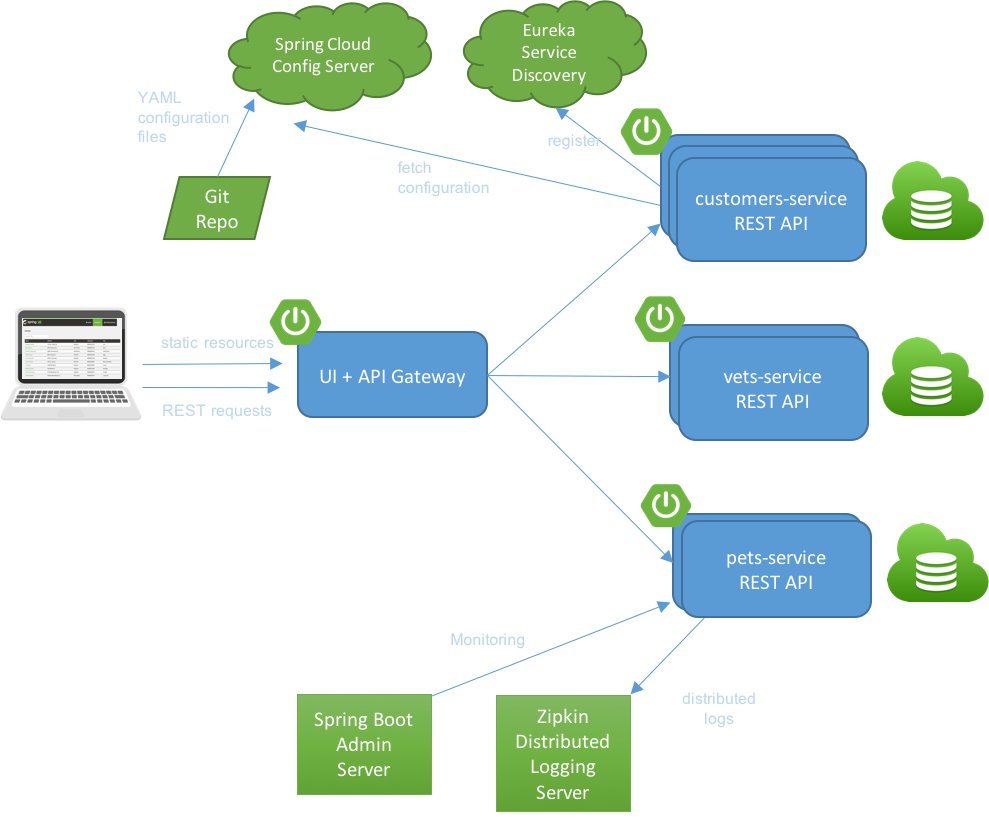
In order to perform this task, it is necessary to install Terraform. The Terraform installation page is available at the following address: https://www.terraform.io/downloads.html
To get sintax highlighting in vscode, install Hashicorp Terraform official extension (VScode >> Extensions >> Terraform)
To access your AWS console, it is necessary to generate the access_key and secret_key for your AWS account. To do this, log into your AWS account and click on My Security Credentials in your Account menu

Next, simply generate the access_key and secret_key by clicking on the Create access key button

An access_key and a hidden secret_key will then be generated

To use them, you must then export the AWS_ACCESS_KEY_ID and AWS_SECRET_ACCESS_KEY environment variables
export AWS_ACCESS_KEY_ID="<YOUR_ACCESS_KEY>"
export AWS_SECRET_ACCESS_KEY="<YOUR_SECRET_ACCESS_KEY>"
export AWS_REGION="eu-west-1"
⚠️ WARNING: Don't commit in any ways youraccess_keyandsecret_keyin your repository nor a public one. Doing so would allow anyone to access your AWS account !!
For simplicity, the main.tf and provider.tf files are provided in terraform folder. Use this folder to perform all your actions during this lab.
The principle of this first tutorial is to create the necessary file(s) to create a virtual machine containing PetClinic and its MariaDB database.
For this tutorial, it is necessary to create the following objects on AWS:
- aws_instance
- aws_vpc
- aws_subnet
- aws_internet_gateway
- aws_route_table
- aws_route_table_association
- aws_security_group
In order to interact with the newly created virtual machine, it will be necessary to go through a provisioner of type remote-exec.
⚠️ WARNING: Remember to commit the files to the corresponding folder before proceeding
⚠️ WARNING: Once the files are created and committed, remember to destroy the AWS resources created with theterraform destroycommand
Now that your infrastructure is automatically create from your local backend, create a distant S3 bucket and set it as a backend for terraform