
Support Browser Interaction with VS Code, Eclipse, and SFCC Business Manager via DevTools Web Inspector.
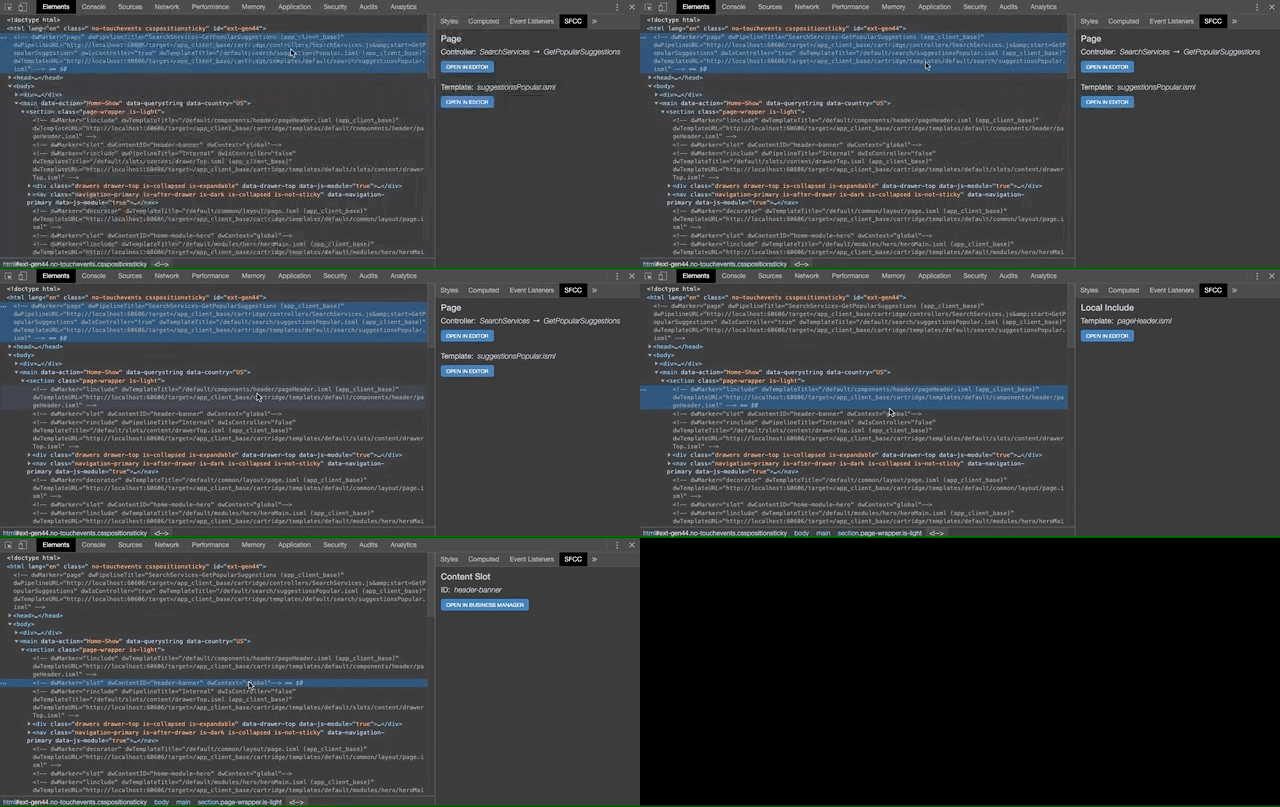
Red Van Workshop is a Salesforce Commerce Cloud Certified Partner. We built this Extension to connect the Browsers Web Inspector to VS Code, Eclipse & Business Manager. We hope you will find it as useful as we do, and if you want to help make it better, we'd love to hear from you.
- Uses dwMarker HTML Comments
- Adds new
SFCCSide Panel toElementsPanel - Open ISML, Pipelines & Controllers in VS Code / Eclipse
- Open Content Slots & Assets in Business Manager
- Supports Light & Dark Themes
Select your browser:



* Currently Requires Beta / Developer versions of Opera, or use of our Chrome Extension.
- Open Developer Console / Web Inspector in Browser
- Select
Elements/InspectorTab - Select
SFCCTab in Side Panel
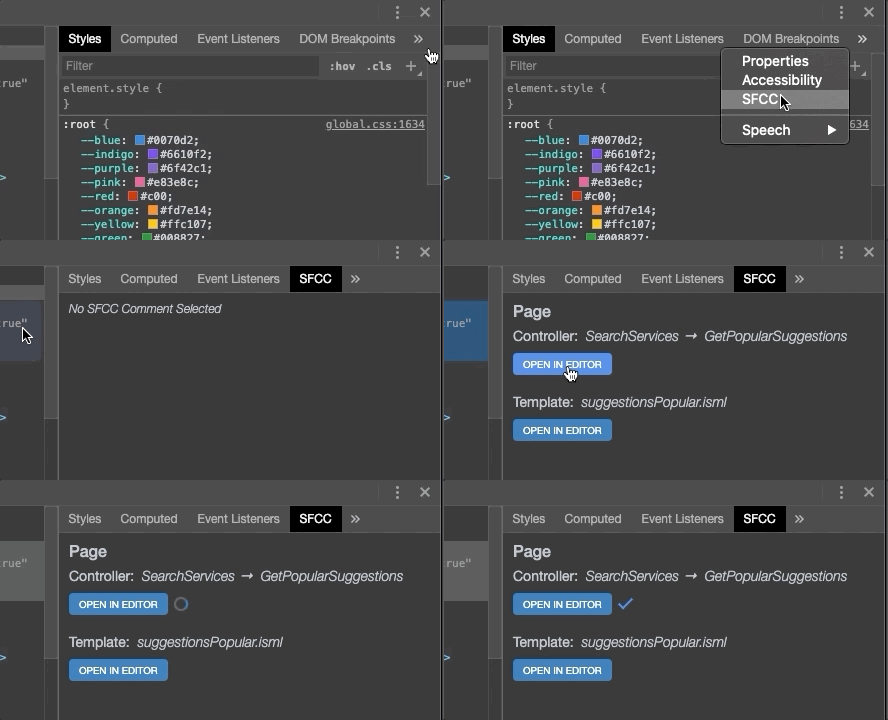
Now you're ready to go. In your Elements/Inspector Tab, click on an SFCC comment block, like one of the examples below. This extension will convert the comment into links that allow you to interact with the SFCC resource.
<!-- dwMarker="content" dwContentID="8a6c155cee595360a96c5ac853" -->
<!-- dwMarker="decorator" dwTemplateTitle="/default/common/layout/page.isml (app_client_base)" dwTemplateURL="http://localhost:60606/target=/app_client_base/cartridge/templates/default/common/layout/page.isml" -->
<!-- dwMarker="linclude" dwTemplateTitle="/default/components/header/pageHeader.isml (app_client_base)" dwTemplateURL="http://localhost:60606/target=/app_client_base/cartridge/templates/default/components/header/pageHeader.isml" -->
<!-- dwMarker="link" dwPipelineTitle="Login-Show (app_client_base)" dwIsController="true" dwPipelineURL="http://localhost:60606/target=/app_client_base/cartridge/controllers/Login.js&start=Show" -->
<!-- dwMarker="page" dwPipelineTitle="SearchServices-GetPopularSuggestions (app_client_base)" dwPipelineURL="http://localhost:60606/target=/app_client_base/cartridge/controllers/SearchServices.js&start=GetPopularSuggestions" dwIsController="true" dwTemplateTitle="/default/search/suggestionsPopular.isml (app_client_base)" dwTemplateURL="http://localhost:60606/target=/app_client_base/cartridge/templates/default/search/suggestionsPopular.isml" -->
<!-- dwMarker="rinclude" dwPipelineTitle="Internal" dwIsController="false" dwTemplateTitle="/default/slots/category/carousels/carouselRouting.isml (app_client_base)" dwTemplateURL="http://localhost:60606/target=/app_client_base/cartridge/templates/default/slots/category/carousels/carouselRouting.isml" -->
<!-- dwMarker="slot" dwContentID="header-banner" dwContext="global"-->Here is how to install this browser extension in your favorite browsers:
Add to Google Chrome
- Download Webkit Extension
- Click Keep when prompted to download the file
- Go to the following URL in a new Google Chrome tab:
chrome://extensions - In the top right corner, Enable Developer Mode
- Drag and Drop
./dist/sfcc-devtools-webkit.crxfile into Extension page
Add to Firefox
- Download Firefox Addon
- Open Firefox
- Go to the following URL in a new tab:
about:debugging#/runtime/this-firefox - In the top right corner, Click Load Temporary Add-on...
- Select the
./dist/sfcc-devtools-firefox.zipfile
Add to Opera
- Download Webkit Extension
- Go to the following URL in a new Opera tab:
chrome://extensions - In the top right corner, Enable Developer Mode
- Drag and Drop
./dist/sfcc-devtools-webkit.crxfile into Extension page - Select Yes, Install when prompted
Here is how to develop the browser extension on your local developer machine:
Build Extension
git clone git@github.com:redvanworkshop/sfcc-devtools.git
cd sfcc-devtools
npm install
npm run pack
Load Unpacked Extension to Google Chrome
- Open Google Chrome
- Go to the following URL in a new tab:
chrome://extensions - In the top right corner, Enable Developer Mode
- Click the LOAD UNPACKED link in the header
- Select the
./srcfolder
Load Temporary Add-on to Firefox
- Open Terminal in project root and run
npm run pack:firefox - Open Firefox
- Go to the following URL in a new tab:
about:debugging - Select
Enable add-on debuggingcheckbox - In the top right corner, Click Load Temporary Add-on
- Select the
./dist/sfcc-devtools-firefox.zipfile
Load Unpacked Extension to Opera
- Open Google Chrome
- Go to the following URL in a new tab:
chrome://extensions - In the top right corner, Enable Developer Mode
- Click the Load Unpacked button
- Select the
./srcfolder
Pack Extensions
cd sfcc-devtools
npm run pack
OPEN IN EDITORbutton does not work
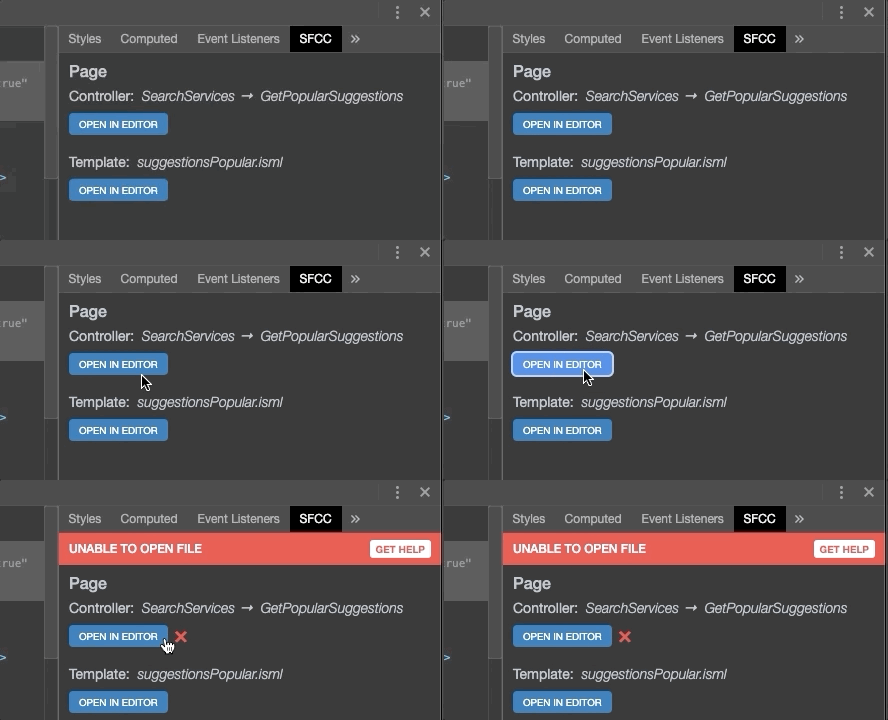
SOLUTION: Make sure you have either VS Code w/ Prophet Debugger or Eclipse w/ UX Studio running, with your SFCC project opened. Once you've opened your SFCC project, re-clicking the button should correctly open the file.
Firefox Users: You likely see an error page in your browser, rather than the fancy error message in your SFCC Side Panel. The same solution applies to Firefox. We are just required to open localhost links in a new browser tab as Firefox blocks access to adding http://localhost:60606 to content_security_policy, which is needed, in this case, to open the file in the background ( like in Google Chrome ).
The trademarks and product names of Salesforce®, including the mark Salesforce®, are the property of Salesforce.com. Red Van Workshop is not affiliated with Salesforce.com, nor does Salesforce.com sponsor or endorse the Red Van Workshop products or website. The use of the Salesforce® trademark on this project does not indicate an endorsement, recommendation, or business relationship between Salesforce.com and Red Van Workshop.