InterviewAssistant is a HubAI extension designed to assist you on interviews processes. It provides unique capabilities to record computer audio and microphone inputs, and then utilizes artificial intelligence to analyze and provide real-time answers to your interview questions.
- Audio Recording: Seamlessly record both computer audio and microphone input during your interviews.
- Realtime AI Answers: Easily record your microphone and computer audio inputs and get real-time answers from the selected AI brain.
- Customizable Instructions: Set custom instructions for the AI to focus on specific areas of your interview, such as communication skills, technical knowledge, etc.
- HubAI Application
- At least one brain with conversation and voice transcription capabilities (OpenAI ChatGPT is recommended) installed in your HubAI application.
How to install and use the InterviewAssistant extension.
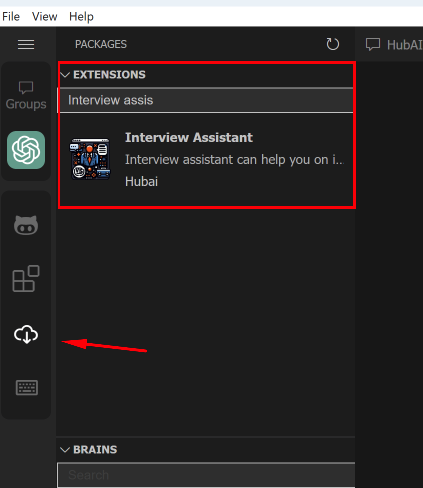
Install the extension from the HubAI Marketplace.
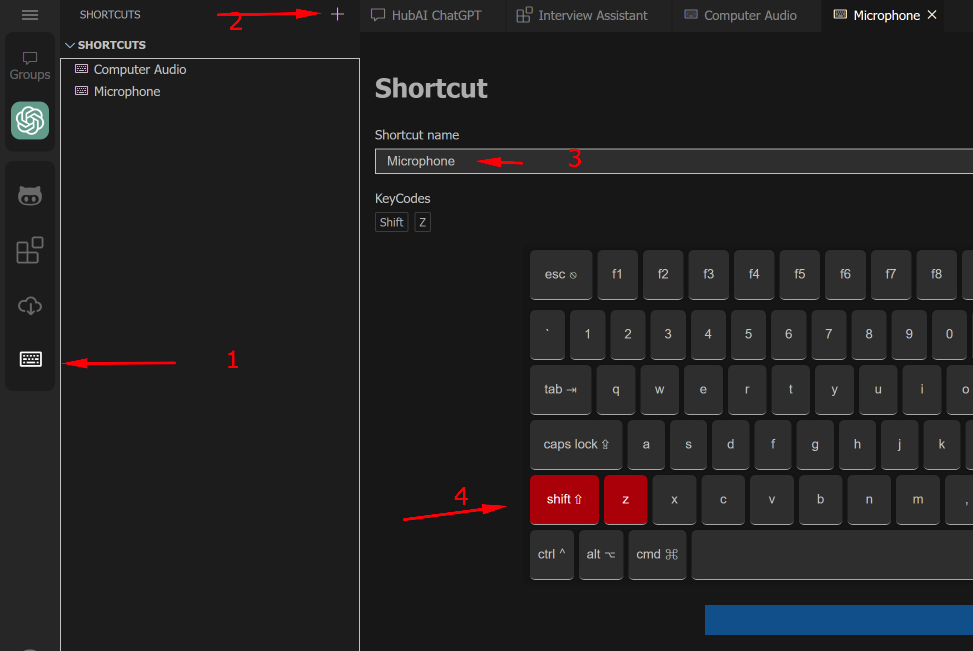
Create two new shortcuts in HubAI to start and stop recording for computer audio and microphone input. We recommend you to name them "Microphone" and "Computer Audio" for easy identification.
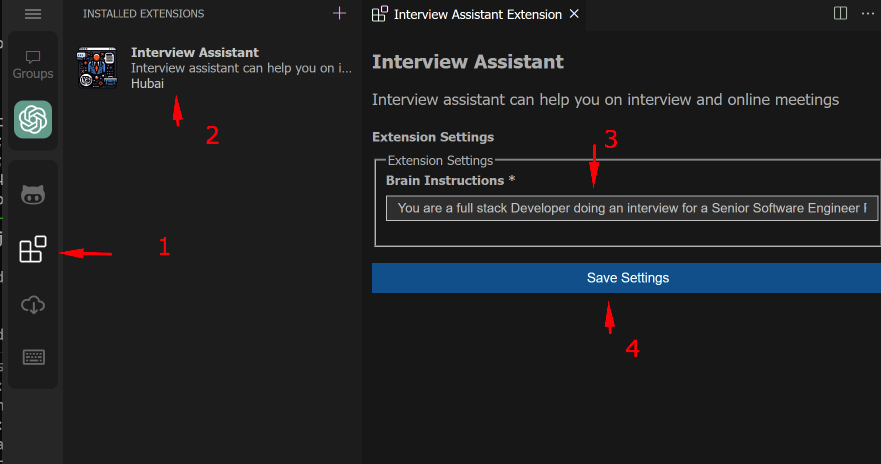
Go to the extension settings and set the brain instructions for the AI to focus on specific areas of your interview. The instructions should be written in the language of your interview. Here's two sample instruction for an english full-stack developer interview:
For long and more detailed answers you can use the following instructions (This will take more time to answer):
Act as a senior full stack Developer doing an interview for a Software Engineer position, you will be working with C#, ASP .NET Core and React. Your answer should be short and human-like (natural). You should also be able to understand even if I make any typo in the question, like saying \'health sheg\' instead of \'health check\'
If you want faster and shorter answers, you can use the following instructions:
Act as a senior full stack Developer doing an interview for a Software Engineer Position, you will be working with C#, ASP .NET Core and React. Your answer should be short, and contains only the key words and verbs. Do not write full sentences!. You are allowed to write code. You should also be able to understand even if I make any typo in the question, like saying 'health sheg' instead of 'health check'
Click on the brain icon in the sidebar, then click on New Chat > InterviewAssistant. Open the InterviewAssistant settings and select the shortcuts you created in step 2. Now you are ready to start recording your interviews!
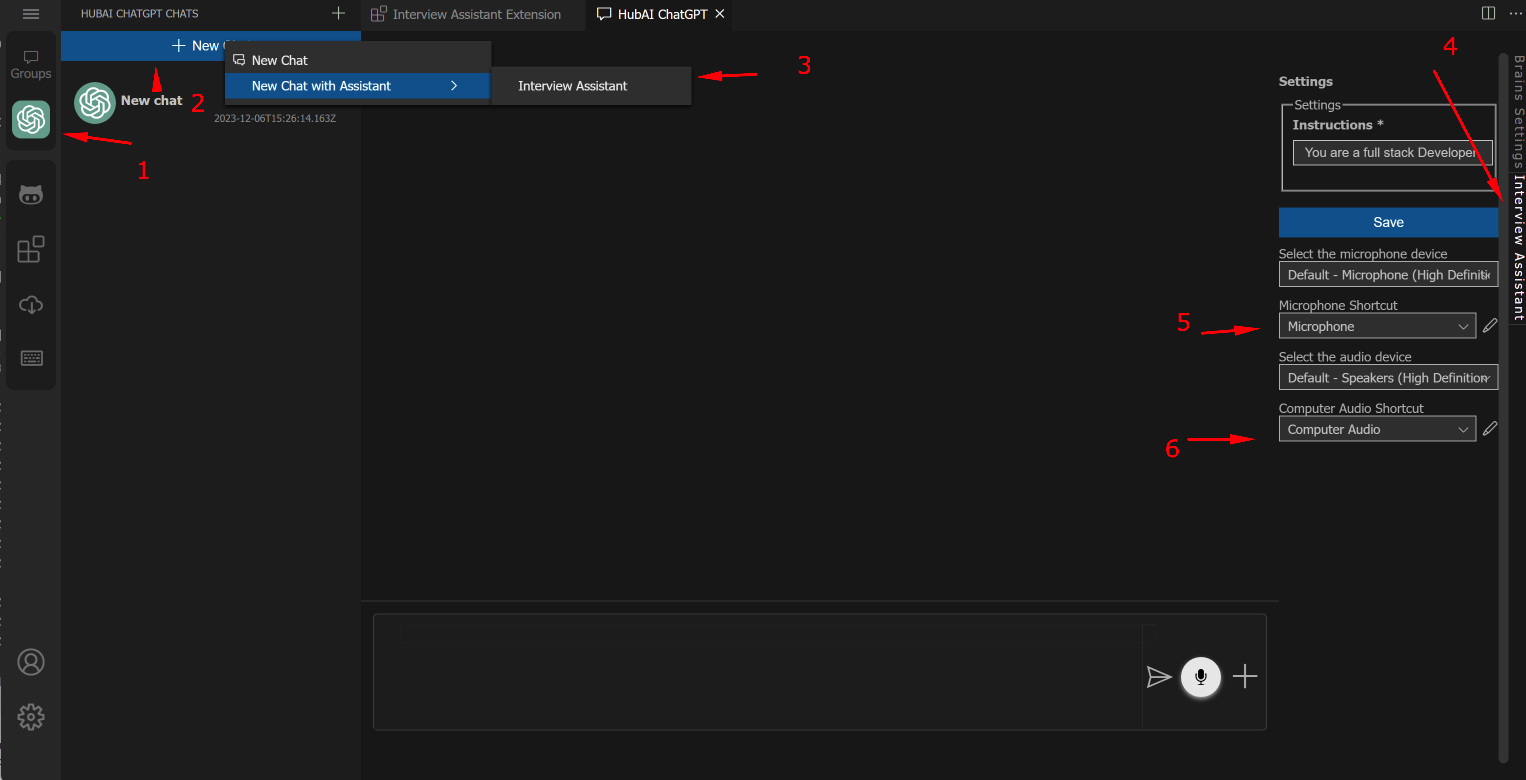
Now whenever you press the "Computer Audio" shortcut, the extension will start recording your computer audio. When you press the "Microphone" shortcut, the extension will start recording your microphone input. You can press the shortcuts again to stop recording and send the audio to the AI.
You can skip this step if you are using Windows or Linux.
Due to a limitation in the MacOS operating system, you will need to install a third-party application to allow HubAI to record your computer audio. We recommend you to use BlackHole to create a virtual audio device that will be used by HubAI to record your computer audio.
Download and install BlackHole from the official website.
After installing BlackHole, open the Audio MIDI Setup application (you can find it in the Utilities folder in your Applications folder). In the Audio Devices window, click the + button in the bottom left corner and select Create Multi-Output Device.
After creating the Multi-Output Device, select it and check the BlackHole 2ch and the Built-in Output checkboxes (Usually it's "MacBook Pro Speakers").

Then right click on the Multi-Output Device and select "Use This Device For Sound Output".
Now on HubAI, in the chat settings screen, just select the "BlackHole 2ch (Virtual)" as audio device and you are ready to go!

If you're uncertain about the setup, you can also use this video tutorial to help you with the setup: https://youtu.be/kdBNFBpLzzk?t=126
For support, questions, or feedback, please create an issue on our GitHub repository.