This is a template for creating a MelonLoader mod for the game "Schedule I". It includes a basic structure and example code to help you get started.
- Basic mod structure
- Useful methods for cross-backend compatibility
- Build for both backends: IL2CPP (none/beta branch) and Mono (alternate/alternate-beta branch)
- Easy build and test process: Select the target configuration, build the mod and the game will be launched automatically (e.g. IL2CPP with a DEBUG constant defined will build the mod and launch the IL2CPP version of the game with debug options)
- Automatic testing mod loading: Comment/uncomment lines in .csproj to enable/disable automatic loading of often used mods like UnityExplorer, LocalMultiplayer/LocalLobby
- Automatic loading of S1API if it's referenced
- A few useful scripts - all of them have built-in help (
--helpflag)- Packaging script for Thunderstore and NexusMods - one zip for both! (also automatically adapts FOMOD config)
- README.md to NexusMods description converter (BBCode)
- Extensive build and launch script, supporting both Windows and Unix-like (Wine/Proton)
- Bumper script for updating version, description and author in multiple files at once
- MelonLoader and basic knowledge of how to use it (you can also learn here)
- .NET SDK (as per MelonLoader requirements)
- C# IDE (e.g. Rider)
- Schedule I ownership
- uv - Python package manager for running helper scripts (post-build automation, packaging, version bumping, etc.)
Recommended structure:
S1-modding
├── common
│   ├── LocalMultiplayer
│   ├── S1API
│   └── UnityExplorer
│       ├── UnityExplorer.ML.Mono.dll
│       └── UnityExplorer.ML.IL2CPP.CoreCLR.dll
├── gamefiles
│   ├── Schedule I IL2CPP
│   └── Schedule I Mono
For more information read below and refer to the parameters section.
LocalMultiplayer directory should contain the mod file .dll and .bat starter.
Example starter:
start "" "Schedule I.exe" --host --adjust-window --left-offset 0 %*
timeout /t 20
start "" "Schedule I.exe" --join --adjust-window --left-offset 20 %*
The starter may be .sh on Linux, adapted accordingly (with wine prefixes etc).
UnityExplorer directory should contain .dll files for IL2CPP and Mono versions of the mod. The template expects them to be named as shown above - the default names of the files, straight from the source. This means that in UnityExplorer directory you should have 2 DLL files - UnityExplorer.ML.Mono.dll and UnityExplorer.ML.IL2CPP.CoreCLR.dll. You will also need to manually copy the UniverseLib versions to respective UserLibs in your game files directory, as the template does not handle that.
S1API directory should contain the structure of the S1API release package, i.e. it should have mods and plugins subdirectories with respective files inside.
gamefiles directory should contain the game files for IL2CPP and Mono versions of the game. You can use the Schedule I IL2CPP and Schedule I Mono directories to store the game files for each version. They should be the full game directories, with MelonLoader installed. Copy them from your Steam installation after installing MelonLoader. For example, if your branch is set to none or beta, copy the full Steam Schedule I installation directory to Schedule I IL2CPP. Change the branch to alternate or alternate-beta and copy the full installation directory to Schedule I Mono. Run them once after copying to verify the game and MelonLoader work correctly.
To install this template, use:
dotnet new install k073l.S1MelonMod
To create a new mod you can use the new solution wizard:
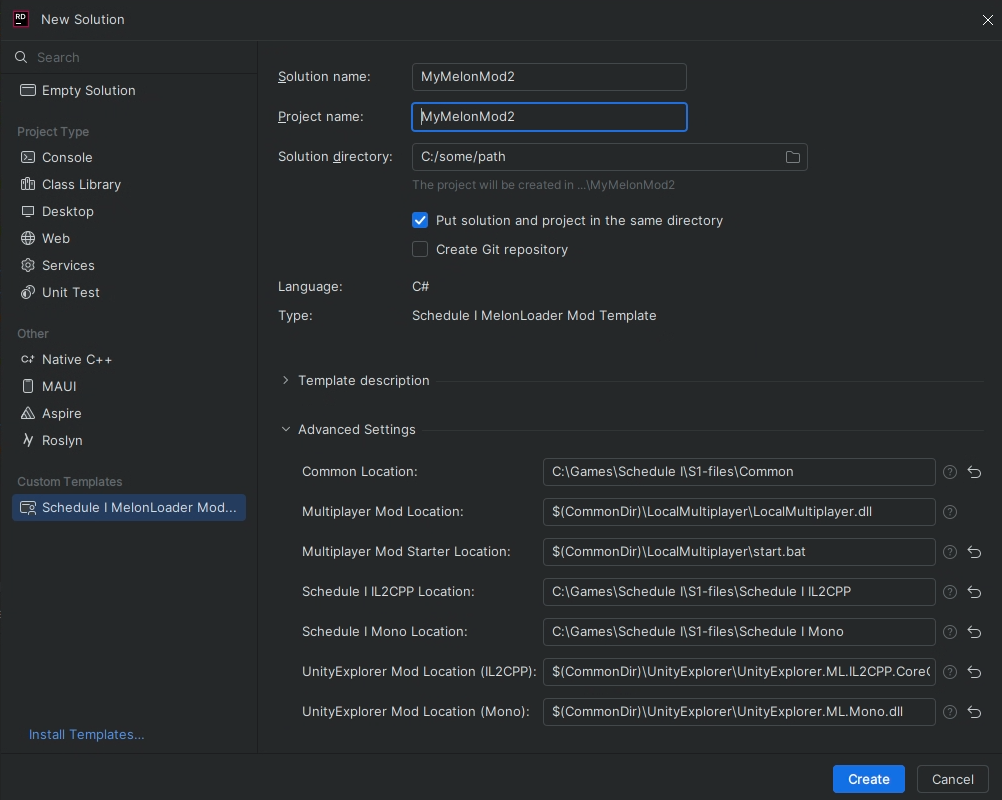 Alternatively, you can create a new project using the command line:
dotnet new S1MelonMod -n MyNewMod \
  --S1MonoDir "" \
  --S1IL2CPPDir ""
After creating your project, pick a license for your mod (see https://choosealicense.com/ for guidance), create it as LICENSE.md and update the generated README accordingly.
| Name | Required | Description |
|---|---|---|
| S1MonoDir | Yes | Path to the Mono version of the game. |
| S1IL2CPPDir | Yes | Path to the IL2CPP version of the game. |
| UnityExplorerRoot | No | Path to the UnityExplorer mod directory, as described above. |
| S1APIRoot | No | Path to the S1API directory. Structure of this directory is the same as S1API release package (contains mods and plugins directories) |
| MultiplayerModMono | No | Path to the Mono version of the LocalMultiplayer mod. |
| MultiplayerModIL2CPP | No | Path to the IL2CPP version of the LocalMultiplayer mod. |
| MultiplayerModStarter | No | Path to the LocalMultiplayer mod starter bat file. |
Commandline example with some optional parameters:
dotnet new S1MelonMod -n MyNewMod \
  --S1MonoDir "C:\S1\gamefiles\Schedule I Mono" \
  --S1IL2CPPDir "C:\S1\gamefiles\Schedule I IL2CPP" \
  --UnityExplorerRoot "C:\S1\common\UnityExplorer" \
  --S1APIRoot "C:\S1\common\S1API"
LocalMultiplayer mod can be substituted with LocalLobby as they share the same interface.
Note: This is experimental and will require adjustments based on your setup. You should be comfortable with configuring Wine/Proton and debugging potential issues. Contributions to improve this functionality are welcome!
The template supports building and testing mods on Linux and macOS using Wine or Proton. To configure this, add the following to your build/events/postBuild.targets file:
<PropertyGroup Condition="'$(OS)' != 'Windows_NT'">
    <WineBinary>$(HOME)/.steam/steam/steamapps/common/Proton 9.0/proton</WineBinary>
    <WinePrefix>$(HOME)/.steam/steam/steamapps/compatdata/3164500/pfx</WinePrefix>
</PropertyGroup>
For standard Wine instead of Proton:
<PropertyGroup Condition="'$(OS)' != 'Windows_NT'">
    <WineBinary>wine64</WineBinary>
    <WinePrefix>$(HOME)/.wine</WinePrefix>
</PropertyGroup>
Note: Verify paths according to your Proton/Wine setup.
The post-build script will automatically use these settings to launch the game through Wine/Proton.
The template includes a bumper script for updating version numbers, descriptions, and author information across multiple files at once. This updates MainMod.cs, assets/manifest.json, ModName.csproj and assets/fomod/info.xml.
On Unix-like systems (Linux/macOS), you can run it directly:
./assets/bumper.py version 1.2.0
./assets/bumper.py description "My updated mod description"
./assets/bumper.py author "YourName"
On Windows:
uv run assets/bumper.py version 1.2.0
uv run assets/bumper.py description "My updated mod description"
uv run assets/bumper.py author "YourName"The template includes a unified packaging script for both Thunderstore and NexusMods. Once both IL2CPP and Mono builds are tested, fill out dependencies assets/manifest.json, use bumper.py script to update versions, descriptions and author info and replace icon.png with your own in the assets directory.
On Unix-like systems:
./assets/package.pyOn Windows:
uv run assets/package.pyThis creates a single dist/YourMod.zip containing both DLL versions with Thunderstore manifest, a FOMOD installer, README, CHANGELOG, icon and LICENSE (if found). The FOMOD installer automatically presents branch-specific options to users on NexusMods, while Thunderstore users get both versions in one package.
Packaging Options:
--skip-mono- Package only IL2CPP build--skip-il2cpp- Package only Mono build--crossplatform- Package for S1API cross-platform compatibility (build as Mono DLL, FOMOD adjusted accordingly)
Example:
uv run assets/package.py --skip-mono # IL2CPP onlyThe template includes a script to convert your README.md to BBCode format for NexusMods descriptions.
On Unix-like systems:
./assets/nexus-readme.pyOn Windows:
uv run assets/nexus-readme.pyThis creates README.bbcode in your project root. Copy this content, switch the NexusMods description editor to BBCode mode:

Paste the content and verify it looks correct. You can switch back to the visual editor afterward.
Information on S1 modding can be found in the S1 modding discord.
Debug method allows you to log messages only when MelonLoader is running with --melonloader.debug flag. Additionally, it automatically logs caller info. If not using the caller info parameter, it's simply a convenience method to MelonDebug.Msg.
private static MelonLogger.Instance _logger = new MelonLogger.Instance("MyMod");
_logger.Debug("This message will be logged only in Debug");ToIl2CppList<T> makes converting List<T> to Il2CppList<T> easier.
List<int> list = new List<int> { 1, 2, 3 };
Il2CppSystem.Collections.Generic.List<int> il2cppList = list.ToIl2CppList();
ConvertToList<T> naturally, converts Il2CppList<T> to List<T>.
Il2CppSystem.Collections.Generic.List<int> il2cppList = new Il2CppSystem.Collections.Generic.List<int> { 1, 2, 3 };
List<int> list = il2cppList.ConvertToList();
AsEnumerable<T> allows you to use LINQ on both Il2Cpp Lists and System Lists.
var deliveryVehicle = VehicleManager.Instance.AllVehicles.AsEnumerable().FirstOrDefault(); // works both in il2cpp and mono
// without AsEnumerable we'd need to
#if MONO
var deliveryVehicle = VehicleManager.Instance.AllVehicles.FirstOrDefault();
#else
var deliveryVehicle = VehicleManager.Instance.AllVehicles._items[0];
#endif
ToNativeList<T> converts a C# List/Il2CppList to backend-native list (Il2CppList on IL2CPP, List on Mono).
List<int> myList = new List<int> { 1, 2, 3 };
var nativeList = myList.ToNativeList(); // works on both backendsFindObjectByName<T> finds loaded object by name.
var sprite = Utils.FindObjectByName<Sprite>("MySprite");GetAllComponentsInChildrenRecursive<T> gets all components of type T in children of the object.
var components = Utils.GetAllComponentsInChildrenRecursive<MyComponent>(myGameObject);Is<T> checks and casts object to type T.
if (Is<MyComponent>(someObj, out var res))
{
    // res is MyComponent
}
GetHierarchyPath gets the full hierarchy path of a Transform.
string path = myTransform.GetHierarchyPath();GetOrAddComponent<T> gets a component or adds it if it doesn't exist.
var rigidbody = myGameObject.GetOrAddComponent<Rigidbody>();DrawDebugVisuals replaces a GameObject's material with a colored one for debugging.
var originalMaterial = myGameObject.DrawDebugVisuals(Color.magenta);There are several coroutine helper methods for use with MelonCoroutines.Start(coroutine):
WaitForPlayer(IEnumerator routine) - Waits for the local player to be ready before starting the given coroutine.
MelonCoroutines.Start(Utils.WaitForPlayer(DoStuff()));WaitForNetwork(IEnumerator routine) - Waits for the network (FishNet) to be ready before starting the given coroutine.
MelonCoroutines.Start(Utils.WaitForNetwork(DoNetworkStuff()));WaitForCondition(Func<bool> condition, float timeout, Action onTimeout, Action onFinish) - Waits until a condition is true, with optional timeout and callbacks.
MelonCoroutines.Start(Utils.WaitForCondition(
    () => someObject != null,
    timeout: 5f,
    onTimeout: () => Logger.Warning("Timeout!"),
    onFinish: () => Logger.Msg("Ready!")
));
All methods include XML documentation.