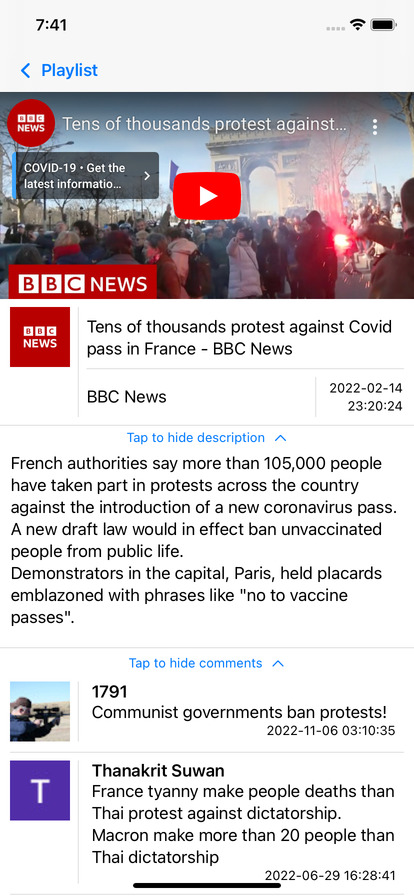
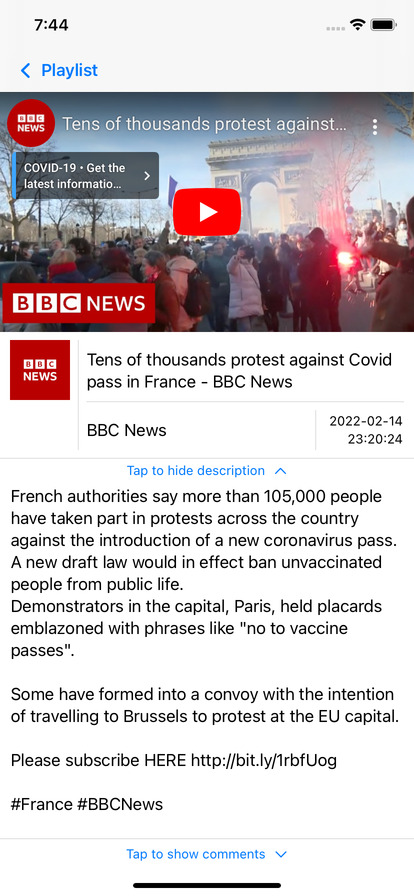
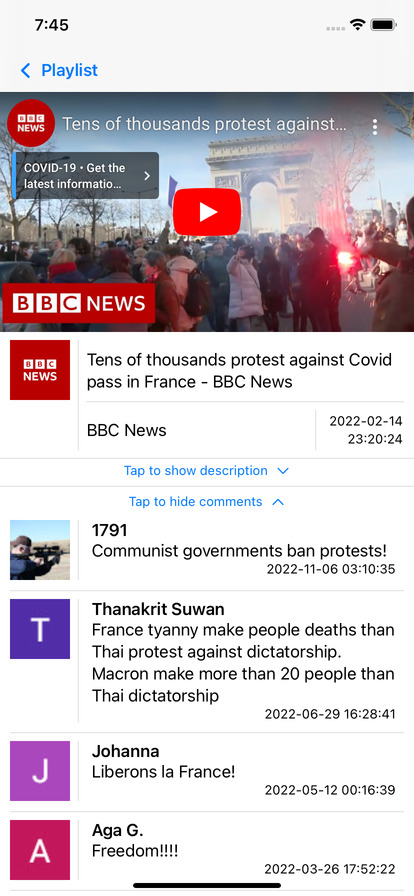
Simple Youtube playlist viewer for iOS.
To use the app, you will need to obtain an API key from Google data API that grants access to the YouTube API. Refer to this guide for instructions on how to obtain the key. Once you have obtained the API key, follow the below steps:
- Open Xcode.
- Set the API key to
YOUTUBE_API_KEYin the info.plist file. - Set the desired Playlist ID to
YOUTUBE_PLAYLIST_IDin the info.plist file. Please note that a default ID is already provided, but you may need to change it to match your desired playlist. - You are now ready to run the app.
Due to YouTube's terms of service, our app is restricted to using the player provided by YouTube, which utilizes WKWebView. Currently, videos played in WKWebView on iOS will automatically switch to fullscreen mode.
Unfortunately, the video owner's or channel's image URL cannot be retrieved from the playlist items API. Instead, it needs to be queried individually for each video via the channel API. To minimize network overload, we have implemented a cache that records the channel ID and its corresponding image URL.
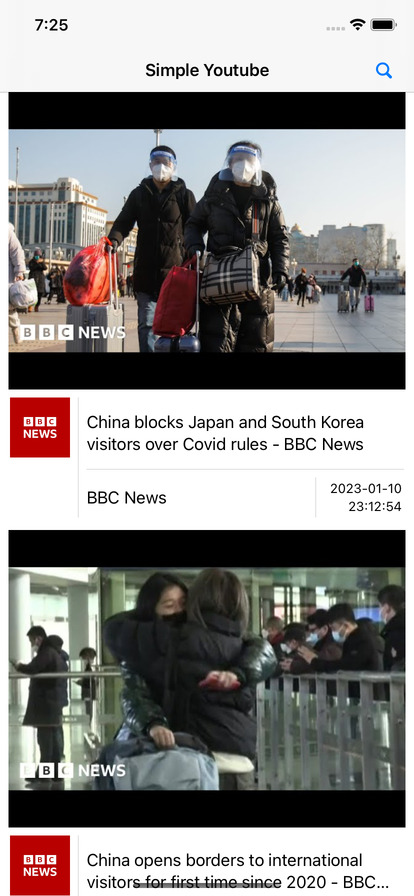
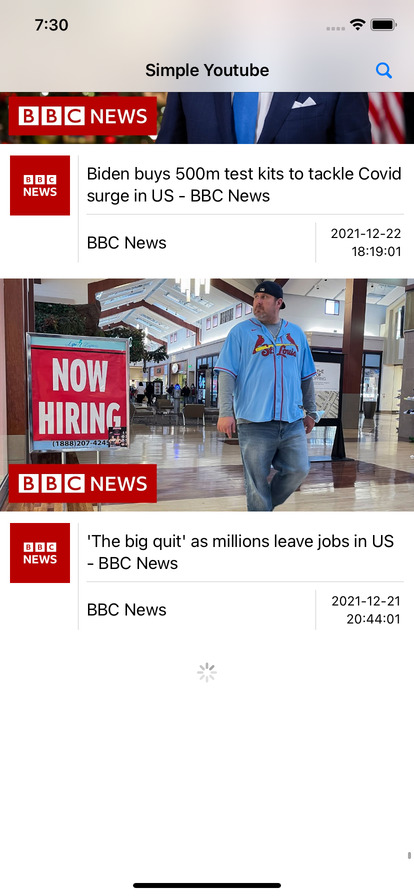
The app initially displays 30 videos. If you scroll down to the bottom of the screen, an additional 20 videos will be loaded. To access the search feature, tap the magnifying glass icon to open the search dialog. To watch a particular video, simply tap on its thumbnail, and the video page will open.
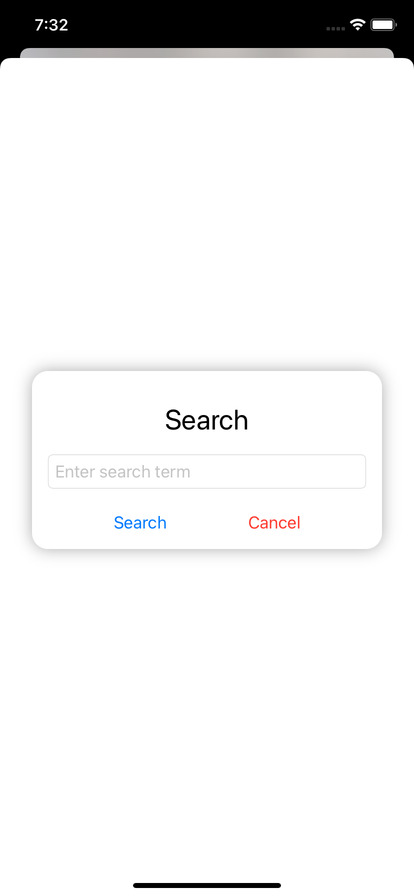
To search for videos in a playlist that contain a specific term in their title, type the term into the text input and then tap the "Search" button. If multiple words are entered, all titles containing at least one of the words will be displayed. If you want to cancel the search, simply tap the "Cancel" button. To clear any previously displayed search results, leave the text input blank and tap "Search".
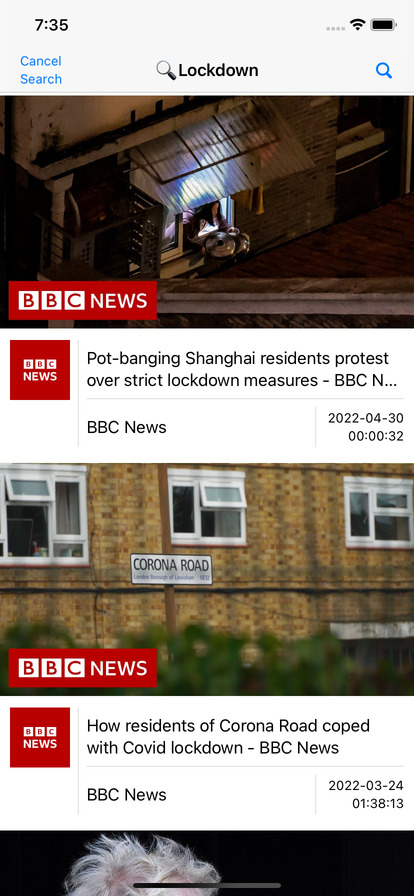
As soon as the search results are displayed, the app's title will be replaced with the search term. Additionally, scrolling down to the bottom of the screen will trigger the loading of more content, filtered by the search term. However, if there are no videos with titles that match the search term, the loading process may appear to be stuck. To resolve this, try scrolling up and down a few times. If you want to clear the search results, tap the "Cancel Search" button.
If you tap on a video thumbnail, it will start playing the video. To hide or show the video description or comments, tap on the "Hide/Show Description/Comments" button. Additionally, to load more comments on the video, scroll to the bottom of the comments section.