





Restore the "face" to your Tkinter!
A multilingual GUI extension library for Tkinter (tkinter) - bringing back the "face" (interface) that Tkinter left behind. Built with zero external dependencies, using only Python's standard library.
Tkface is a Python library designed to restore and enhance the "face" (user interface) of Tkinter. While Tkinter is a powerful toolkit, its dialogs and user-facing components are minimal and lack friendly interfaces. Tkface fills this gap with multilingual dialogs, advanced message boxes, and Windows-specific features. The library is built entirely with Python's standard library, requiring no external dependencies.
- Completing the Interface: Tkinter stands for "Tk interface," providing a powerful core for building GUIs. Tkface is designed to complement it by providing the user-facing components—the "face"—that are essential for a polished user experience but not built into the standard library. It extends Tkinter with ready-to-use, multilingual dialogs and widgets, letting you build sophisticated, user-friendly applications with less effort.
- Vibe Coding: Developed with a "Vibe Coding" approach-prioritizing developer joy, rapid prototyping, and a sense of fun. The codebase is hackable, readable, and easy to extend—and so is this document.
- Python 3.7+
- Tkinter (included with Python)
- Zero external dependencies - Uses only Python standard library
Install the latest version from PyPI:
pip install tkfaceOr install from the GitHub repository for the latest changes:
pip install git+https://github.com/mashu3/tkface.gitimport tkface
# Simple information dialog
tkface.messagebox.showinfo("Operation completed successfully!")
# Multilingual support
tkface.messagebox.showerror("An error has occurred!", language="ja")
# With system sound (Windows only)
tkface.messagebox.showerror("An error has occurred!", bell=True)
# Confirmation dialog
if tkface.messagebox.askyesno("Do you want to save?"):
# Handle save operation
tkface.messagebox.showinfo("File saved successfully!")| Dialog Type | Windows | macOS |
|---|---|---|
| Warning | 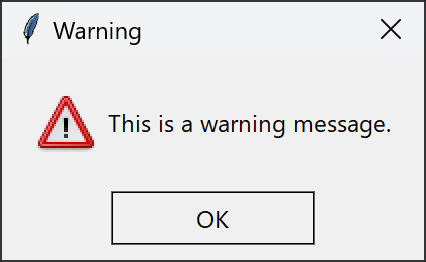 |
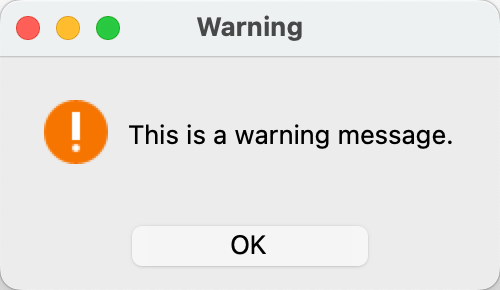 |
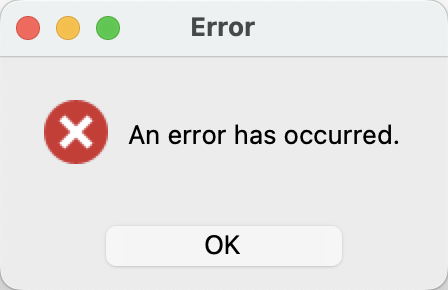
| Error | 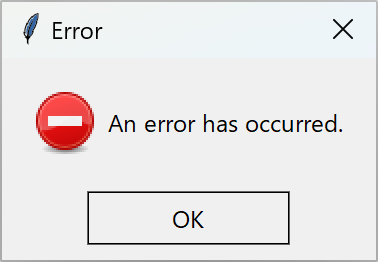 |
 |
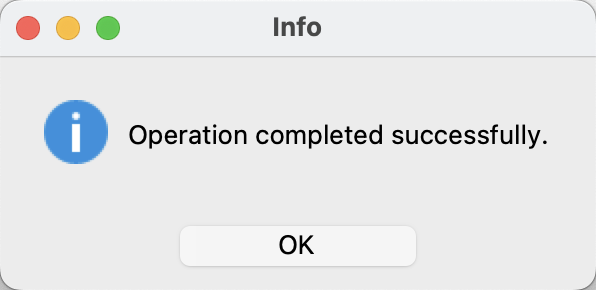
| Information | 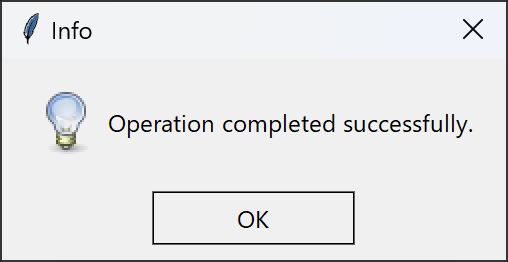 |
 |
| Question | 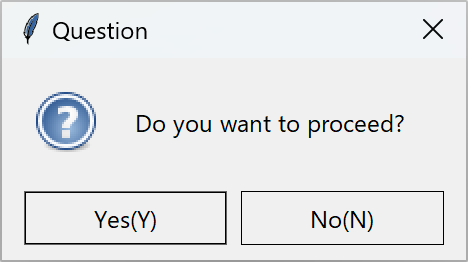 |
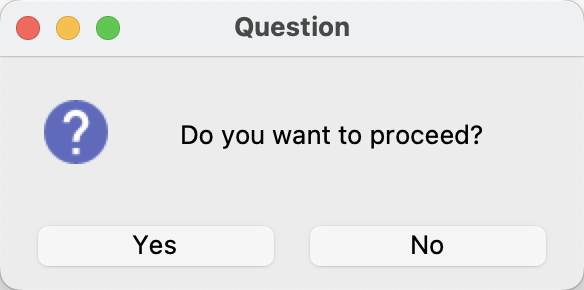 |
import tkface

# String input
name = tkface.simpledialog.askstring("Enter your name:")

# Integer input with validation
age = tkface.simpledialog.askinteger("Enter your age:", minvalue=0, maxvalue=120)

# List selection dialog
color = tkface.simpledialog.askfromlistbox("Choose a color:", choices=["Red", "Green", "Blue"])

# Multiple selection dialog
colors = tkface.simpledialog.askfromlistbox("Choose colors:", choices=["Red", "Green", "Blue"], multiple=True)import tkface
# Select a single file
file_path = tkface.pathchooser.askopenfile(
title="Select a File",
filetypes=[("Text files", "*.txt"), ("Python files", "*.py")]
)
# Select multiple files
file_paths = tkface.pathchooser.askopenfiles(
title="Select Multiple Files",
filetypes=[("Text files", "*.txt"), ("All files", "*.*")]
)
# Select a directory
directory = tkface.pathchooser.askdirectory(
title="Select a Directory"
)
# Advanced file/directory selection
paths = tkface.pathchooser.askpath(
select="both", # "file", "dir", or "both"
multiple=True, # Allow multiple selection
initialdir="/path/to/start",
filetypes=[("Text files", "*.txt"), ("Log files", "*.log")]
)Features:
- Directory Tree: Hierarchical folder navigation with icons
- File List: Details view with size, modification date, and file type
- View Modes: Switch between list and details view
- File Filtering: Filter by file type with dropdown
- Path Navigation: Direct path entry with Go button
- Refresh: Refresh current directory (F5 or Ctrl+R)
- Multiple Selection: Select multiple files/directories
- Keyboard Shortcuts: Enter (OK), Escape (Cancel), F5 (Refresh)
Note: All file dialog functions return a list of selected paths. If cancelled, an empty list is returned.
| Widget Type | Windows | macOS |
|---|---|---|
| DateFrame | 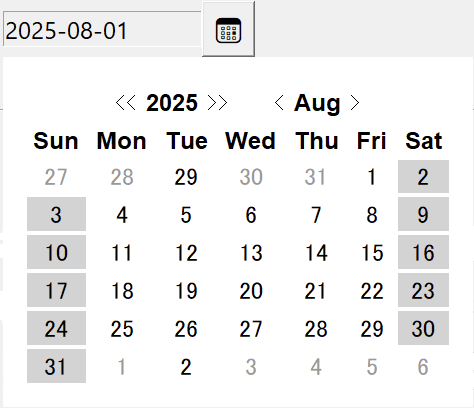 |
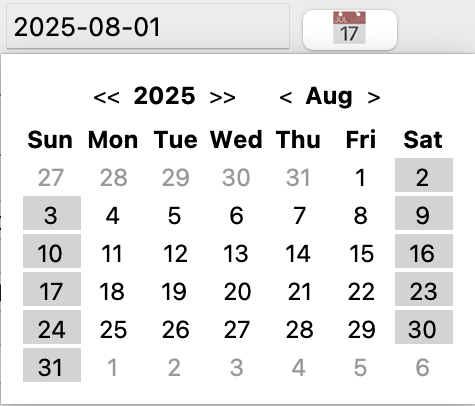 |
Initial Date Behavior: When no year and month parameters are specified, both DateEntry and DateFrame automatically use the current date as the initial value. You can also explicitly set the initial date using the year and month parameters.
Navigation Features: The calendar widgets include intuitive navigation features:
- Click on the year/month header to switch to year selection mode (3x4 month grid)
- Click on a month in year selection mode to switch to that month
- Use arrow buttons to navigate between months/years
- All navigation maintains the selected date and theme settings
import tkinter as tk
import tkface

root = tk.Tk()
root.title("DateEntry Demo")

# Basic DateEntry (uses current date by default)
date_entry = tkface.DateEntry(root)
date_entry.pack(padx=10, pady=10)

# DateFrame with custom button text
date_frame = tkface.DateFrame(root, button_text="📅")
date_frame.pack(padx=10, pady=10)

# Advanced DateEntry with features
date_entry = tkface.DateEntry(
    root,
    show_week_numbers=True,      # Show week numbers
    week_start="Monday",         # Start week on Monday
    day_colors={                 # Color weekends
        "Sunday": "lightcoral",
        "Saturday": "lightblue"
    },
    holidays={                   # Highlight holidays
        "2025-08-15": "red",     # Custom holiday
        "2025-08-30": "blue"     # Another holiday
    },
    theme="light",               # Light theme
    language="ja"                # Japanese language
)

# DateEntry with specific initial date
date_entry_with_date = tkface.DateEntry(
    root,
    year=2025,                   # Set initial year
    month=8,                     # Set initial month
    date_format="%Y年%m月%d日"    # Japanese date format
)
date_entry_with_date.pack(padx=10, pady=10)

# Get selected date
selected_date = date_entry.get_date()
# Process the selected date as needed
if selected_date:
    # Handle the selected date
    pass

# Get selected date from specific date entry
selected_date_with_date = date_entry_with_date.get_date()

root.mainloop()| Parameter | Type | Default | Description |
|---|---|---|---|
year |
int |
None (current year) |
Initial year to display |
month |
int |
None (current month) |
Initial month to display |
date_format |
str |
"%Y-%m-%d" |
Date format string |
button_text |
str |
"📅" |
Button text (DateFrame only) |
theme |
str |
"light" |
Theme: "light" or "dark" |
language |
str |
"en" |
Language: "en" or "ja" |
- DateFrame: Customizable button text, more flexible layout
- DateEntry: Combobox-style appearance, standard system look
Initial Time Behavior: When no initial_time parameter is specified, both TimeEntry and TimeFrame automatically use the current time as the initial value. You can also explicitly set the initial time using the initial_time parameter.
Time Selection Features: The time picker widgets include intuitive time selection features:
- Click on the widget to open a popup time picker
- Use spinboxes to adjust hours, minutes, and seconds
- Toggle between 24-hour and 12-hour formats
- Show or hide seconds display
- Support for light and dark themes
- Multilingual support (English/Japanese)
import tkinter as tk
import tkface
import datetime

root = tk.Tk()
root.title("TimeEntry Demo")

# Basic TimeEntry (uses current time by default)
time_entry = tkface.TimeEntry(root)
time_entry.pack(padx=10, pady=10)

# TimeFrame with custom button text
time_frame = tkface.TimeFrame(root, button_text="🕐")
time_frame.pack(padx=10, pady=10)

# Callback function for time selection
def on_time_selected(time_obj):
    if time_obj:
        print(f"Selected time: {time_obj.strftime('%H:%M:%S')}")

# Advanced TimeEntry with features
time_entry = tkface.TimeEntry(
    root,
    time_format="%H:%M:%S",      # 24-hour format with seconds
    hour_format="24",             # 24-hour format (or "12" for 12-hour)
    show_seconds=True,            # Show seconds
    theme="light",                # Light theme (or "dark")
    language="ja",                # Japanese language
    time_callback=on_time_selected  # Callback function
)

# TimeEntry with specific initial time
time_entry_with_time = tkface.TimeEntry(
    root,
    time_format="%I:%M %p",       # 12-hour format without seconds
    hour_format="12",              # 12-hour format
    show_seconds=False,           # Hide seconds
    initial_time=datetime.time(14, 30, 0)  # 2:30 PM
)
time_entry_with_time.pack(padx=10, pady=10)

# Get selected time
selected_time = time_entry.get_time()
# Process the selected time as needed
if selected_time:
    # Handle the selected time
    pass

# Get selected time from specific time entry
selected_time_with_time = time_entry_with_time.get_time()

root.mainloop()| Parameter | Type | Default | Description |
|---|---|---|---|
time_format |
str |
"%H:%M:%S" |
Time format string |
hour_format |
str |
"24" |
Hour format: "24" or "12" |
show_seconds |
bool |
True |
Whether to show seconds |
button_text |
str |
"🕐" |
Button text (TimeFrame only) |
theme |
str |
"light" |
Theme: "light" or "dark" |
language |
str |
"en" |
Language: "en" or "ja" |
initial_time |
datetime.time |
None (current time) |
Initial time to display |
time_callback |
callable |
None |
Callback function called when time is selected |
- TimeFrame: Customizable button text, more flexible layout
- TimeEntry: Combobox-style appearance, standard system look
Tkface provides Windows-specific enhancements that automatically detect the platform and gracefully degrade on non-Windows systems. These features include DPI awareness, Windows 11 corner rounding control, and system sound integration.
import tkinter as tk
import tkface

root = tk.Tk()

# Enable DPI awareness and automatic scaling
tkface.win.dpi(root)  # Enable DPI awareness

# Window geometry is automatically adjusted for DPI
root.geometry("600x400")  # Will be scaled appropriately

# UI elements are automatically scaled
button = tkface.Button(root, text="Scaled Button")
button.pack()

root.mainloop()import tkinter as tk
import tkface
root = tk.Tk()
root.title("Windows Features Demo")
# Enable DPI awareness and automatic scaling
tkface.win.dpi(root) # Enable DPI awareness (Windows only)
# Set window geometry
root.geometry("600x400")
# Create your widgets here
def on_button_click():
tkface.messagebox.showinfo("Info", "Button clicked!")
button = tkface.Button(root, text="Flat Button", command=on_button_click) # Flat styling on Windows
button.pack()
# Disable corner rounding (Windows 11 only) - call after all widgets are created
tkface.win.unround(root) # Disable corner rounding (Windows 11 only)
# Play Windows system sound (Windows only)
tkface.win.bell("error") # Play Windows system sound (Windows only)
root.mainloop()Important: Call tkface.win.unround(root) after creating all widgets but before mainloop() to ensure the window is fully initialized.
Note: All Windows-specific features gracefully degrade on non-Windows platforms.
import tkface
import tkinter as tk

root = tk.Tk()
tkface.lang.set("ja", root)  # Set language manually
tkface.lang.set("auto", root)  # Auto-detect system language

# Register custom translations
custom_translations = {
    "ja": {
        "Choose an option:": "オプションを選択:",
        "Option 1": "オプション1",
        "Option 2": "オプション2",
        "Option 3": "オプション3"
    }
}
tkface.simpledialog.askfromlistbox(
    "Choose an option:",
    choices=["Option 1", "Option 2", "Option 3"],
    custom_translations=custom_translations,
    language="ja"
)- Zero Dependencies: Built entirely with Python's standard library - no external packages required
- Multilingual Support: Automatic language detection, English/Japanese built-in, custom dictionaries
- Enhanced Message Boxes: All standard and advanced dialogs, custom positioning, keyboard shortcuts, tab navigation
- Enhanced Input Dialogs: String/integer/float input, validation, password input, list selection, custom positioning
- File and Directory Selection: Advanced file browser with directory tree, file filtering, multiple selection support
- Calendar Widget: Multi-month display, week numbers, holiday highlighting, customizable colors, language support
- Time Picker Widget: Time selection with 24/12-hour format, seconds display, popup time picker, theme support, language support
- Windows Features:
- DPI Awareness: Automatic scaling for high-resolution displays
- Windows 11 Corner Rounding Control: Modern UI appearance
- Windows System Sounds: Platform-specific audio feedback
- Flat Button Styling: Modern appearance without shadows
- All features gracefully degrade on other OS
See the examples/ directory for complete working examples:
demo_messagebox.py- Message box demonstrationsdemo_simpledialog.py- Input dialog demonstrationsdemo_pathchooser.py- File and directory selection demonstrationsdemo_calendar.py- Calendar widget demonstrationsdemo_timepicker.py- Time picker widget demonstrationsdemo_windows_features.py- Windows-specific features demonstrations
Note: Test files are not included in the public release. For testing, see the development repository.
- English (en): Default, comprehensive translations
- Japanese (ja): Complete Japanese translations
You can add support for any language by providing translation dictionaries:
custom_translations = {
    "fr": {
        "ok": "OK",
        "cancel": "Annuler",
        "yes": "Oui",
        "no": "Non",
        "Error": "Erreur",
        "Warning": "Avertissement"
    }
}This project is licensed under the MIT License. See the LICENSE file for details.