Note: This extension is a technical preview only and is under active development, the majority of it's features are still in progress.
Please request the missing features and/or report bugs here: https://github.com/vmisoft/vscommander/issues

The missing and essential cross-platform dual-panel file manager extension for Visual Studio Code inspired by Far Manager, Dos Navigator, Volkov Commander, and Norton Commander.
Previously, a powerful editor was an extension to dual panel file manager. VSCommander is exactly the opposite paradigm that works well in the modern realities. The vision of the project is to replicate the classic look and feel of Far Manager while extending its functionality and keeping cross-platform support of modern *nix and Windows-compatible operating systems.
The extension runs as a terminal overlay, you can toggle the file panel on and off with Ctrl+O.
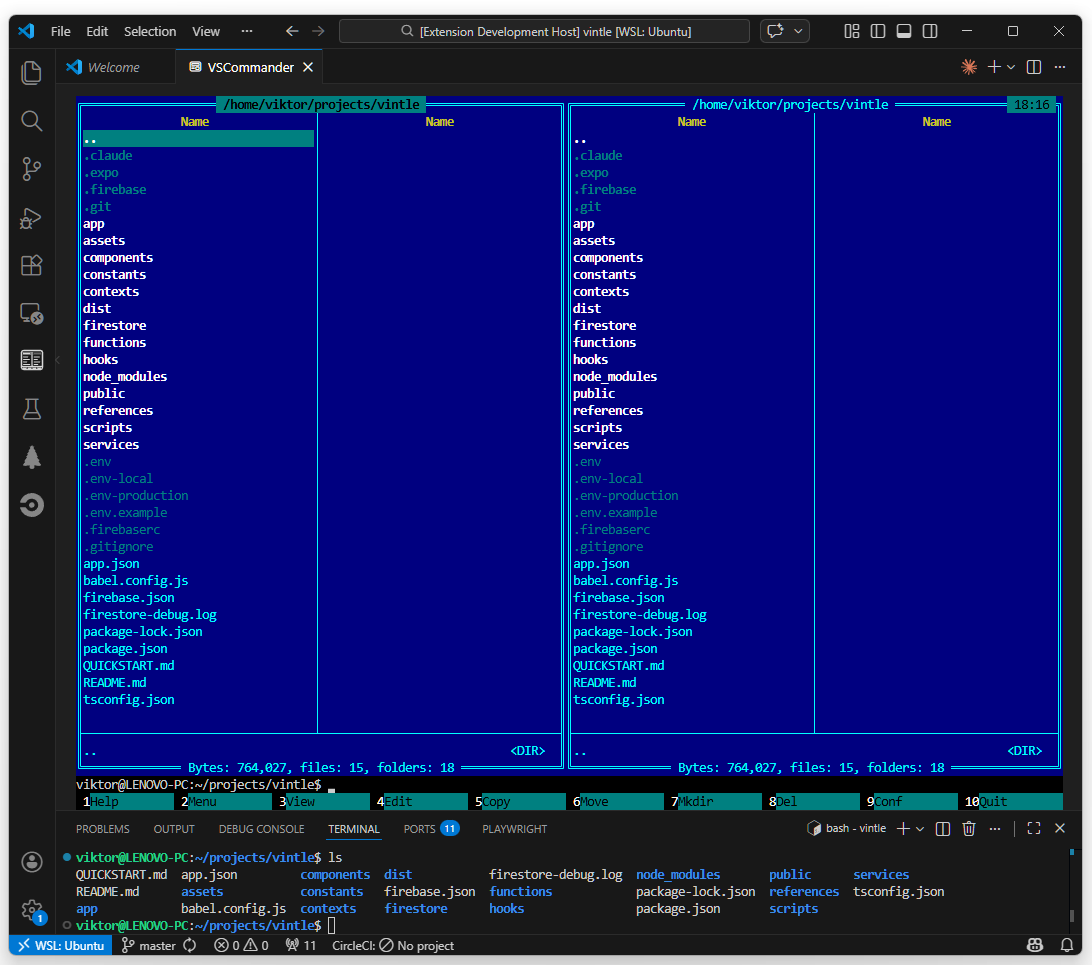
- Dual-pane browsing: two independent directory panels side by side
- Real terminal underneath: not a webview; the shell session persists when the panel is hidden
- Quick search: press
Alt+ any letter to jump to matching files instantly - Drive / mount popup:
Alt+F1/Alt+F2to switch drives (Windows) or mounted filesystems (Linux, macOS, FreeBSD) - Quick View:
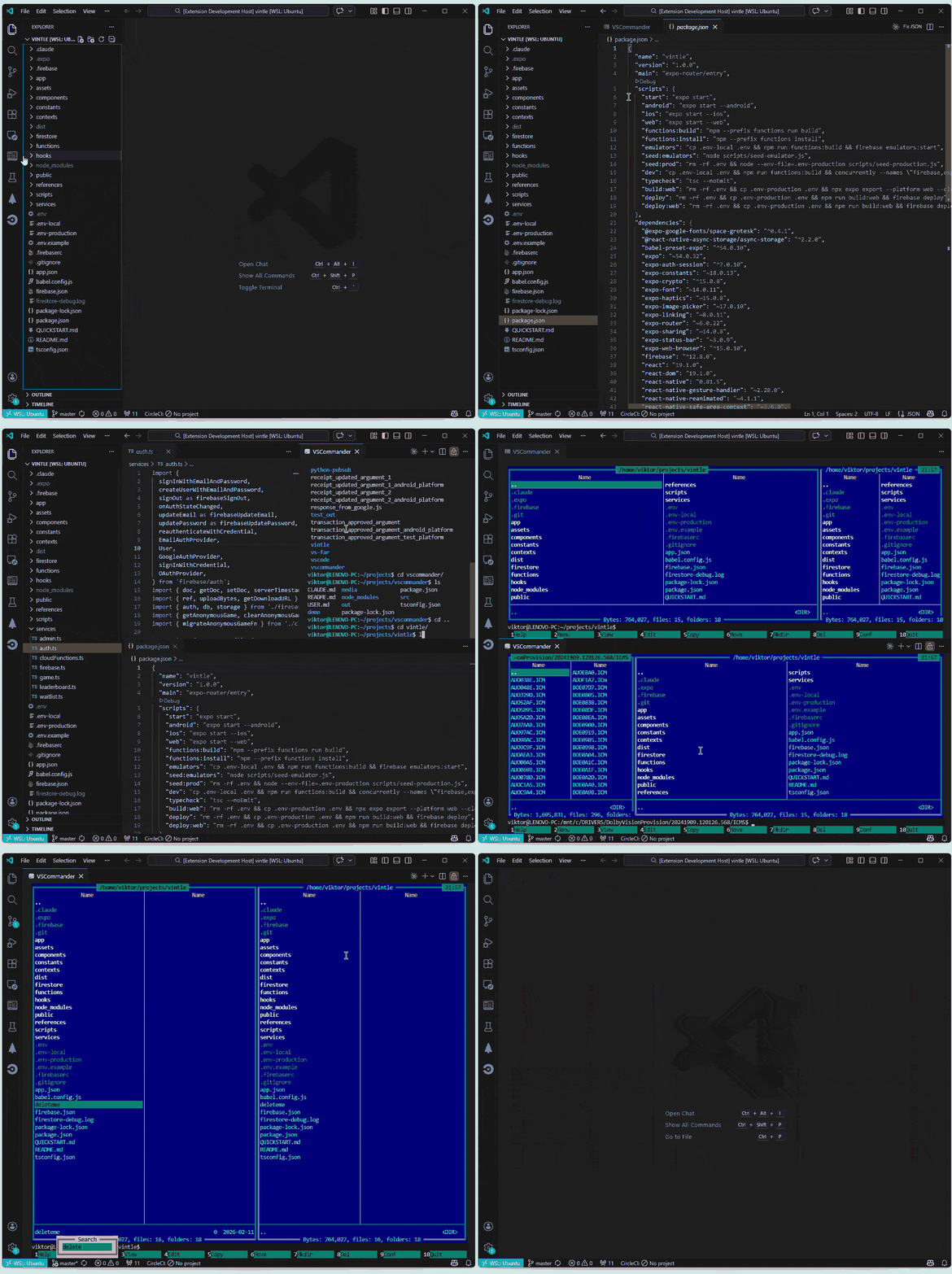
Ctrl+Qpreviews files in a VS Code split editor; shows directory info (sub-directory/file counts, total size) for directories - Half-panel mode:
Ctrl+Phides one pane to show color-rich terminal output alongside your files; commands run inline without hiding the panel - Multi-column layout: 1, 2, or 3 file columns per pane (configurable)
- User Menu (F2): Configurable shell command launcher with hotkey navigation, variable substitution (
!.!filename,!\directory,!&selected files,!?prompt?!interactive input), in-menu editing, submenus, and dual-scope storage (user/workspace) - Top menu bar: F9 opens a Far Manager-style menu with Left, Files, Commands, Options, Right menus for sorting, column layout, and all panel operations
- Built-in help system: Press
F1for a Far Manager-style help viewer with topic navigation, scrollable content, hotkey highlighting, and link following - Archive browsing: Navigate into ZIP, TAR, 7Z, and RAR archives as if they were directories; view, extract, add, delete, and move files within archives (ZIP and 7Z support full write operations)
- Sorting: Sort each pane independently by name, extension, size, date, or unsorted
- File operations: F5 Copy, F6 Move/Rename with overwrite handling and progress display
- File selection: Insert to toggle selection, batch operations on selected files
- Internal file viewer: F3 opens a full-screen viewer with text/hex modes, word wrap, search (regex, hex, case-sensitive), encoding cycling (UTF-8/Latin-1/UTF-16LE), and lazy chunk loading for large files
- Function key bar: F3 View, F4 Edit, F5 Copy, F6 Move, F7 Mkdir, F8 Delete, F9 Config, F10 Quit
- Mouse support: click to select files, switch panes, activate popup buttons, scroll with the wheel
- Color themes: classic Far Manager theme or auto-adapting VS Code theme; theme selection popup with live preview
- Interactive color editor: F9 > Options > Edit colors -- visual 16-color palette, hex input, live preview for all 39 theme elements
- In-memory settings: all changes are instant and in-memory; explicitly save or delete persisted settings via F9 > Options when ready
- Configurable key bindings: remap any panel action to a different key via settings
- Cross-platform: Linux, FreeBSD, macOS, and Windows
- Visual Studio Code 1.80 or later
- Node.js (for building from source)
git clone https://github.com/vmisoft/vscommander.git
cd vscommander
npm install
npm run compile
Then press F5 in VS Code to launch the Extension Development Host.
- Open the Command Palette (
Ctrl+Shift+P) and run VSCommander: Open Terminal - The dual-panel file manager appears in a terminal tab
- Press
Ctrl+Oto toggle the panel off and use the shell, then again to bring it back
| Key | Action |
|---|---|
Ctrl+O |
Toggle file manager panel on/off |
Tab |
Switch between left and right pane |
Enter |
Open directory / open file in editor / enter archive |
Up / Down |
Navigate file list |
PgUp / PgDn |
Scroll by page |
Home / End |
Jump to first / last entry |
Alt+letter |
Quick search |
Alt+F1 / Alt+F2 |
Change drive popup (left / right pane) |
Ctrl+H |
Toggle dotfile visibility |
Ctrl+P |
Half-panel mode (show terminal in one pane) |
Ctrl+Q |
Quick View -- preview file in VS Code split editor |
Ctrl+Left / Ctrl+Right |
Resize panes |
F1 |
Help -- built-in help system |
F3 |
View -- highlight file in VS Code Explorer |
F4 |
Edit -- open file in VS Code editor |
F5 |
Copy files to other pane |
F6 |
Move / rename files |
F7 |
Make directory -- create directories or symbolic links |
F8 |
Delete selected file or directory |
F9 |
Open top menu bar (Left / Files / Commands / Options / Right) |
F10 |
Close panel and return to shell |
Alt+Enter |
Detach to fullscreen / reattach |
| Setting | Default | Description |
|---|---|---|
vscommander.theme |
"far" |
Color theme: far (classic) or vscode (matches active theme) |
vscommander.showDotfiles |
true |
Show hidden files (dotfiles) |
vscommander.clock |
true |
Show clock in the top-right corner |
vscommander.panelColumns |
2 |
File columns per pane (1, 2, or 3) |
vscommander.keyHelp |
F1 |
Key binding for Help |
vscommander.keyView |
F3 |
Key binding for View |
vscommander.keyEdit |
F4 |
Key binding for Edit |
vscommander.keyCopy |
F5 |
Key binding for Copy |
vscommander.keyMove |
F6 |
Key binding for Move/Rename |
vscommander.keyMkdir |
F7 |
Key binding for Mkdir |
vscommander.keyDelete |
F8 |
Key binding for Delete |
vscommander.keyMenu |
F9 |
Key binding for Menu |
vscommander.keyQuit |
F10 |
Key binding for Quit |
vscommander.keyQuickView |
Ctrl+Q |
Key binding for Quick View |
vscommander.key* |
-- | All panel actions are remappable (see USER.md) |