Debugging with DebugView
SysInternals DebugView may be used when the PSF is present. It typically is useful to diagnose launching issues, including any scripts requested to be run by the launcher. Separately, debugging may also be accomplished with PsfTraceFixup/PsfMonitor or with SystemInternals Process Monitor.
The PSF will write information in certain situations to the debug console port. This information is easily viewed by running the SystemInternals tool 'DebugView'. DebugView is typically run from outside of the container to monitor what the PSF is doing. Other software also uses the debug port and their events may be intermixed with those of the PSF, but the PSF entries are generally recognizable once you have viewed some of it. For example, the Microsoft AppInstaller GUI used to install UWP/MSIX packages emits events to this port. You can also save the captured output in DebugView to a file, and view the file using 'ParsePsfDebugLog', a free tool from TMurgent that is part of the 'TMEditX Tools' package, which makes the voluminous output more understandable.
The primary use of debugging an MSIX package that contains the PSF is to monitor the actions of PsfLauncher. PsfLauncher always emits logging information about its activities to the debug console port. The PsfRuntime dll, which is used in PsfLauncher and target application processes also always emit logging information about their startup and the launching of any child processes.
Current Behavior: For performance reasons, the normal release build of PSF Fixup dlls do not emit to the console debug port. However the debug versions of those Fixup dlls emit a lot of information when used. This is primarily of interest to a developer working on the Psf, but it might be enlightening to others to better understand their issue.
Upcoming Behavior: In a future version of the PSF, the release build will have a config.json control over the amount of debug information produced by the release build of the PSF. This will allow you to select the amount of debugging you would like when building your package. A value of 1 only outputs exceptions triggered in the PSF, while 2 outputs what the release build had before, that is information about the PsfLauncher and PsfRuntime activities. A value of 4 provides the level of output previously seen in the Debug build. There is also a level of 7 which is the maximum level and useful only when debugging PSF code itself. A value of 0 disables all logging, but this is not recommended.
Below is a typical startup of a MSIX package with the PSF:
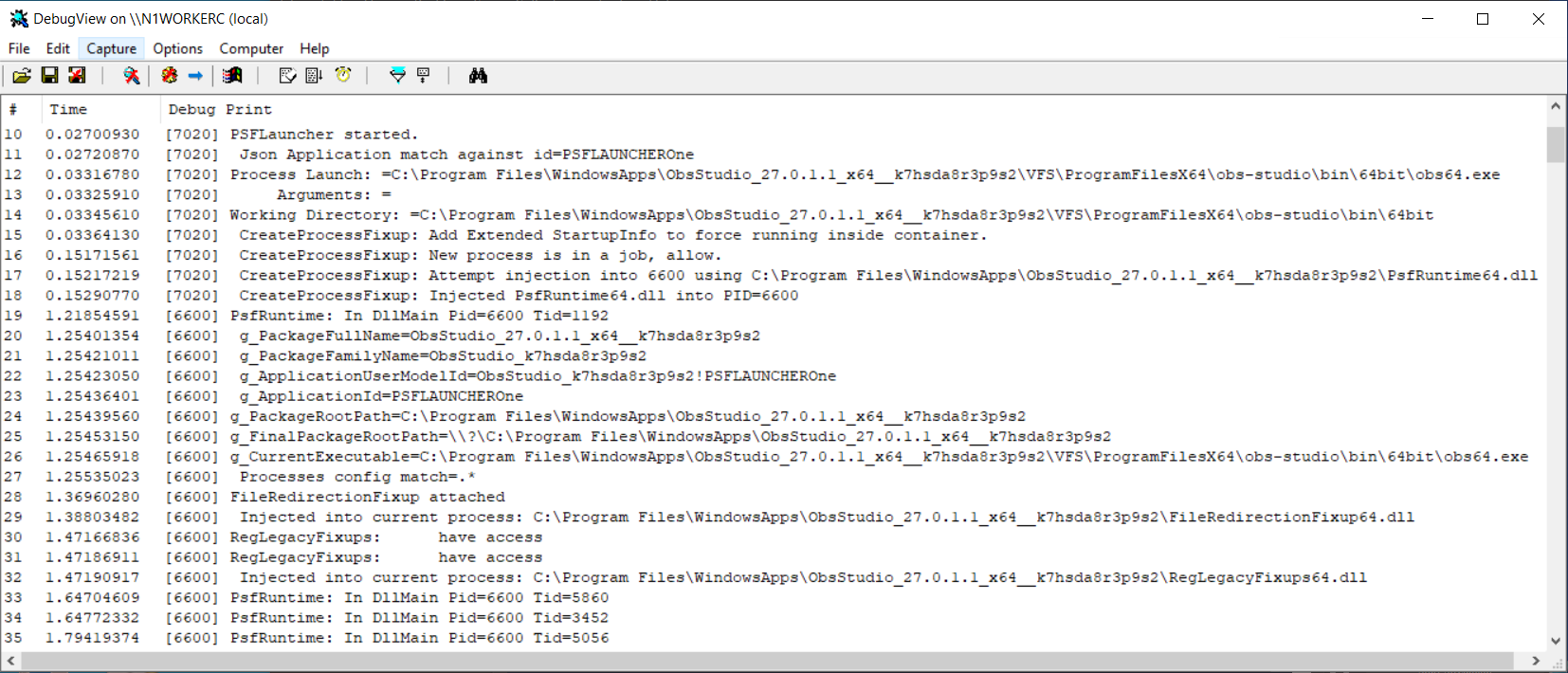
Keep in mind that the information emitted will vary from time to time as the PSF evolves. The text on each event, such as [7020] is the Process ID that generated the event. In our case this is a file called Psflauncher1.exe. Information on some of those events are:
- The event on Line 10 of the image is when the launcher started.
- On line 11, the config.json file has been read in and the Applications section processed to find a matching id to our process name.
- Lines 12-14 show information about the target application to be launched.
- Lines 15-18 contain information about how the new process (the target application) will be started and how the PsfRuntime dll will be injected into it.
- Lines starting with line 19 are the new application process (note the change in Process ID to 6600).
- Lines 19-26 are boilerplate from the PsfRuntime dll to show that it is running in the new process and what MSIX Package information is available from the container.
- We may (but do not in this trace) see information about PsfRuntime searching to find the config.json file. If present in the trace we would only care if it were not eventually found.
- Line 27 indicates that the config.json file has been read by this new process, and that the processes section has found a match in the file that contains the desired configuration.
- Lines 28-32 show the additional fixups being loaded in.
- In the default psfDebugLevel, only the start of additional processes inside the container, new threads being added or removed from managed processes, and some final messages from the PsfLauncher process (as it shuts down after the target application completes), should appear from the PSF. Increasing the
psfDebugLevelvalue in the Config.Json will enable additional logging of api calls intercepted by the PSF fixup components.
Note1: If PsfTraceFixup is included in the package and configured to emit to the debug console port, that information is also shown with DebugView. It is recommended to configure PsfTraceFixup to emit to the Windows Event Logs and use PsfMonitor instead, as a single line of output in PsfMonitor equates to about 20 events in DebugView.
Note2: ParsePsfDebugLog provides a GUI that will organize the information, first by the processId that generated the data, but also combining the multiple lines that make of a logical event. When viewing a process, you will see two line entries per logical event that provide information on what was requested on the first line and the end result on the second. Open the expander on the logical event to see the full detail from the output. Color coding is also provided to separate out file from registry calls, for example. ParsePsfDebugLog is part of the free community tools "TMEditX Tools", an MSIX package available from TMurgent.com