Using LEDText for Text
LEDText can only draw text (shocker). For simple shapes made of lines and rectangles, please see Using LEDMatrix for Shapes. For complex shapes that require pixel-by-pixel design, see Using LED int arrays.
LEDText provides a simple way to display scrolling text. It can also be hacked around a bit to display static text. I'm going to go over the basics here, but you should really head over to its own wiki.
When setting up your project, create a config.h file and a declarations.h file in the same folder as your sketch .ino file, then add them to the workflow under Sketch > Add File.
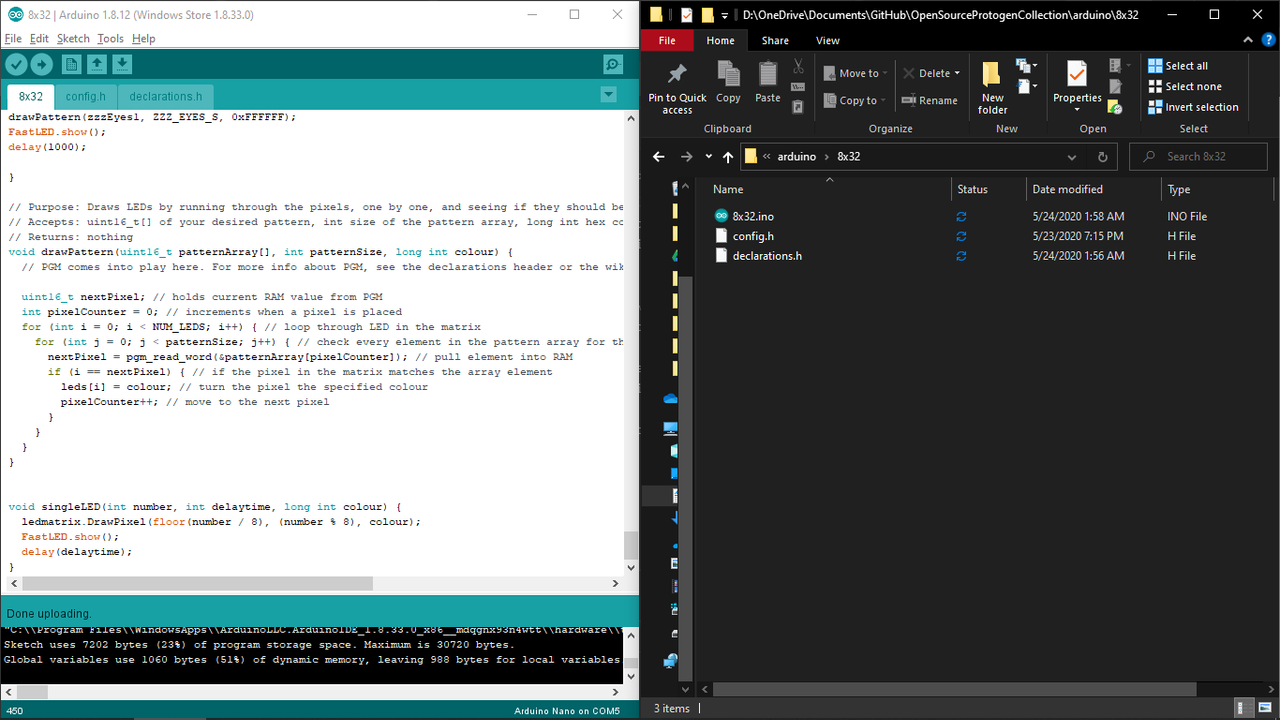
To begin using LEDText, first make sure you have all of the essential declarations in your main file, as well as your config.h.
config.h:
#ifndef config_h
#define config_h
#include <FastLED.h>
#include <LEDMatrix.h>
#include <Font12x16.h>
#include <Font16x24.h>
#include <FontMatrise.h>
#include <LEDText.h>

#define MATRIX_TILE_WIDTH   8 // width of matrix (not total display)
#define MATRIX_TILE_HEIGHT  32 // height of matrix
#define MATRIX_TILE_TYPE VERTICAL_ZIGZAG_MATRIX
#define MATRIX_BOARD_CHIP WS2812B
#define MATRIX_TILE_H       1  // number of matrices arranged horizontally
#define MATRIX_TILE_V       1  // number of matrices arranged vertically
#define COLOR_ORDER GRB // hardware-dependent
#define LED_PIN 6 // pin where matrices are connected
#define NUM_LEDS MATRIX_TILE_WIDTH * abs(MATRIX_TILE_HEIGHT)

#define BRIGHTNESS 5 // brightness of LEDs
#endif
main:
#include "config.h" // this file includes our libraries and device-specific variables
#include "declarations.h" // this file includes variables for LED patterns

// creating the matrix using LEDMatrix
// note that height and width are flipped in this example due to TILE_TYPE
// for further clarification on this, see the LEDText wiki
cLEDMatrix <MATRIX_TILE_HEIGHT, MATRIX_TILE_WIDTH, MATRIX_TILE_TYPE> ledmatrix;
// creating a pointer to the matrix so FastLED can still operate
CRGB *leds = ledmatrix[0];
// declaring LEDText
cLEDText ScrollingMsg;

void setup() {

  // instantiate FastLED
  FastLED.addLeds<MATRIX_BOARD_CHIP, LED_PIN, COLOR_ORDER>(ledmatrix[0], ledmatrix.Size());
  FastLED.setBrightness(BRIGHTNESS);

  // instantiate LEDText
  ScrollingMsg.SetFont(MatriseFontData);
  ScrollingMsg.Init(&ledmatrix, ledmatrix.Width(), ScrollingMsg.FontHeight() + 1, 0, 0);
}

void loop() {
 // this is where your pattern commands will live soon
}

// Purpose: Draws LEDs by running through the pixels, one by one, and seeing if they should be lit up according to their array
// Accepts: uint16_t[] of your desired pattern, int size of the pattern array, long int hex code
// Returns: nothing
void drawPattern(uint16_t patternArray[], int patternSize, long int colour) {
  // PGM comes into play here. For more info about PGM, see the declarations header or the wiki

  uint16_t nextPixel; // holds current RAM value from PGM
  int pixelCounter = 0; // increments when a pixel is placed
  for (int i = 0; i < NUM_LEDS; i++) { // loop through LED in the matrix
    for (int j = 0; j < patternSize; j++) { // check every element in the pattern array for the current LED
      nextPixel = pgm_read_word(&patternArray[pixelCounter]); // pull element into RAM
      if (i == nextPixel) { // if the pixel in the matrix matches the array element
        leds[i] = colour; // turn the pixel the specified colour
        pixelCounter++; // move to the next pixel
      }
    }
  }
}
Alright, now that you're set up, let's get started. In your declarations.h, add the following:
const unsigned char arrayName[] = " Desired Text";
Let's break this down:
const: This array is a "constant". It can't be changed during the program.
unsigned char: This array will be filled with unsigned characters, ie every keystroke you want to display.
arrayName: This is the name of your array. Name it something appropriate, so when you go to use it you won't forget what it is. For example, if this text scroll says "I'm hungry", consider naming it hungryText.
[]: Indicates this is an array of character rather than just one single character.
[a bunch of spaces]: This sets the text so that it's offscreen when the text scroll starts. If you want the text to just appear instead of scrolling on, remove these spaces.
"Desired Text": Put the text you want here.
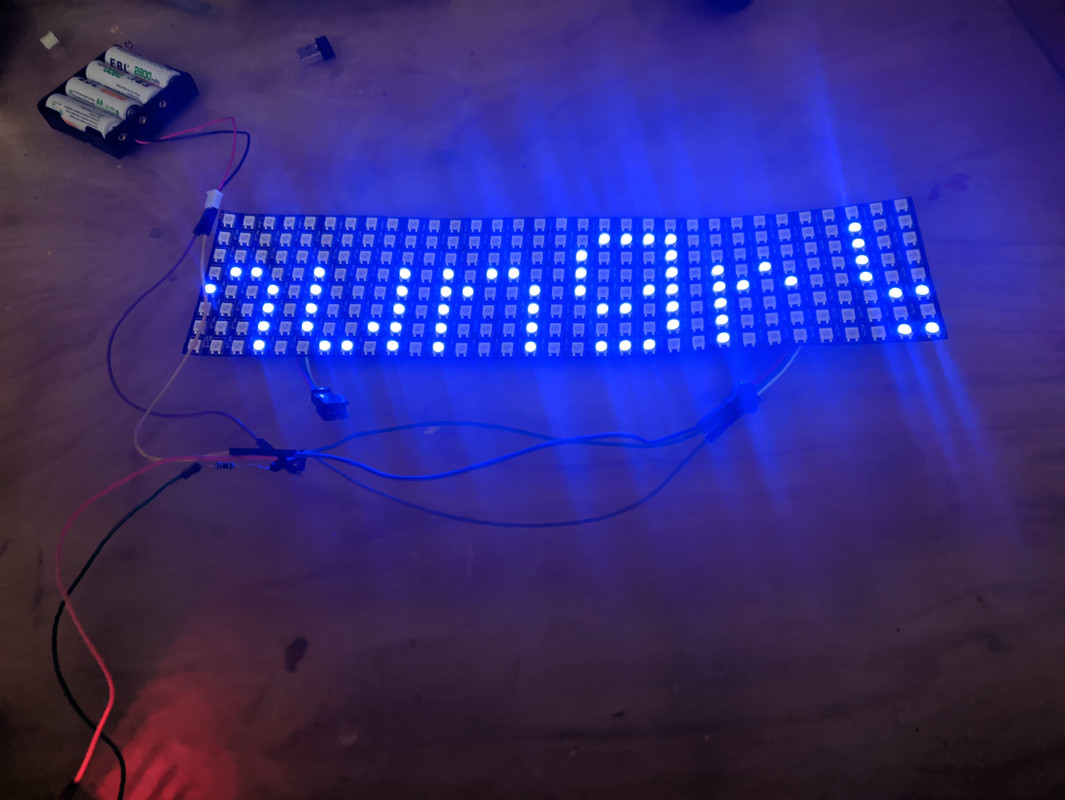
So, let's design a text crawl that says we're hungry:
const unsigned char hungryText[] = " I'm hungry";
Nice. Now, let's head back to our main sketch and put this into our loop:
  FastLED.clear();
  if (ScrollingMsg.UpdateText() == -1) {
    ScrollingMsg.SetText(hungryText, 16); // for this number, put the number of characters in the message (including spaces)
    ScrollingMsg.SetTextColrOptions(COLR_RGB | COLR_SINGLE, 0x00, 0x00, 0xff); // this is a hex colour code (0000ff)
  }
  else
    FastLED.show();
  delay(40); // decreasing this number will speed up the scroll
Upload the code to your microcontroller, and with any luck you should have the display telling you it's hungry. If not, and you're having trouble debugging your code, open an Issue or contact me on Telegram.